Roles and User Setup
Creating User Rights Roles
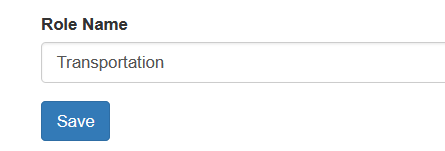
Users are assigned a specific role within Sprout. That role gives rights to the user within the system. Users are never assigned rights directly. To create a role go to System - Roles. Give the new role a name and click Save
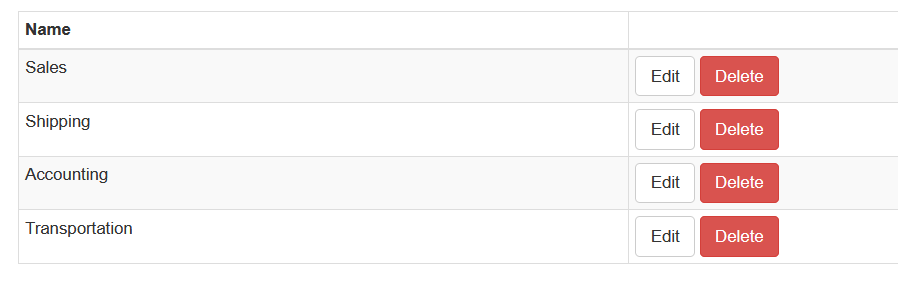
Sprout comes with initial roles preloaded. Users are free to add, edit or delete these.
You will get a green box saying the role was successfully created.
Modifying Rights within a Role
For a role to allow a user to access certain functions within Sprout you must click Edit on that role. That will take you to the role maintenance screen.
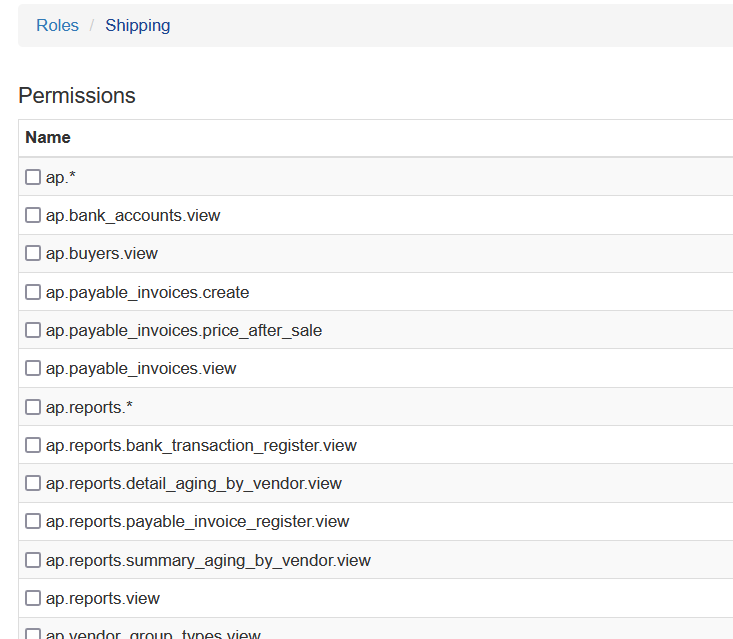
Rights are separated in to function area which goes along with the options across the top of the Sprout screens.
Rights
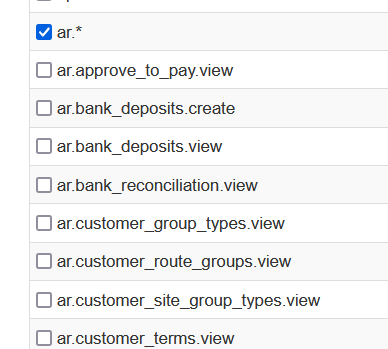
The first line in a section is the global rights, it is indicated by the *. If the role had ap.* for example it would give every right under that heading. ap.reports.* for example would give every right under AP Reports.
If a user only needed a specific right, you would check the single box next to that.
In the example below, with ar.* checked, all rights under the AR menu.
User Setup
Once user roles are created you can set up individual users and assign the roles to them.
Adding New Users
Under System - Users at the bottom of the user list is the New User Button. Click this button to add a new user
The new user screen is displayed.
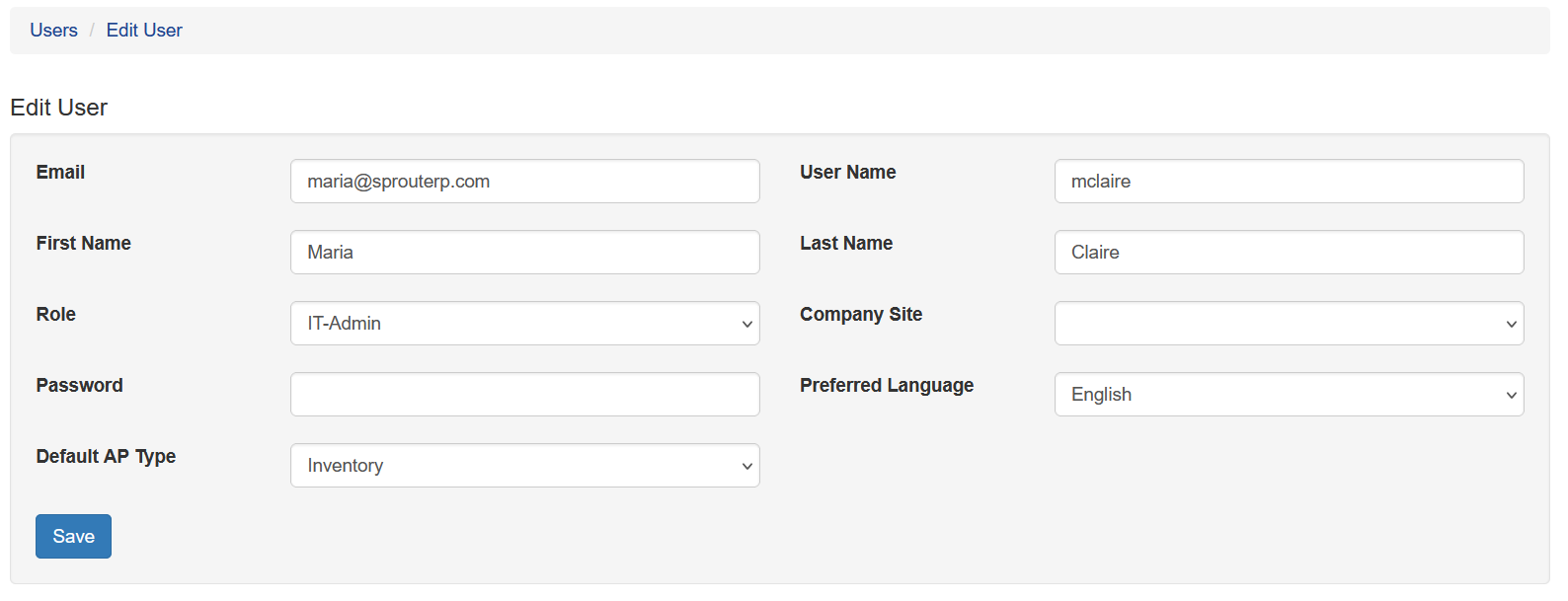
Email: The users email address
Username: This is typically the portion to the left of the @ in the email address. The username is what shows up in the audit logs, on reports, etc indicating what user did what.
First Name/Last Name: The users name
Role: The role that includes rights, configured in a prior section
Company Site: This is the default site a customer works in. This is used when a user adds items like POs or Sales Orders. The record defaults to the users Company Site
Password: The password is not displayed when typed
Preferred Language: Sprout has multilingual support on certain screens. The preferred language option determines what language is displayed when multilingual options are available.
Default AP Type: Optional. Allows a user to have a default AP type set so when an AP entry is created the default type is preloaded.
Once that data is entered click Save.
Changing User Roles
If a user's role changes within the company you can update their role by finding the user in System - Users. Click edit and then change the role. Be sure to click Save.
Changing a User Password
To change the user’s password, find the user in System - Users. Click edit and then change the password. Be sure to click Save