Applying Payments
Use a Cash Receipt to record money received from a customer and apply it to one or more open invoices. A cash receipt may be saved when it is unapplied, partially applied, or fully applied.
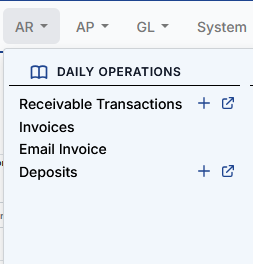
View receivable transactions
Go to Accounts Receivable > Receivable Transactions.
The transaction list displays the workflow in the Type column, such as Cash Receipt, Manual Credit, Item Credit, or Deposit. Use the Type filter to limit the transactions displayed.
The Add Transaction button is available when you have permission to create at least one type of receivable transaction.
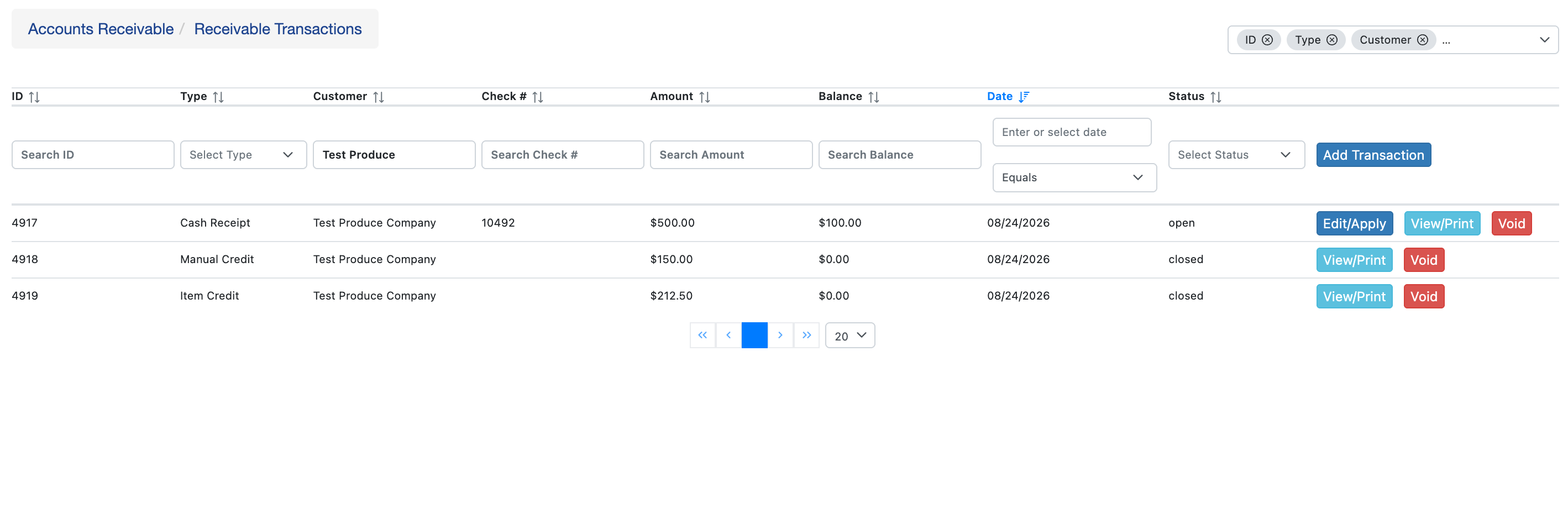
Start a cash receipt
- Select Add Transaction.
- Set Type to Cash Receipt.
- Search for and select the customer. The customer’s open invoices appear under Invoice Applications.
- Enter the receipt Amount and Check Number.
- If applicable, enter the Check Date.
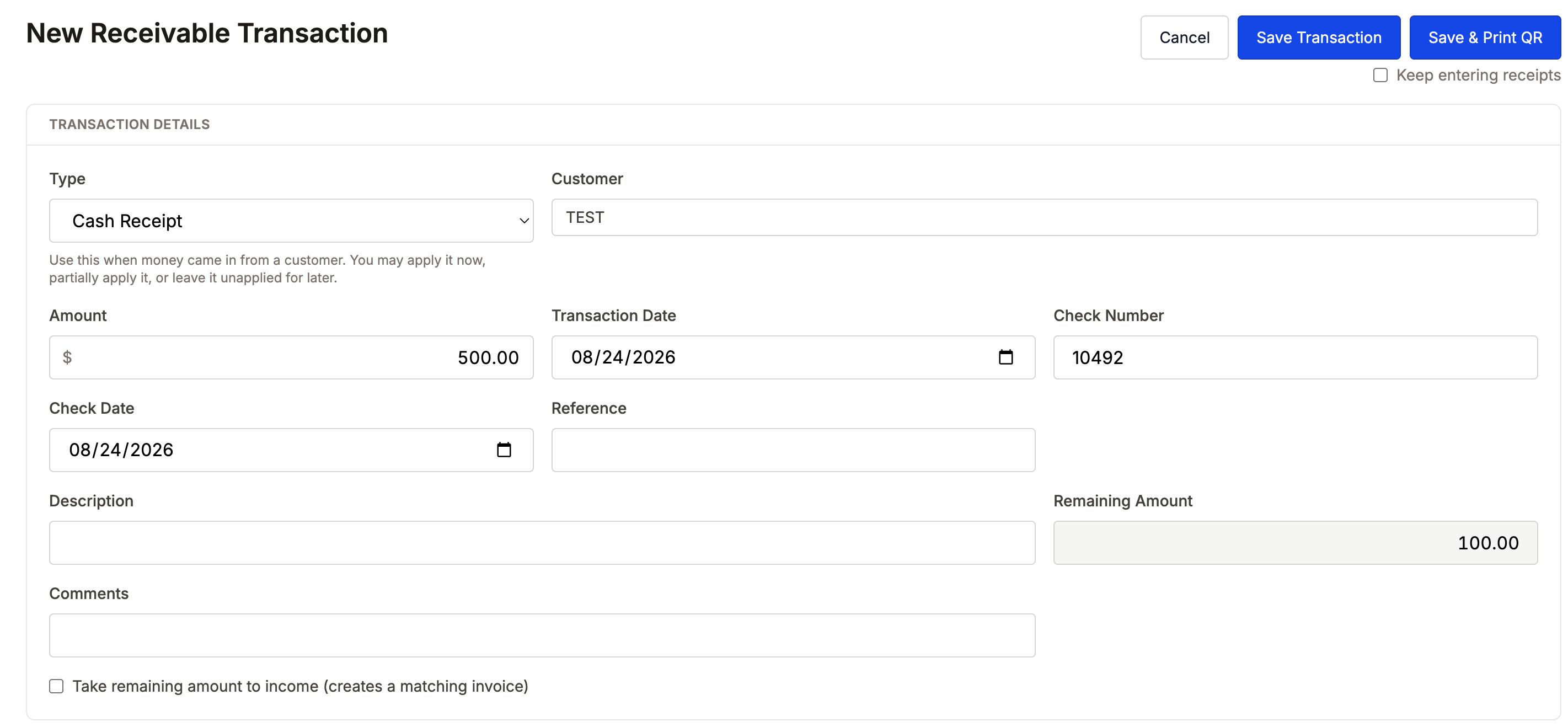
The Type list includes only the transaction workflows you have permission to create. If you change the Type before saving, fields belonging to the previous workflow are cleared.
Apply the receipt to invoices
Enter an Amount to Apply for each invoice that should receive part of the payment.
You can also:
- Double-click an invoice balance to apply the maximum available amount.
- Select Auto Apply Remaining to apply the remaining receipt amount to the oldest invoices first.
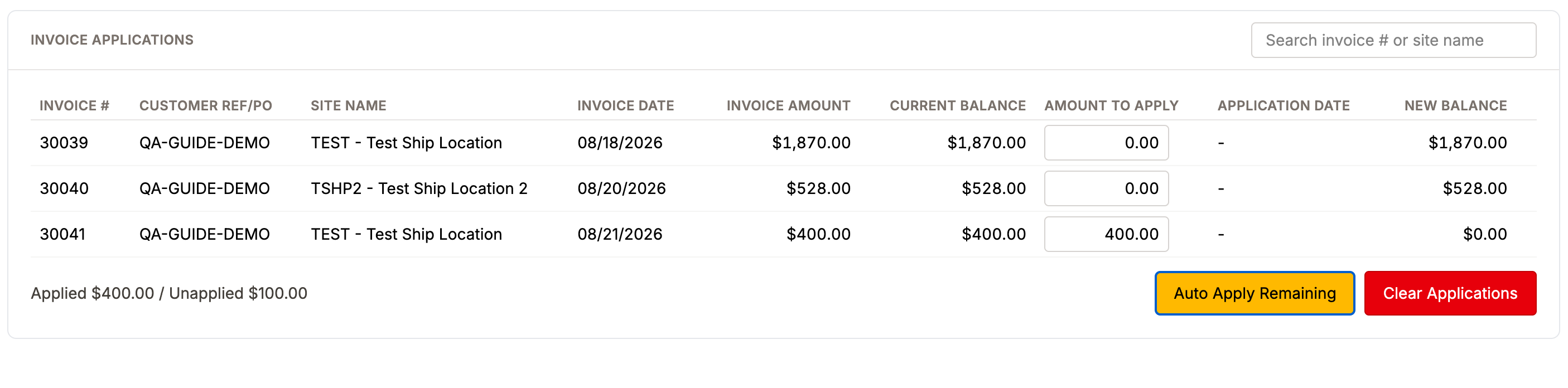
The application summary displays the total applied and unapplied amounts. Remaining Amount shows the portion of the receipt that has not yet been applied.
An application cannot exceed the invoice’s open balance.
Handle an overpayment
A cash receipt may be saved with an unapplied balance. The receipt remains open so the balance can be applied later.
To close the receipt and move the unapplied balance to income, select Take remaining amount to income (creates a matching invoice) before saving.
Save the receipt
Select Save Transaction.
The receipt’s status depends on the amount applied:
- A fully applied receipt closes.
- An unapplied or partially applied receipt remains open.
- If the remaining amount is taken to income, the receipt closes and a matching income invoice is created.
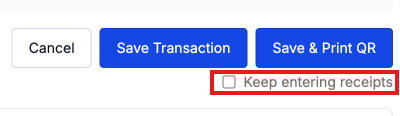
Select Keep entering receipts if you want a fresh Cash Receipt form to open after each save.
An invoice that is paid in full no longer appears in the open-invoice list for the next transaction.
Edit or apply an open receipt
An open cash receipt can be reopened to apply its remaining balance. The transaction Type is locked after the transaction has been created.
Closed and voided transactions are read-only and cannot be edited.