Automatic Emails
Automatic Email System
Sprout can automatically send emails to customers once an invoice is billed. This is configured under AR - Customer - Accounting Tab. This can be set for both the customer and the customer site independently.
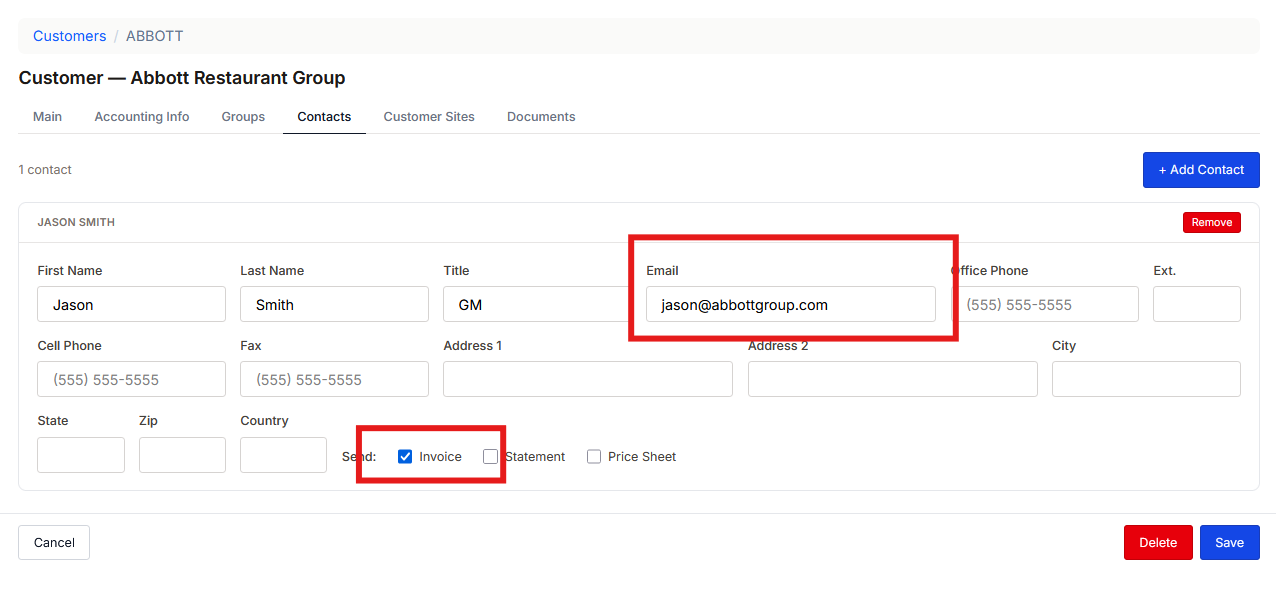
Configuring Invoice Recipients
At least one contact must be set and marked as Invoice for the customer. If this is being done at the customer site at least one cusotmer site contact must be marked as invoice.
Configuring Automatic Emails
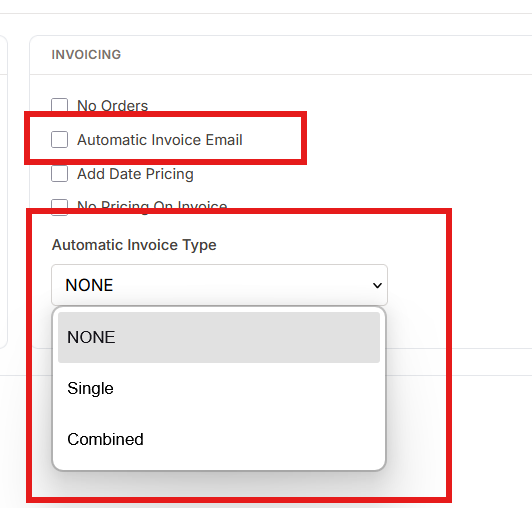
On the Accounting tab under customers select Automatic Invoice Email. Then choose the type.
Single: One invoice per email
Combined: All available invoices are sent as a single PDF in one email. NOTE: This can be very time consuming. Please contact support if this option is chosen for a customer.
Sending Automatic Invoices
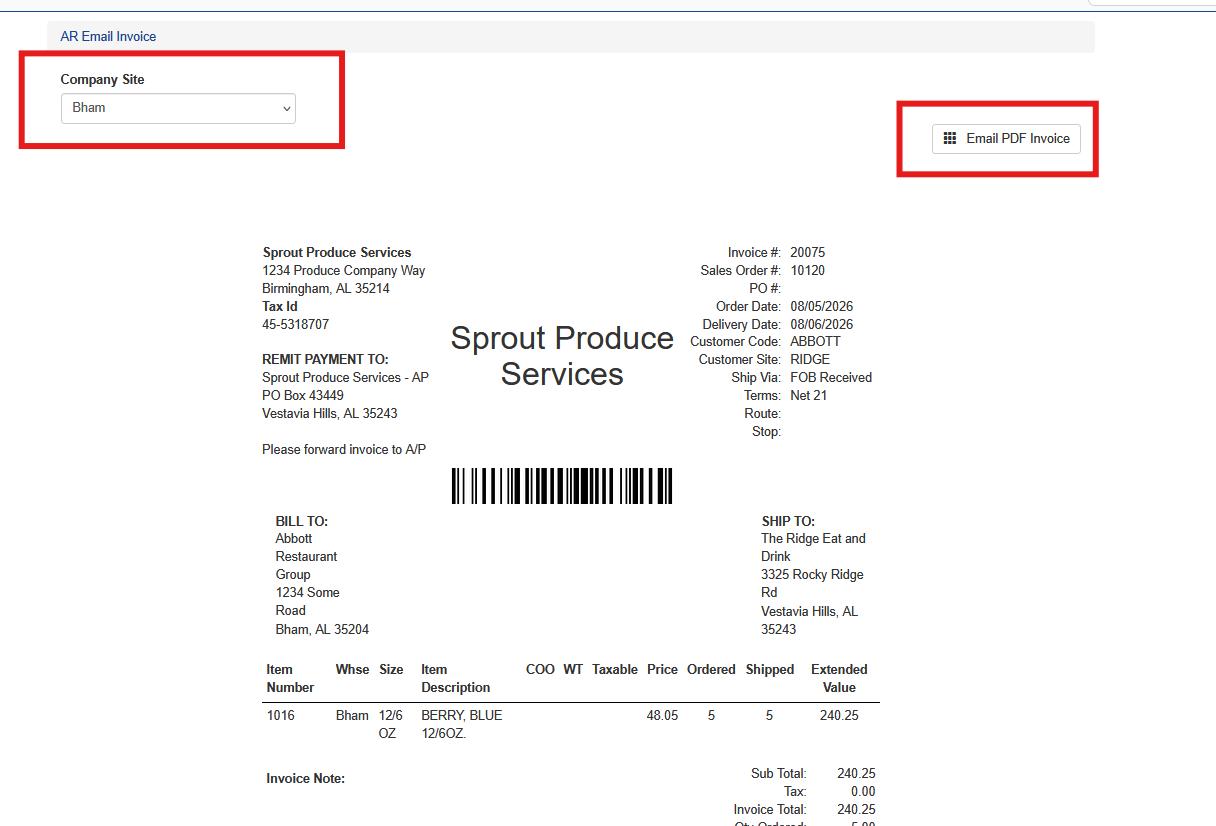
To send the automatic invoices choose AR - Email Invoices and select the Company Site. All available invoices will show up for the company site, then click Email PDF Invoice and all emails will be sent.
Transmit Status
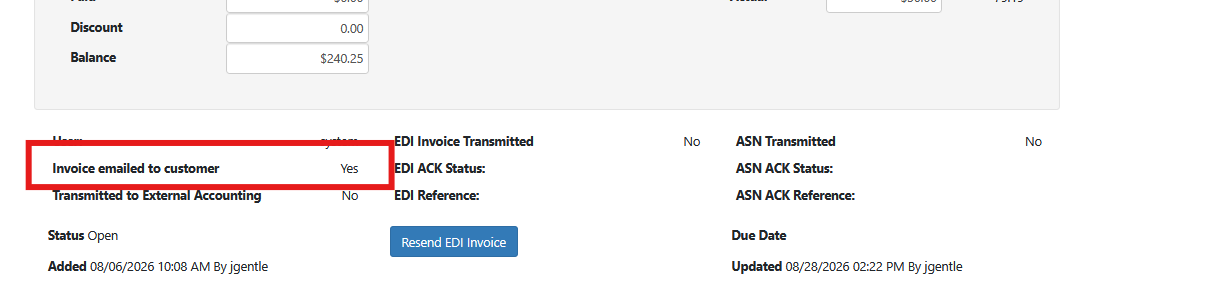
On the invoice record, located under AR - Invoice the email status will show as Invoice emailed to customer - Yes if the email was successfully sent.
Customer Site Override
If a customer wants emailed invoices sent directly to a per-customer site address the Automatic Emails and Contact settings are added at the AR - Customer - Customer Site tab and not on the Customer tab.