Customer Specs (Order Guides)
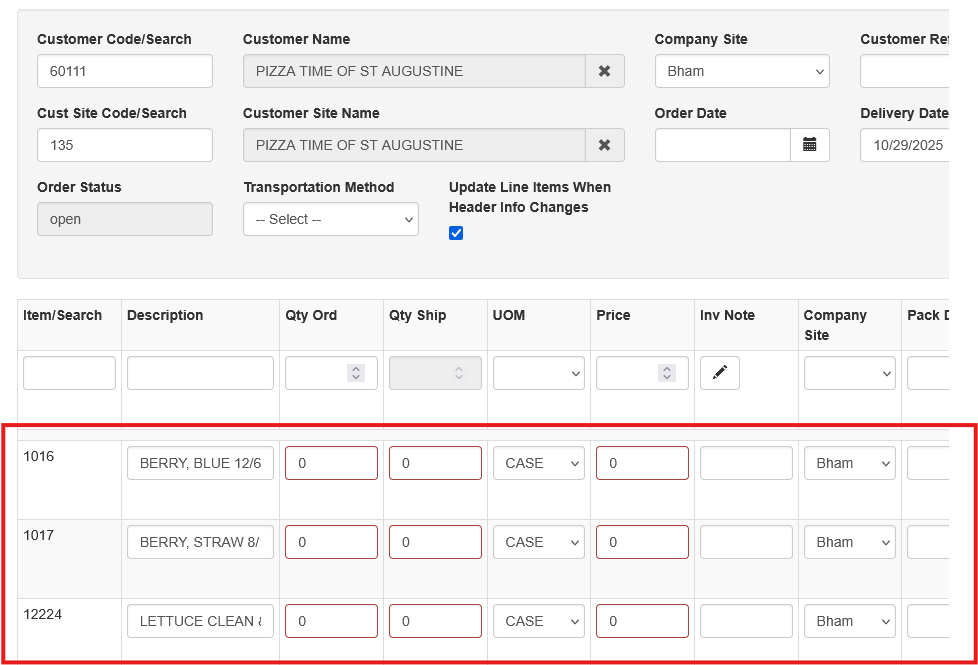
Customer Specs (or Order Guides) act as a template for common customer orders. When a sales order is created, the template automatically loads so the user only needs to enter quantities. This allows users to quickly select items commonly ordered by a specific customer. This helps ensure the correct products are selected during order entry, such as an 88-count red apple instead of a 56-count apple.
Order Guides can be configured at either the Customer level or the Customer Site level. An Order Guide may also be created for a Group of Customers, Customer Sites, or both.
Viewing Order Guides
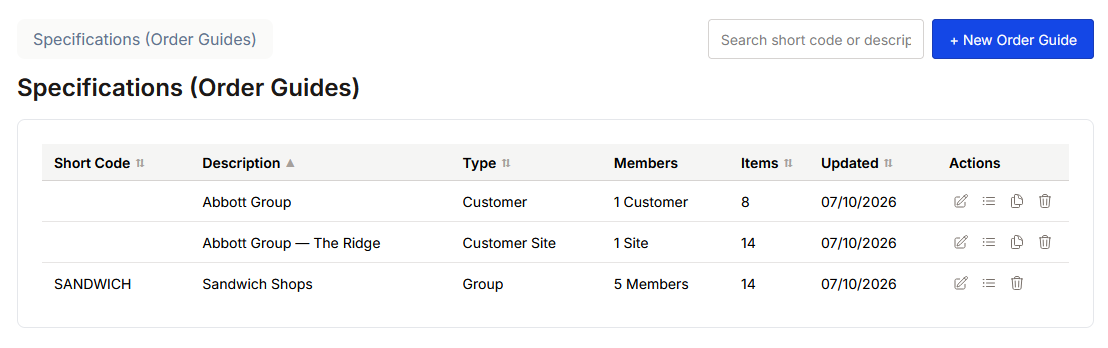
To create or modify Customer Specs select SO → Specifications (Order Guides). Current guides will show here. To edit the guide details, click on the edit icon. To edit or add items to an existing guide choose the list icon. For customer or customer site specific guides, you can copy an existing guides to another customer or customer site.
Creating Order Guides
To add a new specs for a customer choose New Order Guide. Choose what Type of guide you would like to create.

For Customer or Customer Site guides, search for the customer in the fields provided. For Group Guides, first enter a Short Code and Description for your group. Then, click Save. Then, add members to the group by searching for customers in the fields provided.
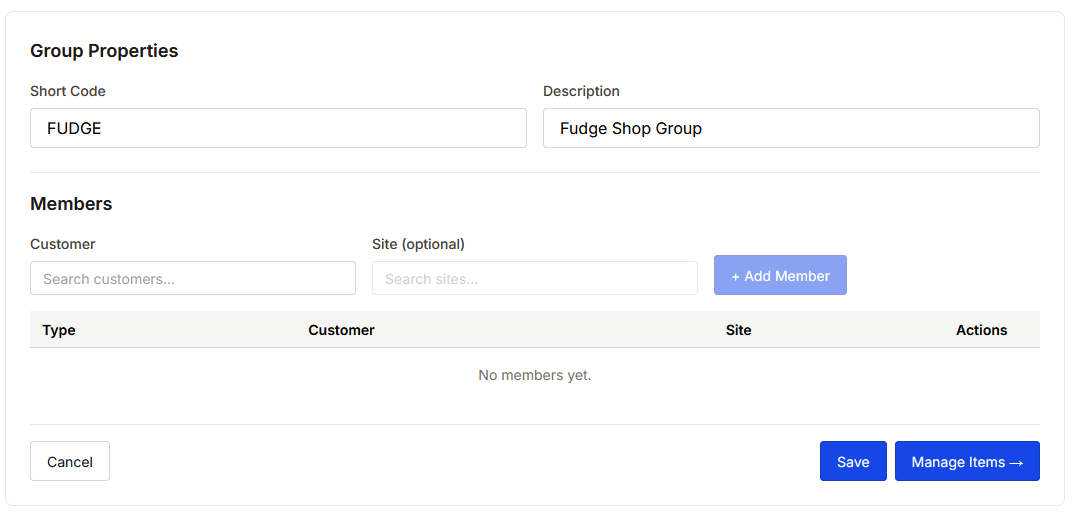
Once you are done adding members to the group, click Save.
Adding and Editing Items
Once the Guide parameters are saved, you can add items to the guide. If you already have Sales Orders in Sprout for that Customer or Group of Customers, you can automatically build the guide based on the items already ordered in Sprout. Click 'Ask Sprout to Build the Order Guide'. (NOTE: this will build a guide based on orders entered within the previous 6 months.)
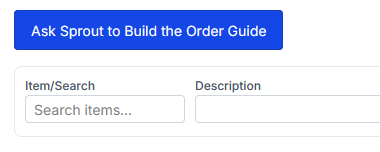
Otherwise, you can add items from the Item search box. Any notes entered here will appear as a note on the Customer's Sales Order. Items can be deleted or reordered from this screen.
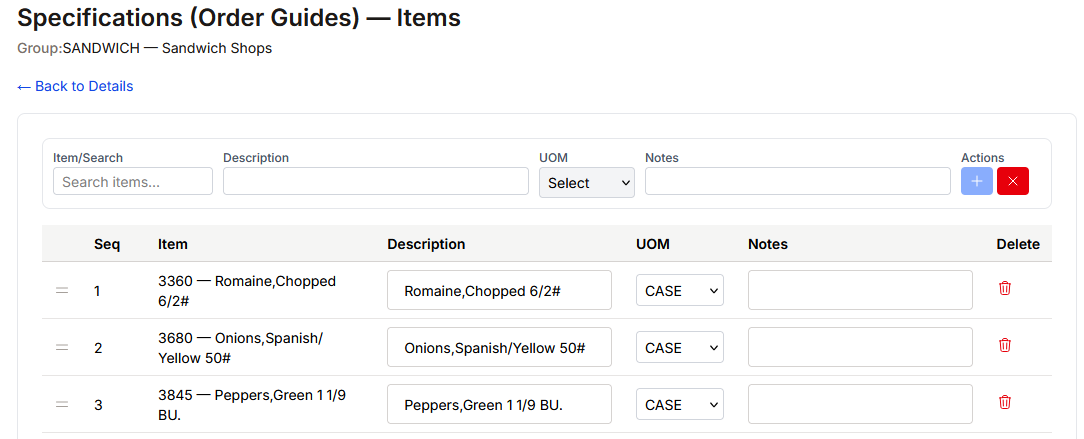
Be sure to click Save Changes when finished.
Entering an Order with Customer Specs
When creating a sales order for a customer with configured specs, the items defined in the specs will automatically appear on the order entry screen.
Enter quantities for the items the customer is ordering. Any items left with a quantity of 0 will automatically be removed when the order is saved.