Expense Payables
Non inventory payables typically include services such as power, water, payroll and other services that do not carry inventory. These payables may or may not be associated with a purchase order.
Expense payables are also used for inbound freight and similar expenses, such as Tectrol. Expenses associated with inbound product is treated differently and should be used via a PO Set. The PO Set allocates freight to the item(s) purchased and correctly allocates those costs to the general ledger. Please refer to the PO set documentation for more details.
Entering Expense Payable
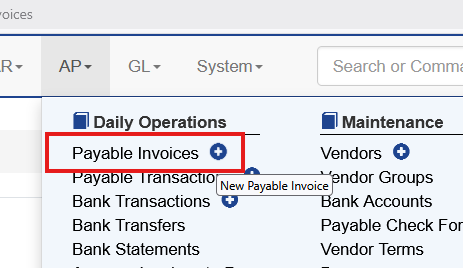
To enter a payable for an expense item choose AP - Payable Invoices. The blue plus sign will immediately start a new entry as well.
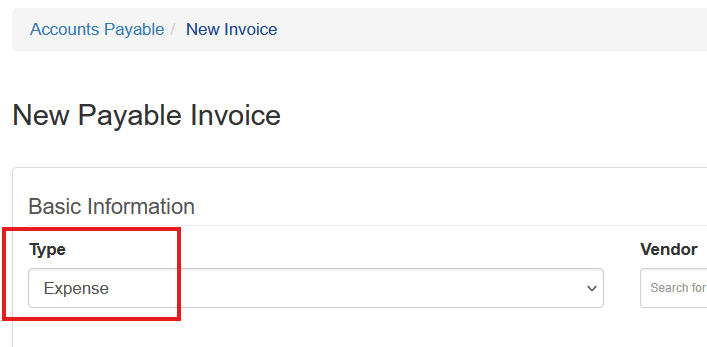
Set the type to Expense
Enter a portion of the vendor’s name and select the vendor from the drop down. Enter the invoice number.
Choose the invoice and due date. If a discount is offered, enter that information.
The payment priority is used to sort payables. If this is not used leave the 1 default setting.
A reference for the invoice can be entered.
The AP GL Account will automatically populate from Vendor’s override GL AP Account if populated, or the GL Default Account settings. The AP GL Account can only be edited if a user’s role has the “ap.payable_invoices.edit_ap_gl_account” right or the “ap.*” right. Otherwise it is locked.
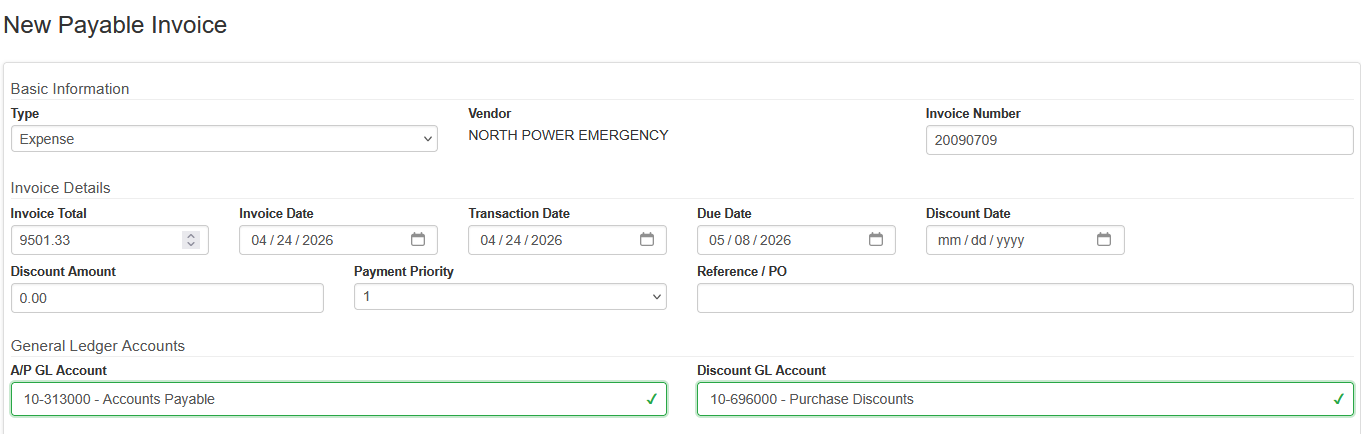
If this payable is NOT associated with a Purchase Order, leave the purchase order number blank. More on expenses with Purchase Orders is below.
If the vendor has a default expense account configured, that account will show up under General Ledger Distributions by default. The user can also add additional distributions by selecting Add Distribution

Once all required information has been entered choose Save Invoice back at the top

Expense Payable With a Purchase Order
When a Purchase Order is created for an expense that purchase order should be added to the payable. This closes out the purchase order and allocates the general ledger entries properly.
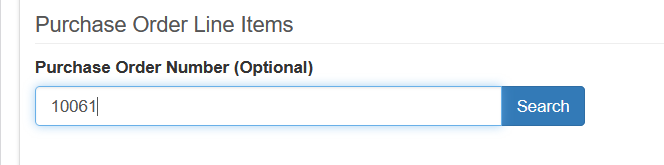
In the Purchase Order Number search box enter the PO associated with the payable and click Search
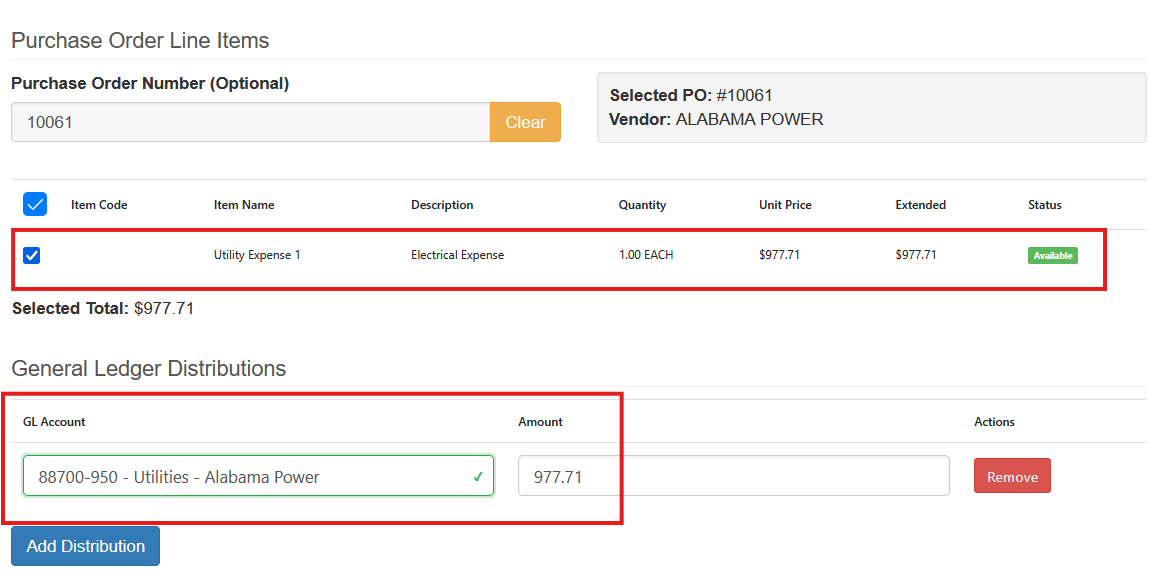
The details of that purchase order will appear. Select the line(s) that are being paid and if needed adjust the distributions. By default, the distributions will come from the vendor settings, but can also be rearranged.
Once all required information has been entered choose Save Invoice back at the top