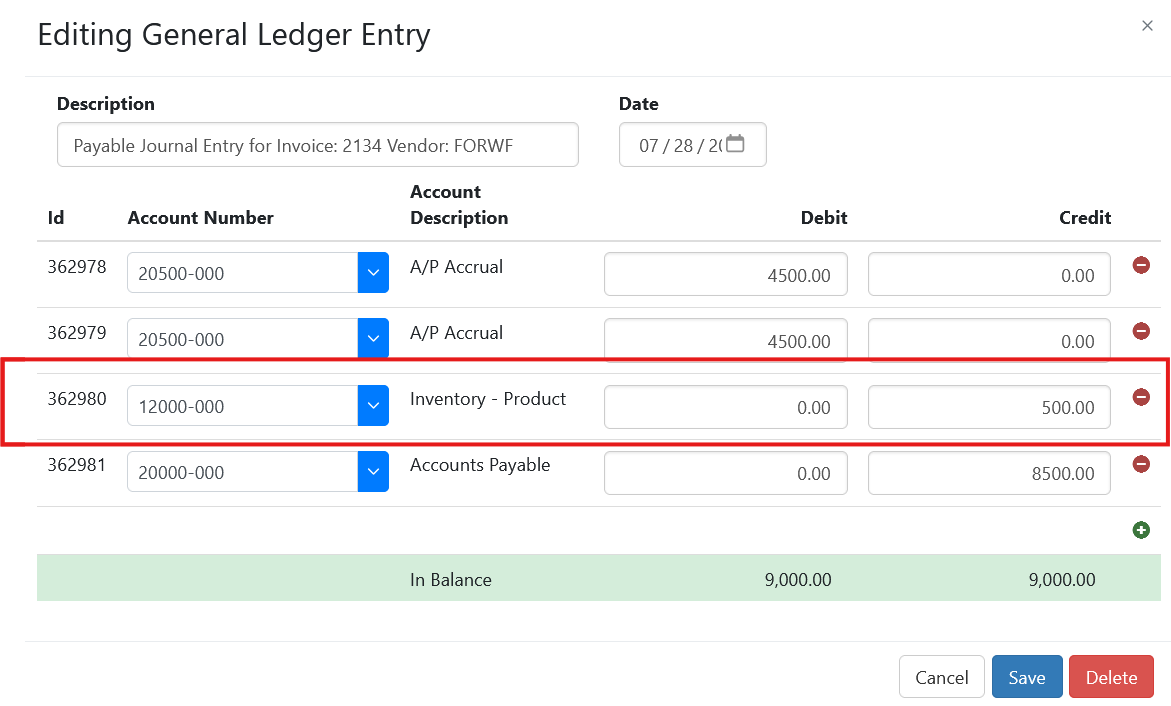
Inventory Payables
Once a Purchase Order (PO) is received and closed it becomes a payable within Sprout. Before it can be paid a payable invoice must be created using the GL entry creation function.
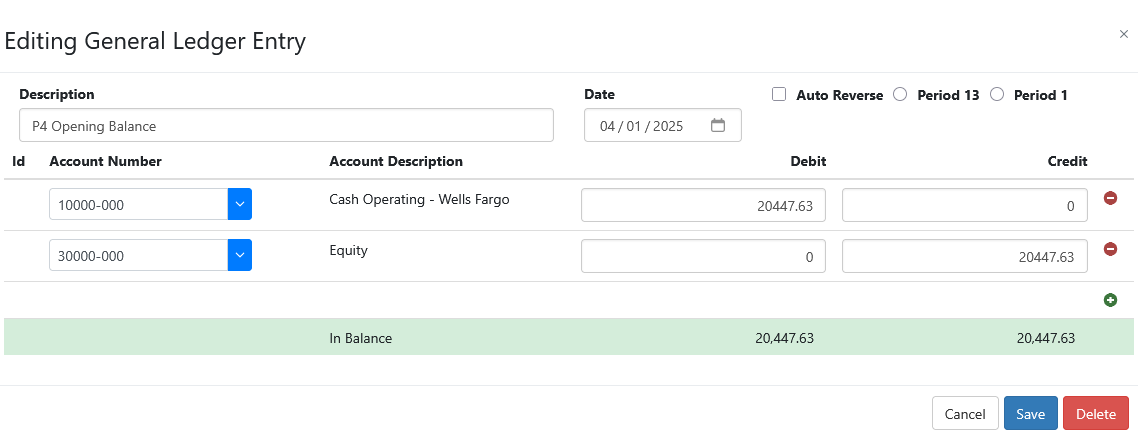
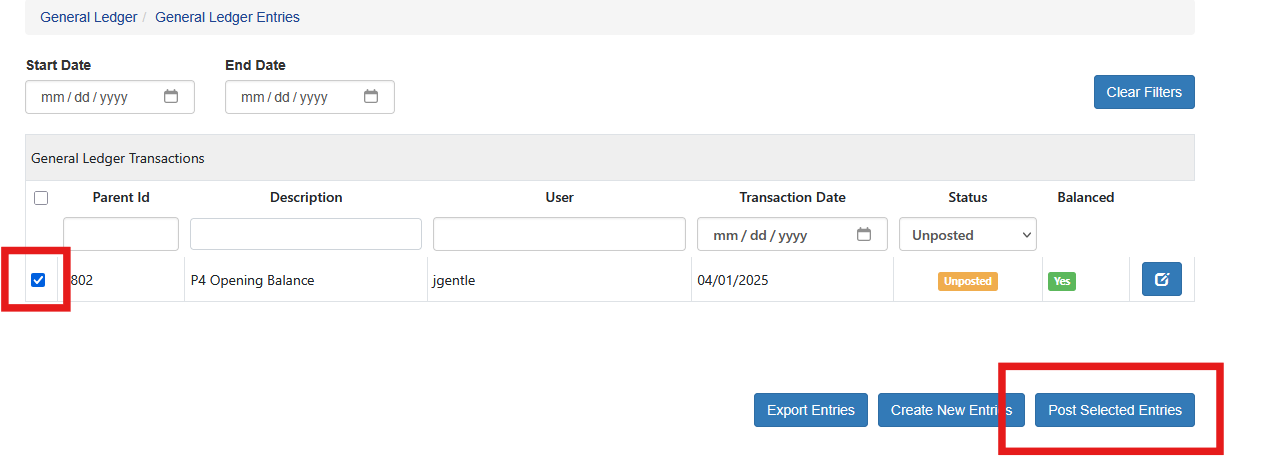
Once the entry is added you must post it.
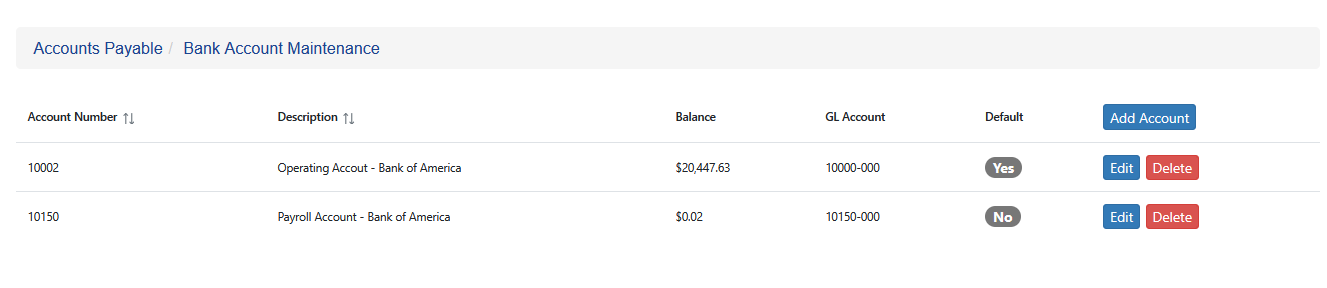
Once posted your bank account will show the current balance
Create Payable Invoice
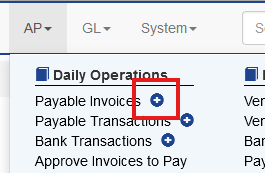
To create the payable invoice click the Plus sign under AP- Payable Invoice.
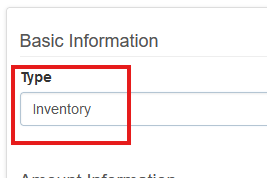
Set Type to Invoice.
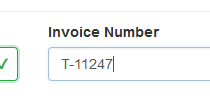
Enter the Invoice number from the vendor.
The invoice amount can be entered, but the system will total the value of selected line items. This is covered below.
Choose the invoice and due date. If a discount is offered, enter that information.
The payment priority is used to sort payables. If this is not used leave the 1 default setting.
A reference for the invoice can be entered.
The AP GL Account will automatically populate from Vendor’s override GL AP Account if populated, or the GL Default Account settings.
Selecting Line Items
When the vendor is selected above, the user will get a list of all line items on open purchase orders for that vendor. When the user clicks the check box next to each line, the Invoice Amount will total the selected lines.
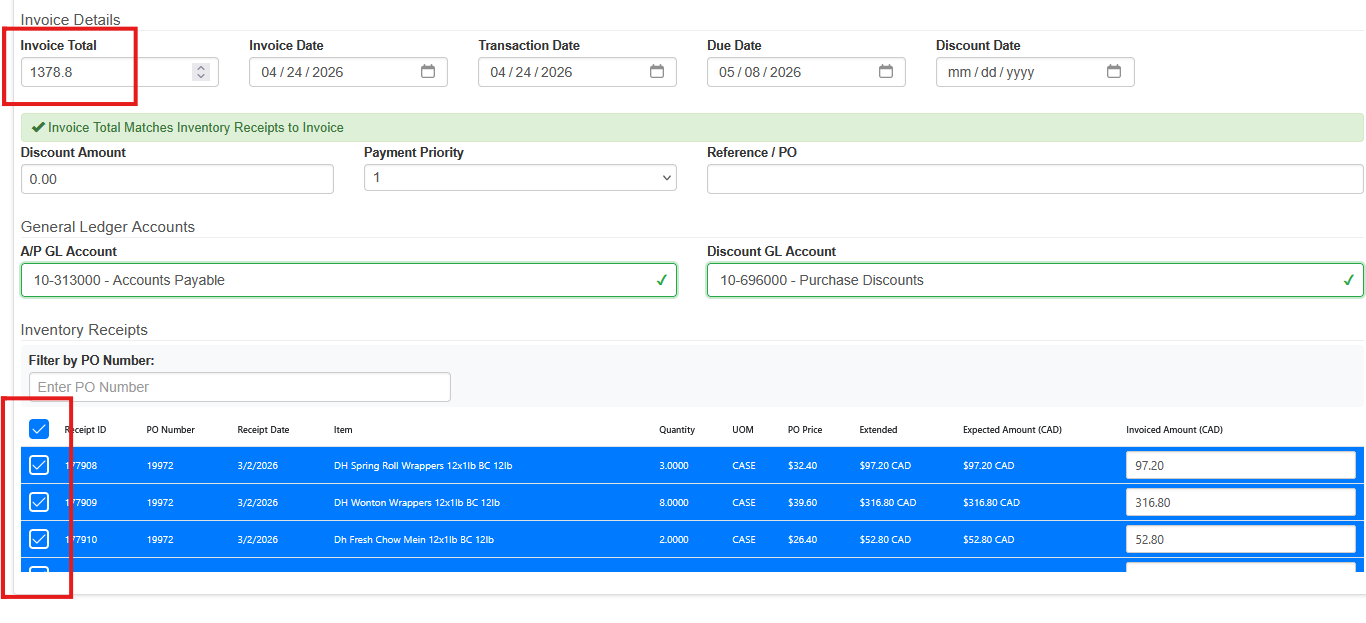
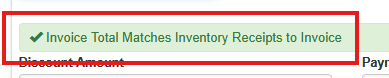
An indicator will show if the entered invoice total matches the selected items.
Saving The Payable Invoice
Once all fields are entered and the PO is matched, choose Save Invoice at the top.
The payable invoice is now created.
Short Paying An Invoice
Occasionally the user may choose to short pay an invoice. Ideally a credit would be issues or the purchase order would be adjusted to make the payable and purchase order, match, but when that isn’t possible the user can short pay.
When the user enters the payable invoice, choose the line to short pay and enter the amount to pay in the box

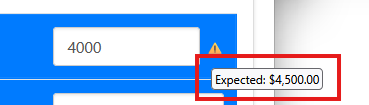
A yellow exclamation will appear by that line, hovering over the yellow exclamation will provide feedback:
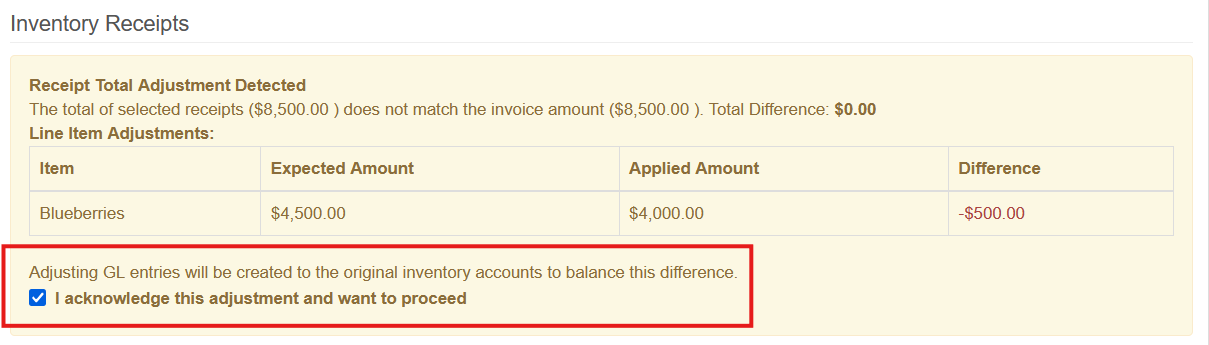
In the top half of the screen the system will further explain the variance and the adjustment that will be made. The system will make the appropriate adjustment to to the AP Accrual and Inventory Account for that item
An acknowledgement is required on the screen before the payable can be saved
The general ledger entry will reflect the reduction to the inventory