Identifying Items in Bins
Bins within your facility can contain multiple items, especially when using small quantities or hand stack items. You can determine the contents of a bin by scanning the bin label or looking at the bin details in Sprout
Viewing Bin Contents in Sprout’s User Interface
Under IC (Inventory Control) Select Cooler Management. From there choose the cooler, aisle, bay and shelf for the bin that you want to view the contents.
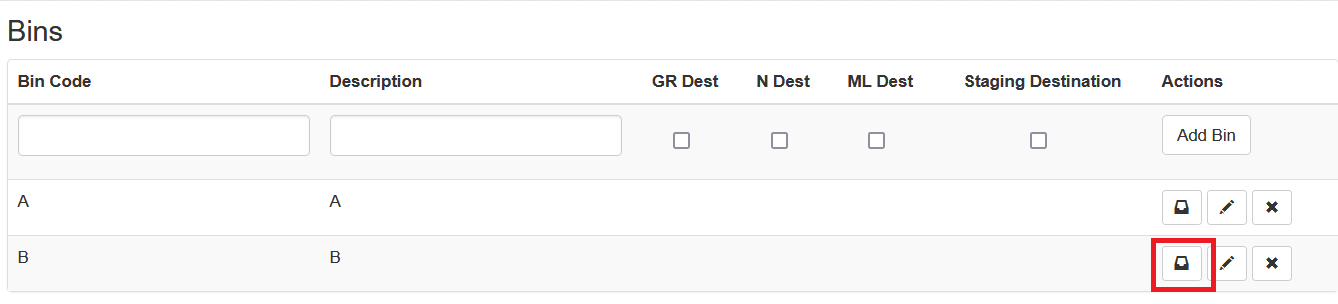
Click the Bin icon for the bin you wish to investigate.
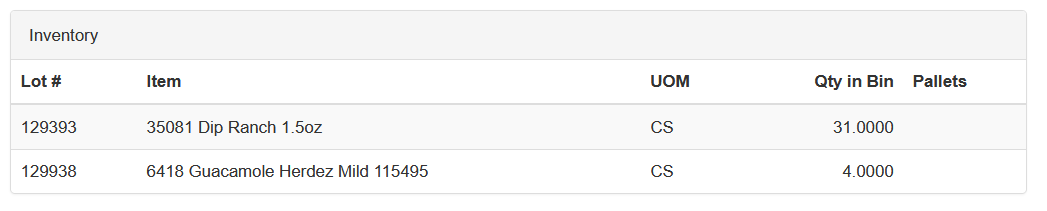
The bin’s details will open up, showing the lot, item, UOM the item is stored in and the quantity in the bin. The Pallet column will show you license plate IDs if applicable.
Viewing Contents of Bin in WMS App
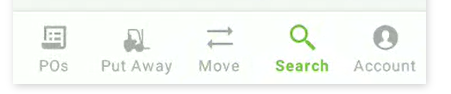
Open the Receiver app on the handheld and choose Search along the bottom
Choose Scan a Bin Location:
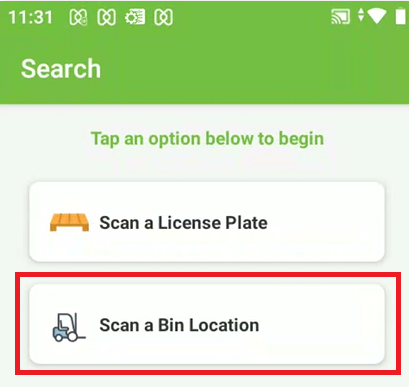
The scanner will be enabled on the handheld.
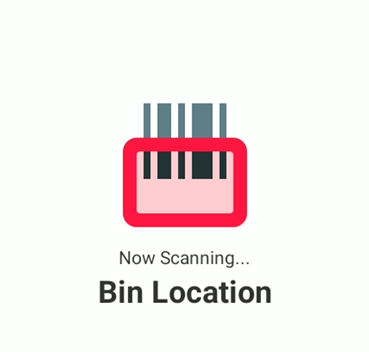
Scan the bin label on the rack and the handheld will show all the items stored in that bin, along with details such as lot number, vendors lot number and quantity.
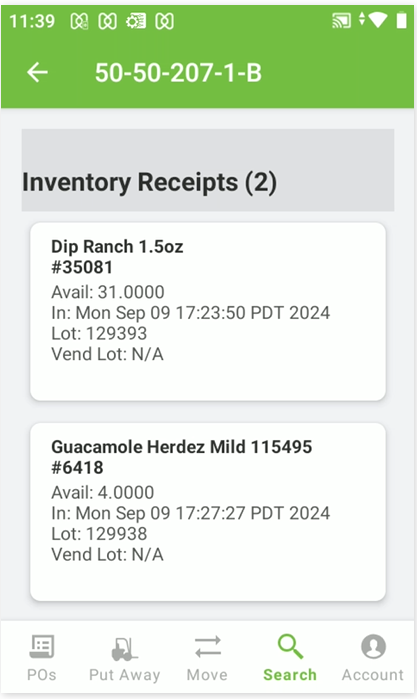
This screen will scroll up and down as needed depending on the number of items in that bin.