Importing Orders From CSV
Sprout allows users to import multiple sales orders at once using a CSV (comma-separated values) file. This is useful when orders are exported from another system, prepared in Excel, or provided by customers in spreadsheet format.
A single CSV file may contain multiple orders for multiple customers.
If a price is not provided in the CSV file, Sprout will attempt to determine the correct price based on the customer's configured price level. If a price cannot be determined, the imported price will default to $0.00.
Importing the CSV File
To import sales orders from a CSV file:
- Select SO → Import Sales Orders from CSV.
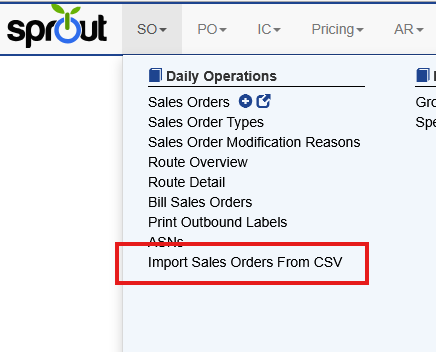
- Choose the prepared CSV file.
- Select the Sales Order Type to apply to the imported orders.
- Click Import File.
After the file is processed, Sprout will display a confirmation message showing the number of orders successfully imported.
CSV File Format
The CSV file must contain the following fields in this order:
|
Field |
Description |
|
CustomerNo |
Customer short code in Sprout |
|
ShipToCode |
Customer site short code |
|
ItemCode |
Item short code |
|
Quantity |
Quantity ordered |
|
CustomerPONo |
Customer purchase order number (optional) |
|
OrderDate |
Order date (MM/DD/YYYY) |
|
PackDate |
Pack date (optional) |
|
UofM |
Unit of measure code |
|
Site |
Company site fulfilling the order |
|
DeliveryDate |
Customer requested delivery date |
|
Price |
Price per item |
Notes
- A header row is optional.
- If a header row is included, the first column must be CustomerNo.
- Dates must be formatted as MM/DD/YYYY.
- A price of 0 may be included if pricing will be determined automatically.
Importing Multiple Orders
A single CSV file can contain multiple sales orders.
To import multiple orders for the same customer, ensure the rows contain different:
- Order Dates, or
- Customer PO Numbers
To import orders for multiple customers, include the correct CustomerNo and ShipToCode for each row.