Issuing Credits
Use a credit to reduce the amount a customer owes.
Sprout provides two credit workflows:
- Manual Credit — Issues a general customer credit that is not tied to a particular invoice item.
- Item Credit — Credits a specific invoiced item and records whether the product was returned or scrapped.
Go to Accounts Receivable > Receivable Transactions, select Add Transaction, and choose the appropriate Type.
The Type list includes only the credit workflows you have permission to create.
Enter a manual credit
- Set Type to Manual Credit.
- Search for and select the customer.
- Enter the credit Amount.
- Select a required Credit Reason.
- Optionally select a Customer Site. Leave the selection at Customer level to issue a customer-level credit.
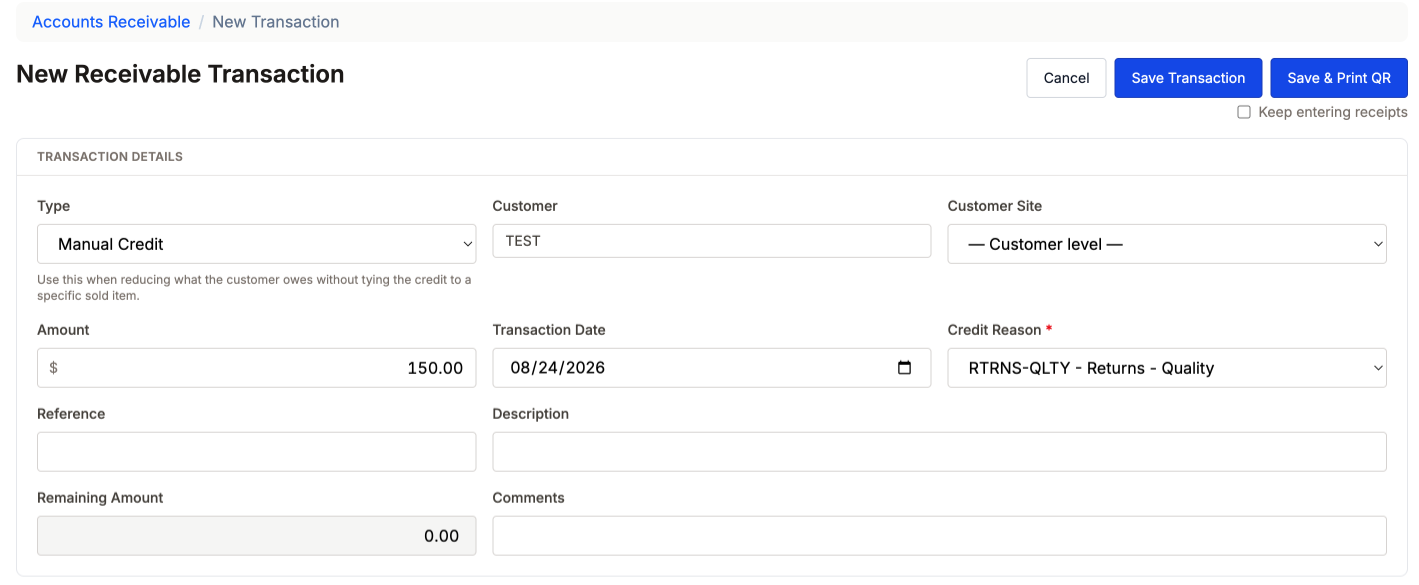
- Apply the credit under Invoice Applications by entering amounts manually or selecting Auto Apply Remaining.

- Select Save Transaction.
A site-level credit appears on that site’s aging and statements.
For most users, a Manual Credit must be fully applied before it can be saved. Save Transaction remains disabled while any amount is unapplied, and the page displays Credits must be fully applied before saving.
Administrators and users with permission to save unapplied credits may save the credit without applying it fully. An unapplied credit remains open.
Manual Credits use the applicable Sales Returns general-ledger default and the selected Credit Reason.
Enter an item credit
Use an Item Credit when the credit relates to a specific line on an invoice.
Set Up
Before issuing an Item Credit, make sure Inventory Adjustment Reasons have been set up. They're maintained under Inventory Control → Inventory Adjustment Reasons. You must have at least one reason set up with Type 'Receipt' and at least on with 'Allocation'. In your Company Site setup, you may also set a Default Return Inventory Adjustment Reason and a Default Scrap Inventory Adjustment Reason. If those are set, the Reasons on this screen will default to those values.
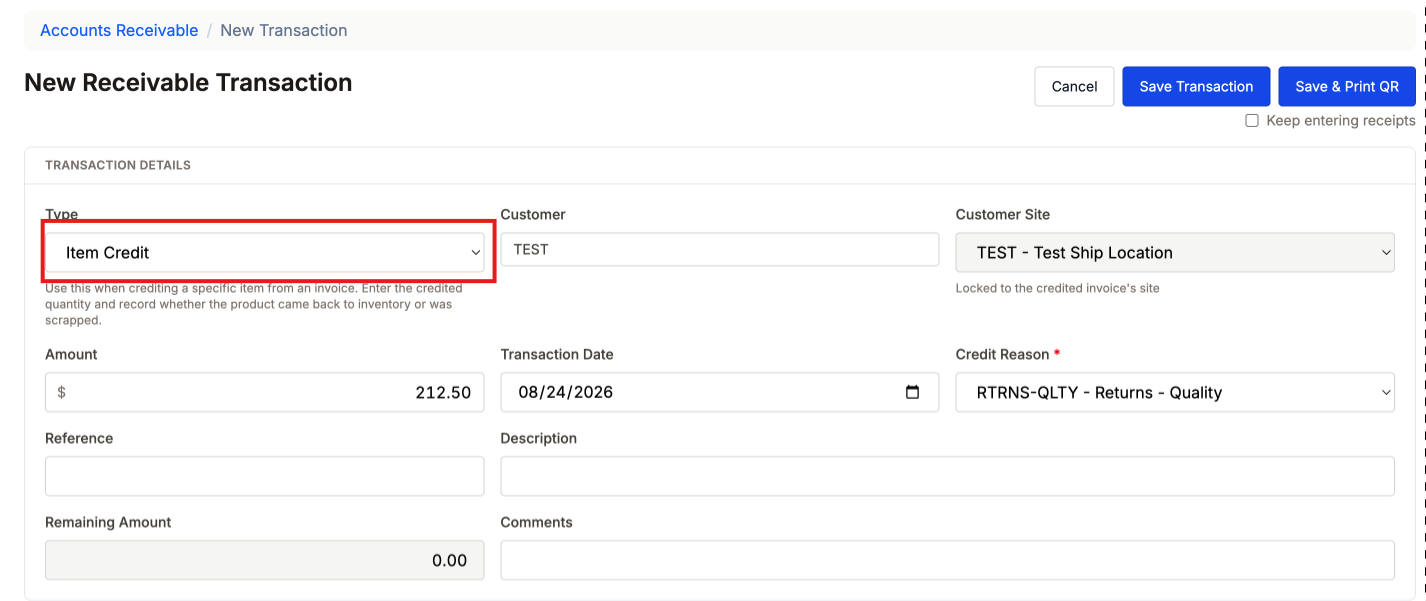
- Set Type to Item Credit.
- Select the customer and required Credit Reason.
- In the Credit Source section, search for and select the invoice containing the item.
- Select the invoice line being credited.
- Enter Qty Credited to Customer.
- Divide that quantity between Returned to Inventory and Scrapped.
- Select a Return Adjustment Reason when any quantity is returned.
- Select a Scrap Adjustment Reason when any quantity is scrapped.
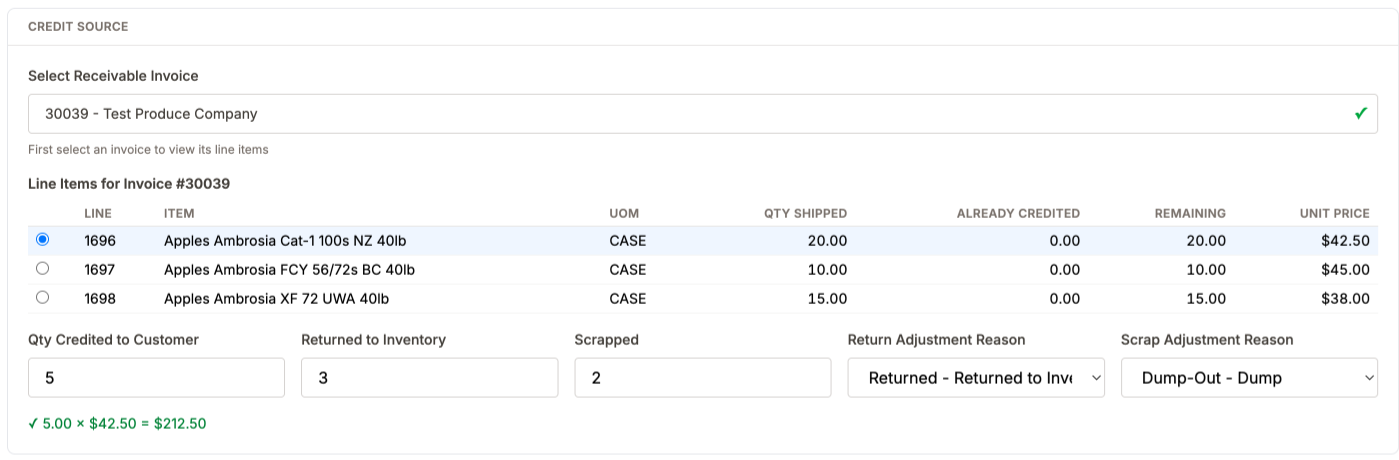
- Review the calculated Amount.
- Apply the credit to one or more open invoices.
- Select Save Transaction.
The Customer Site is locked to the site on the source invoice. A differently colored site name in the invoice-application table warns that an invoice belongs to another site; it does not prevent the credit from being applied to that invoice.
Item-credit quantities and amount
The following rule must be satisfied:
Returned to Inventory + Scrapped = Qty Credited to Customer

The credited quantity cannot exceed the line’s Remaining creditable quantity. The item table displays:
- Quantity shipped
- Quantity already credited
- Quantity remaining
Previous non-voided credits are included in the Already Credited amount. A fully credited line is disabled and cannot be selected.
The credit Amount is calculated as:
Qty Credited to Customer × Item Price
Users with override permission may enter a different amount. Sprout displays a warning when the entered amount differs from the calculated amount.
Inventory and accounting results
Saving an Item Credit with a returned quantity creates an inventory receipt.
Saving an Item Credit with a scrapped quantity creates an inventory receipt followed by a scrap allocation. The resulting entries can be reviewed under Inventory Control > Adjustments.
General-ledger entries are created using the selected Credit Reason and return or scrap adjustment reasons.
After saving a credit
A fully applied credit closes and opens in read-only mode. The Documents tab remains available for attaching supporting files.
After a transaction is created:
- Its Type cannot be changed.
- An Item Credit’s source invoice, line, quantities, and adjustment reasons cannot be edited.
- Closed and voided transactions cannot be edited.
To correct a saved Item Credit, void it and enter a new one. Voiding restores the affected invoice balances and returns the credited quantity to the item’s remaining creditable quantity.