Posting Pending Entries
Posting Pending Entires
When tasks within Sprout create General Ledger events, the entries are not automatically posted to the ledger. The entries must be posted to the ledger. This gives the user control over timing as well as the ability to review entries.
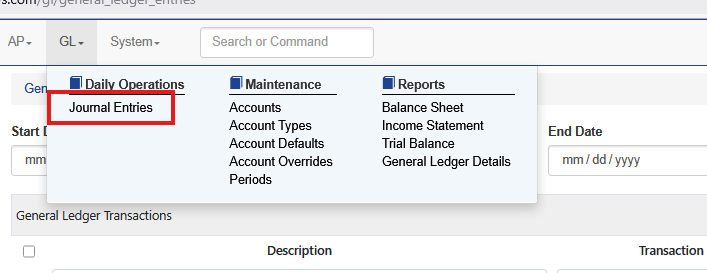
When the user is ready to post entries visit GL and Journal Entries
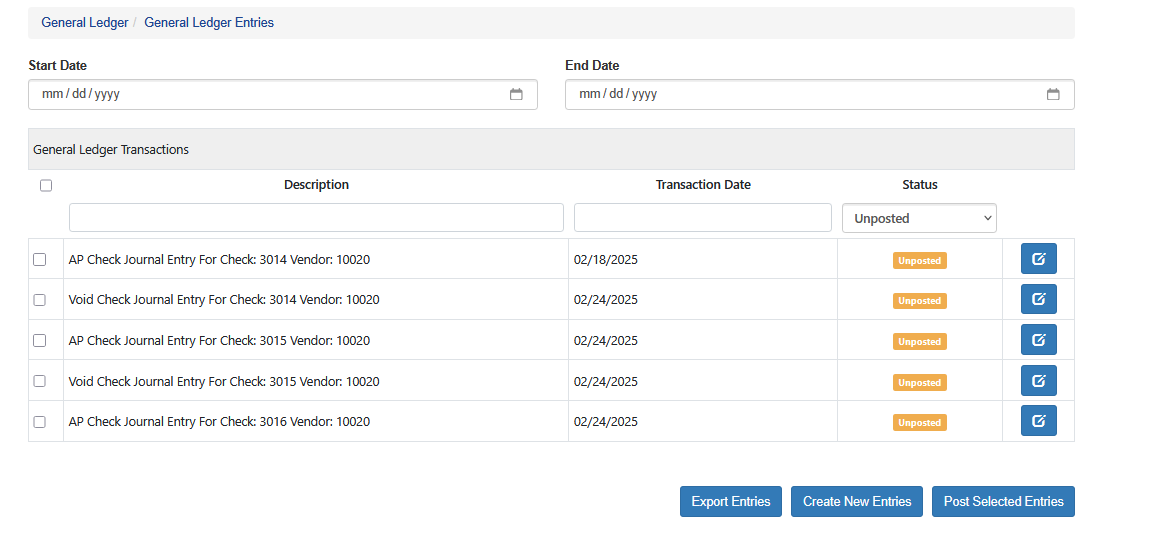
All pending entries will show. This can be a long list and will scroll up and down
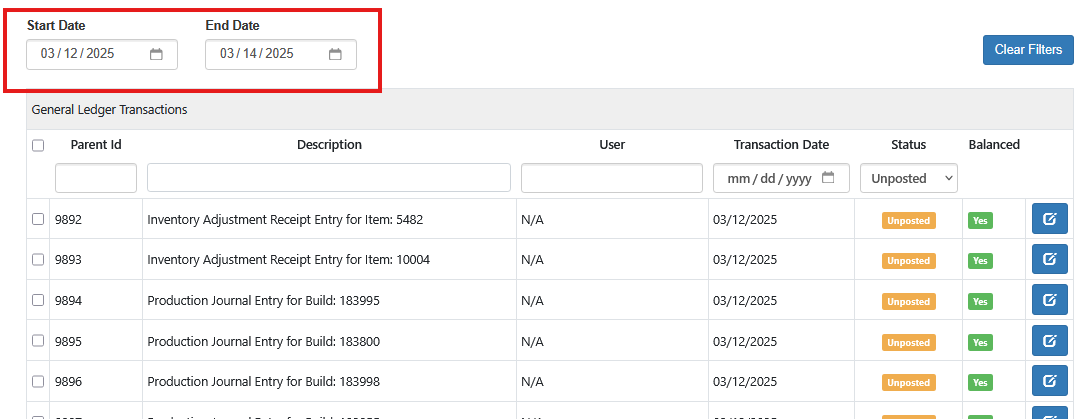
Filter for Specific Entry Dates
The user can filter for specific dates by setting the Start and End date. Only entries created within that date range will show
Balance Indicator
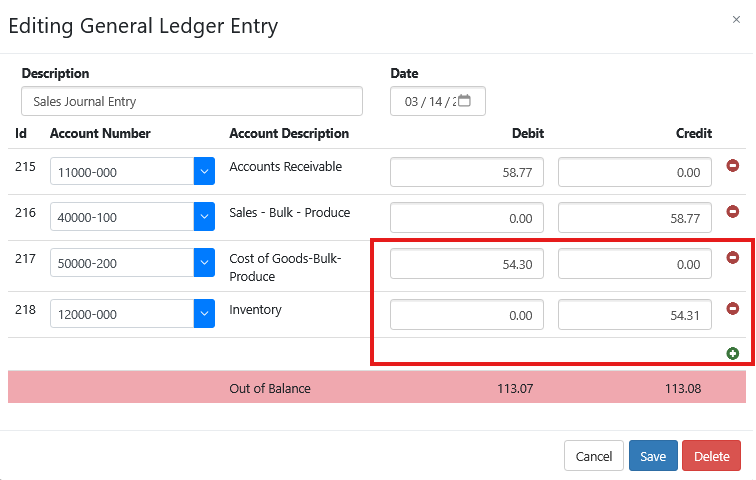
If a transaction is out of balance a red No will appear on the transaction line. The user can click into the details to determine the cause, fix it and balance the transaction.

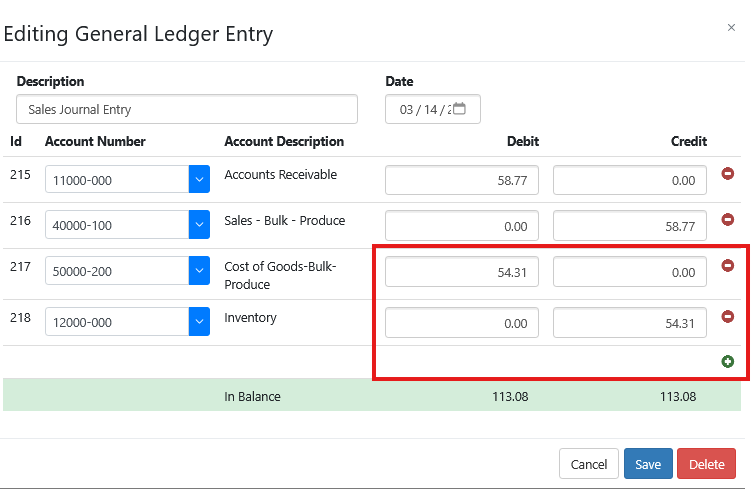
View GL Entry Details
Before an entry is posted the user can view, and edit, the entry as needed. To view the entry click the edit button to the right of the entry.
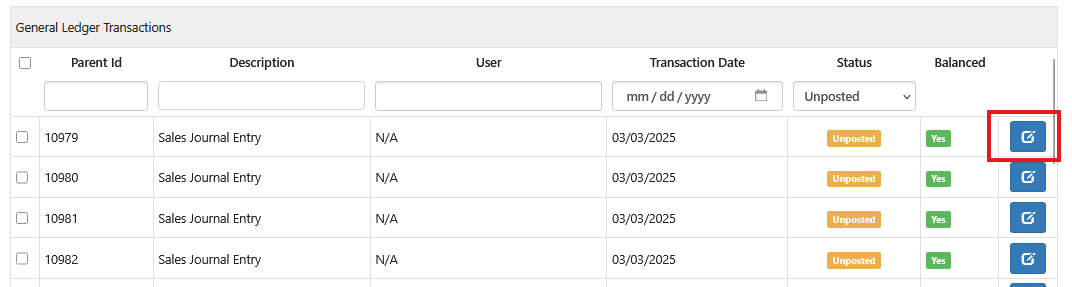
A window will open showing the description, date and distributions. If the user makes a change the bottom bar will return to green when the entry is balanced.
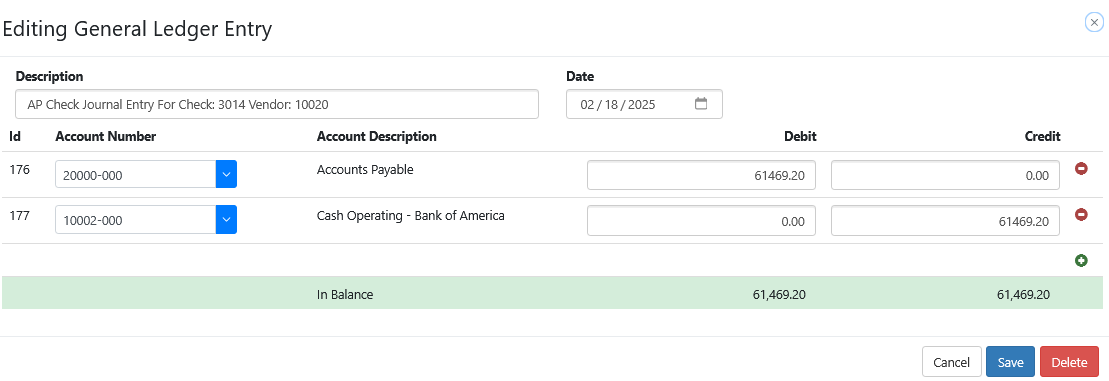
Printing GL Entry Details
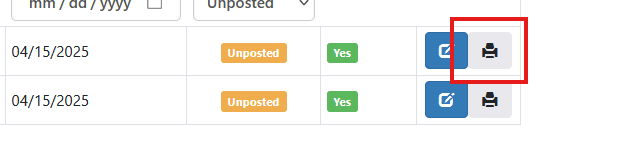
To create a printed report of a GL entry choose the print icon by the entry. The printable form will be displayed and can be printed
Posting Entries
Once any adjustments are created and the user is ready to post the entries, either select all by choosing the check box above the entries or select the required entries one by one.
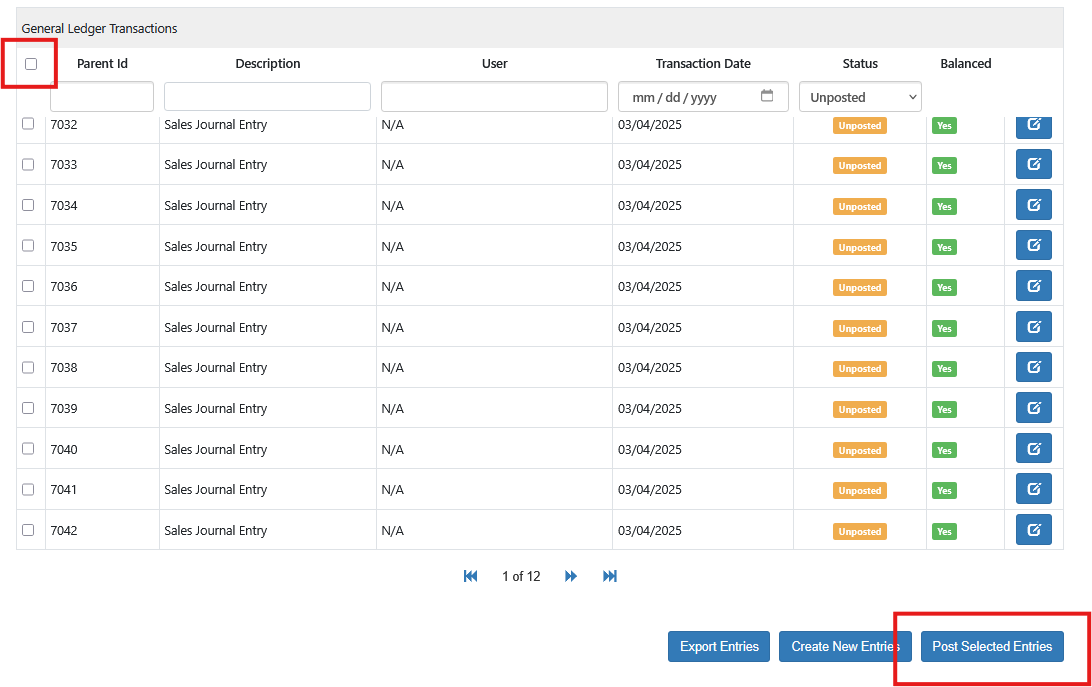
Postings will take the date of the transaction. For example, if a transaction was entered on February 18, 2026 and another transaction was entered on February 19, 2026 but the general ledger is not posted until February 21, 2026 the transactions for the 18th will have a posting date of the 18th and the transactions for the 19th will have a posting date of the 19th.
This is the default process when the Override Posting Date” is not set.
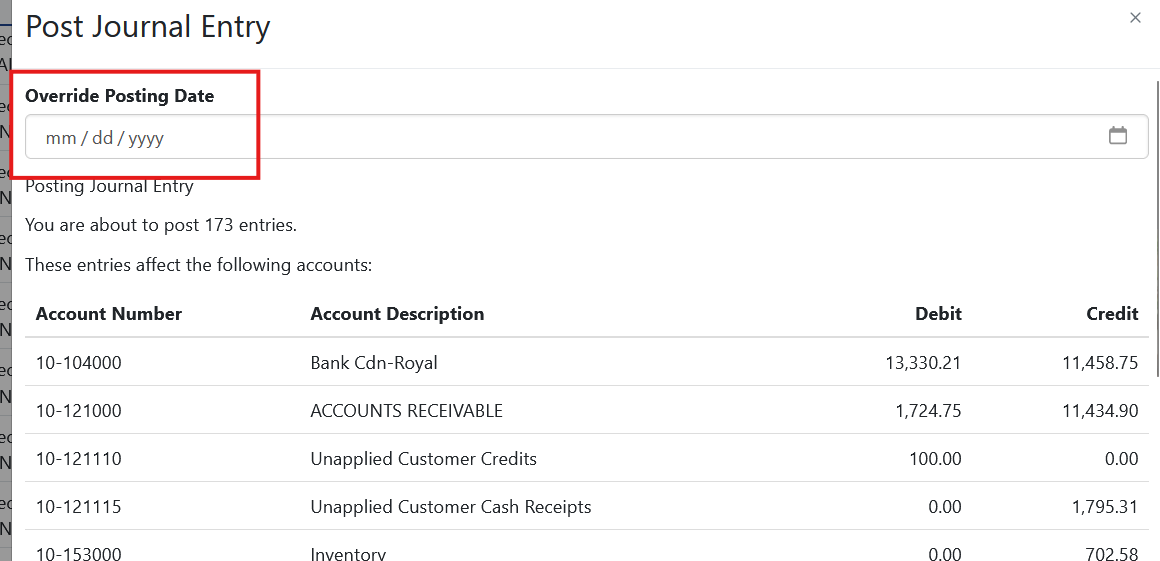
A window will open displaying the entries that are selected, the system will confirm the entries are balanced. The user must set the date the posting will be effective in the Posting Date field.
Once all requirements are met choose Save. The entries will then be posted to the GL.
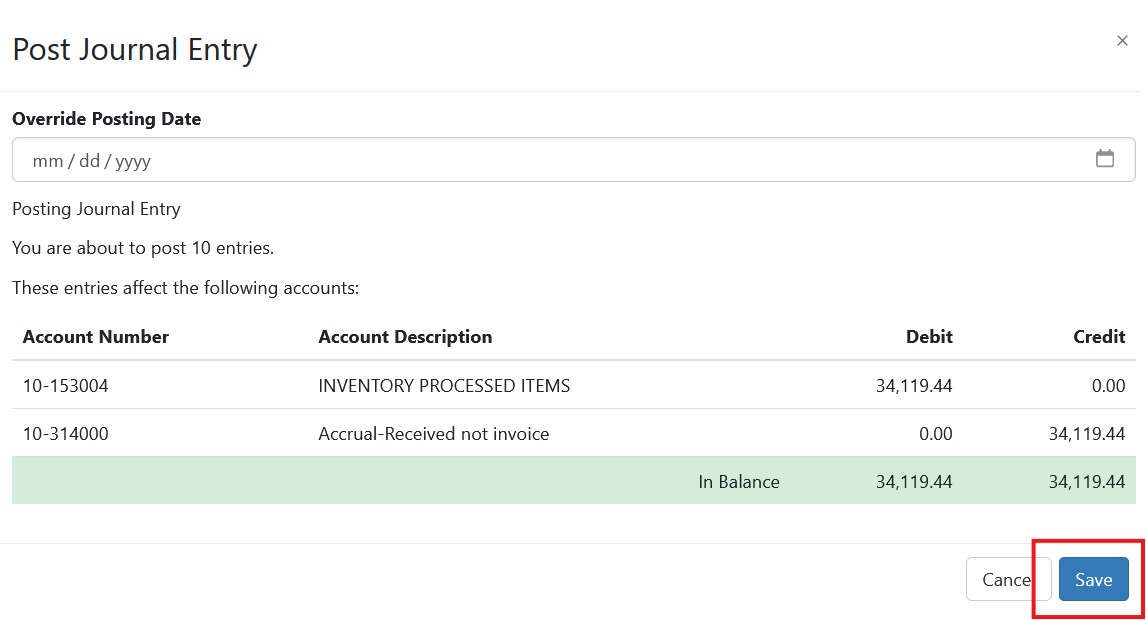
Override Posting Date
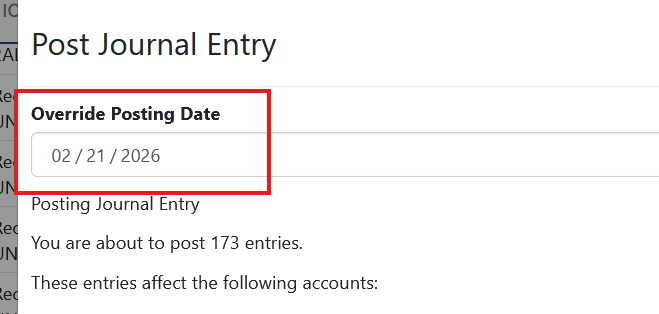
Users with the specific right of gl.account_overrides.view can pick an override posting date. This ignores the transaction date and instead uses the override date manually set for the transaction post date
Posting Limitations
Each posting batch is limited to 600 transactions. If a user has not posted in a period of time and has more than 600 transitions pending the user will see the first 600 and once those are posted the next 600 will be ready to post and so on until all pending transactions are complete.
Exporting Transactions
Ledger transactions can be exported from the Journal Entry screen using the Export Entries
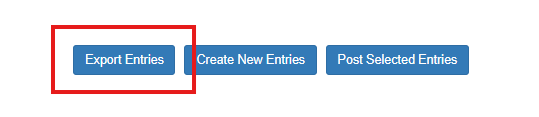
The intended purpose of this export is to export unposted transactions. Note: This is limited to 600 transactions at one time and will allow subsequent transactions to be exported once the first 600 are posted.
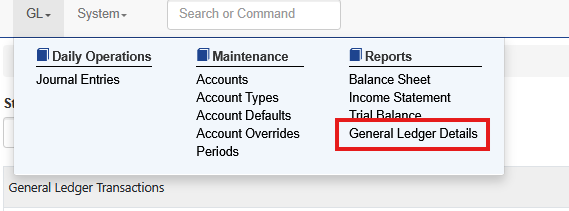
If a user needs to export more to a CSV the user should use General Ledger Details under reports
Unposted Entry Warnings
If a user attempts to run a financial statement, such as an income statement or balance sheet, and unposted entries exist, these entries will not be included in the resulting report. This will often create the appearance of an outage between the ledger and subledger.
When these statements are run Sprout will give the user a warning if the system detects unposted entries.
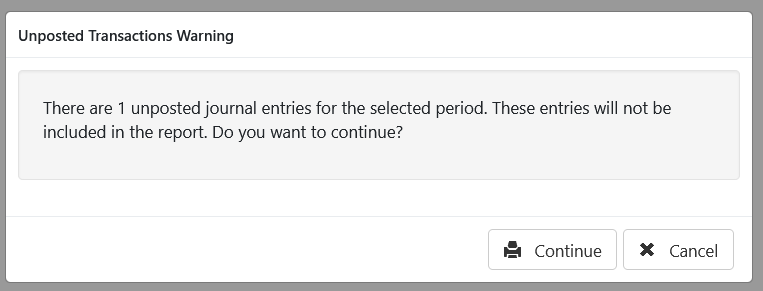
If the user needs to review these entries before running the statements click cancel and review in the GL. If these are valid and expected click continues and the report will run as normal.