Process Payments To Vendors
Approve Invoices To Pay
Before a payment can be made via ACH or check, the payable must be approved for payment. This is typically done by an accounting manager to separate duties.
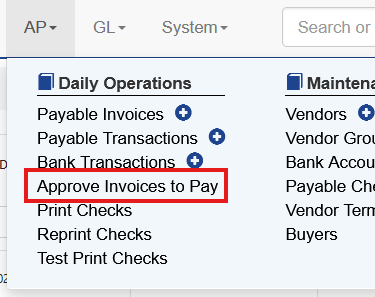
To approve a payable select AP- Approve Invoices to Pay.
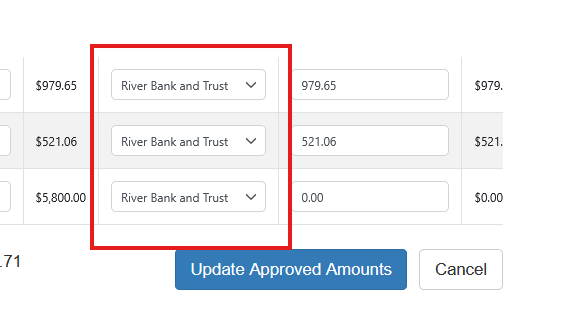
The user will select the bank account, if different from the default, that the invoice is being approved from
Then enter the amount approved, or if paying in full the user can double click the Amount Due field. This will populate the Approved Amount.
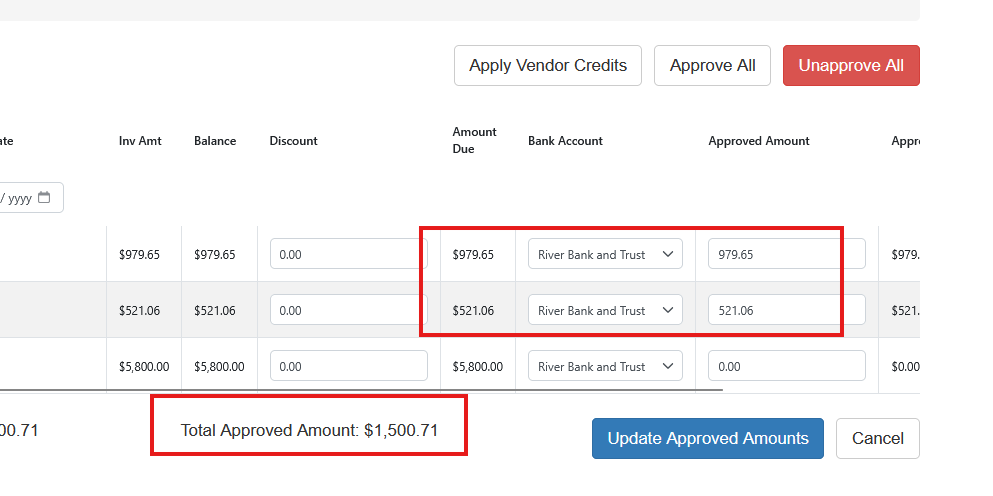
A total amount approved in this session will show in the bottom.
Once the user is complete select Update Approved Amounts.
Unapprove Invoices To Pay
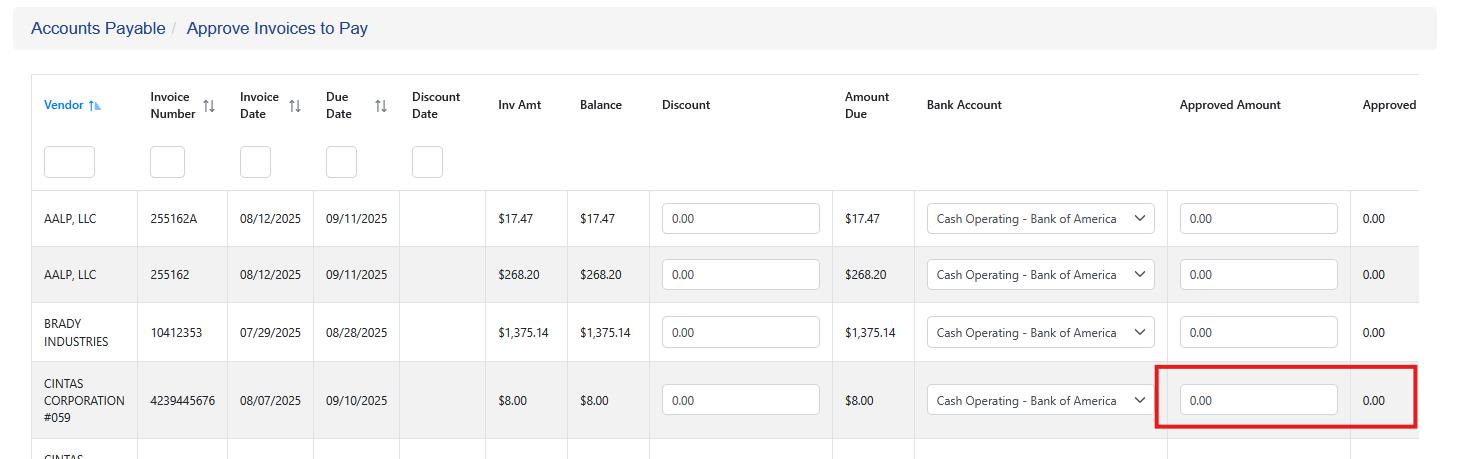
Once an invoice is approved for payment the invoice will appear in the Print Checks screen. If an invoice approval either needs to be removed, the amount changed or the checking account needs to be changed this is accomplished by changing the approved amount back to zero:
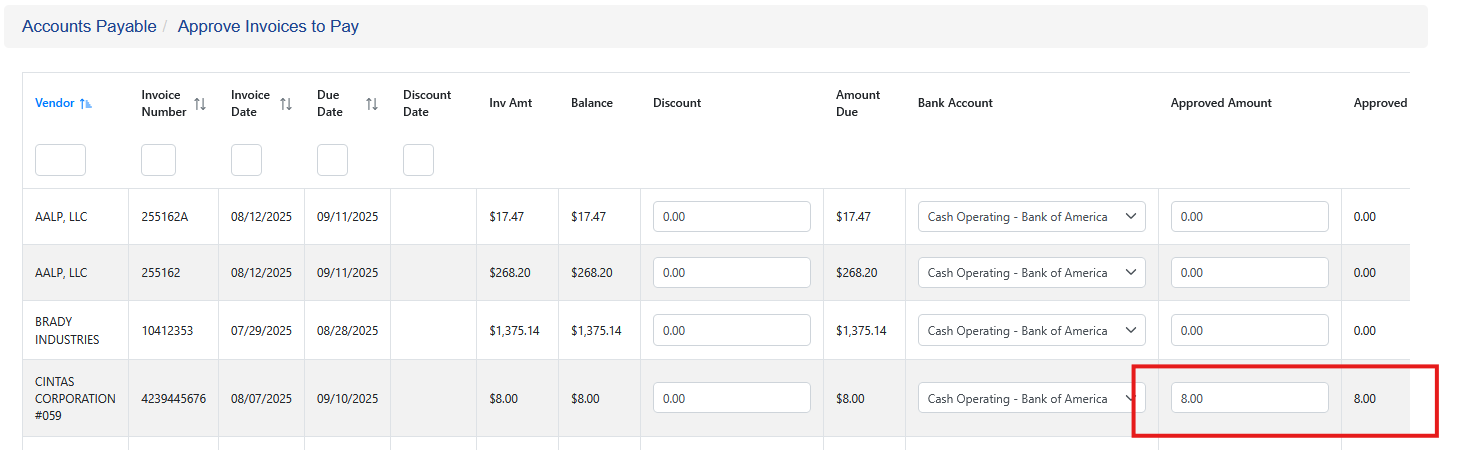
Changed to zero:
Then click Update Approved Amounts at the bottom.
When the user wants to print this check in the future it needs to be approved again.
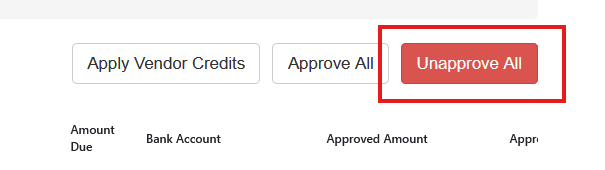
If a user wants to unapprove all invoices previously approved choose the Unapprove All button at the top and then save by choose Updating Approved Amounts
Applying Vendor Credits
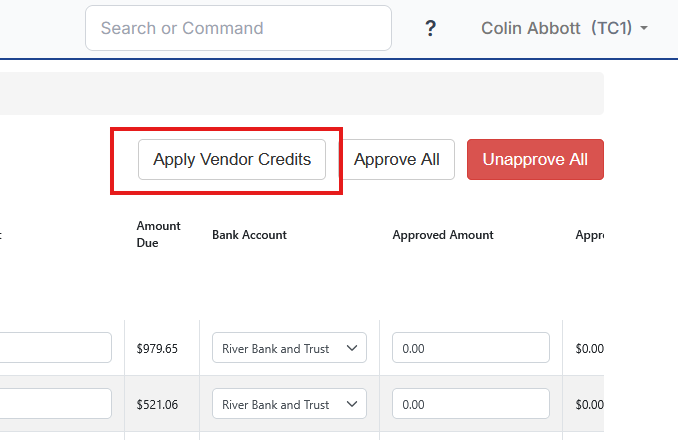
If a vendor credit is entered without applying it to a invoice that credit can be applied during the approve to process. From the Approve to Pay screen click Apply Vendor Credits
Enter the amount or Approve Full Amount of the credit(s) to use

Select the invoice and the credit will be shown reducing the net payment. Once complete, click Update Approved Amounts.
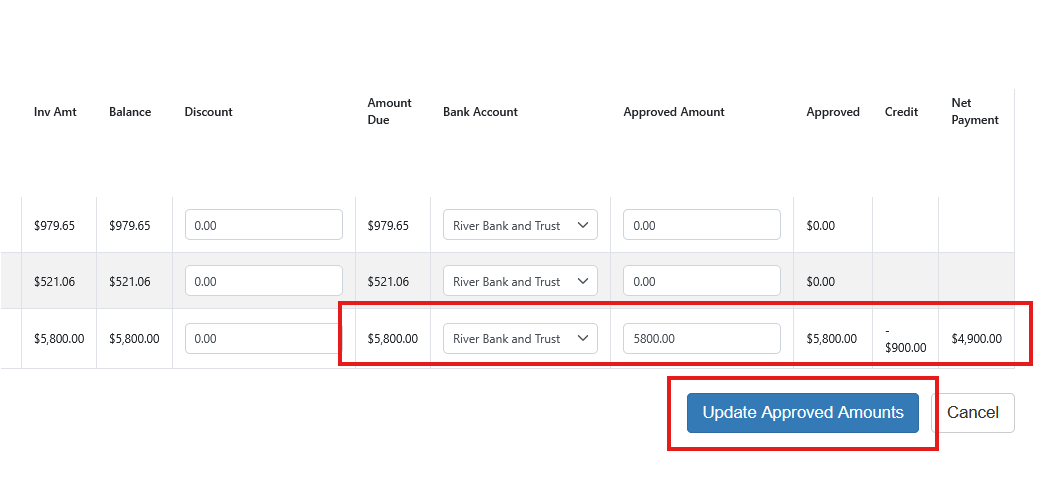
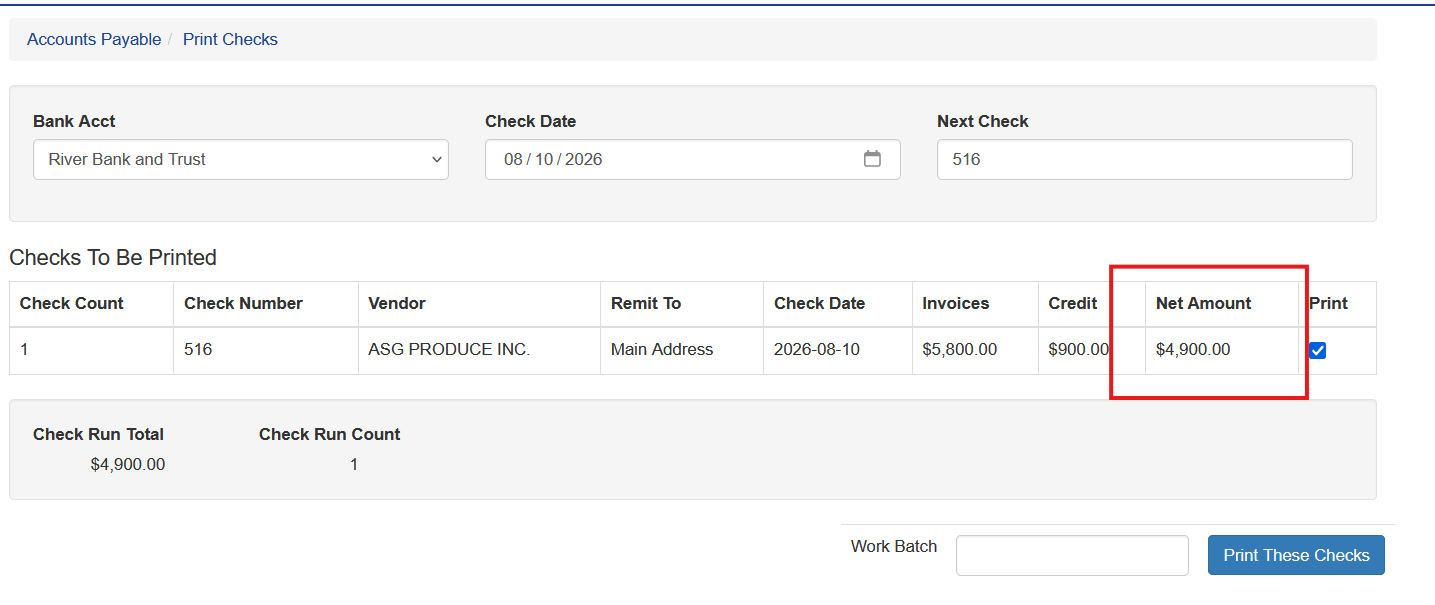
The check run containing that payment and credit will show the applied credit
The remittance will show the same credit.

Pay Approved Payments
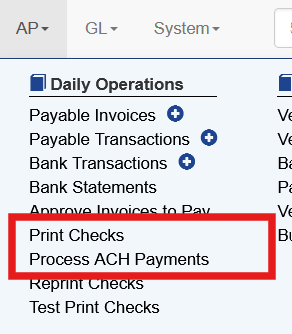
Once payments are approved the user can pay via a paper check or electronically via ACH. Both have separate options under AP
Print Checks
To pay approved payables with a paper check select AP - Print Checks.
Select the bank account to print checks from and verify the next check number.

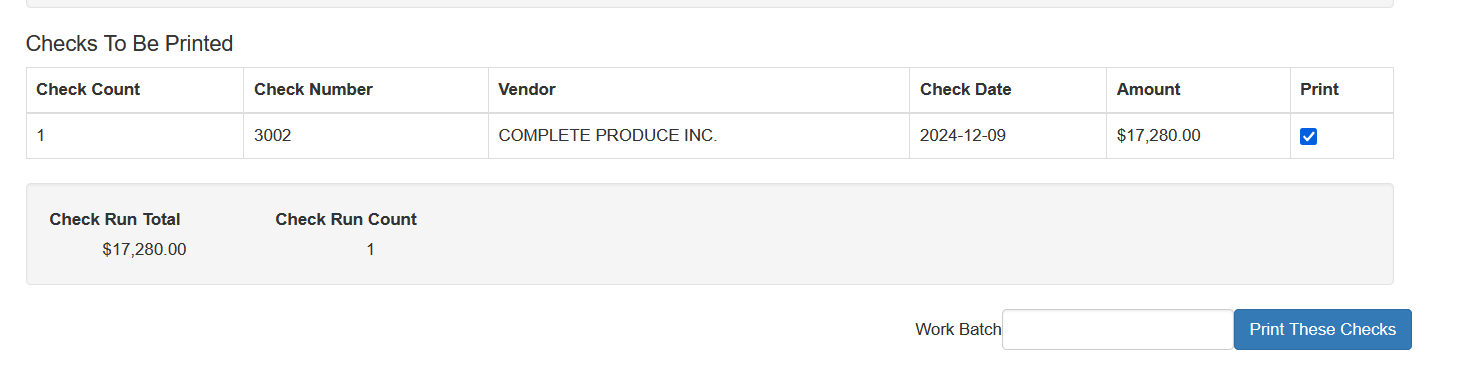
All payables that are approved for payment drawing on the selected checking account are displayed. Check the Print box next to the check(s) to print.
The total amount of the check run and the total number of checks will show. Click Print These Checks to send them to your printer.
Printing Overflow Remittance
Check stock formats have different sizes. The size dictates how many invoices can be printed on the remittance. WHen the number of invoices being paid exceeds the space on the remittance slip a note will show saying “More data not shown”

To print all invoices being paid choose one of the Print Remittances buttons

This will print the entire remittance on a separate page. Be certain check stock is not loaded in the printer when doing this.
Reprint Checks
If a check needs to be reprinted for any reason the user can reprint the check under AP - Reprint Checks
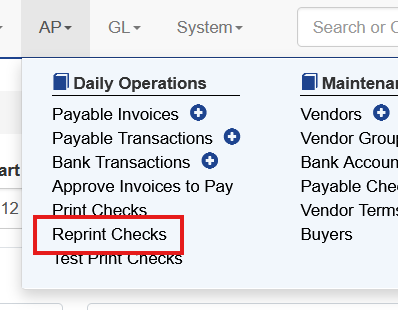
Choose the bank account and the date range. This will display all checks in that date range.
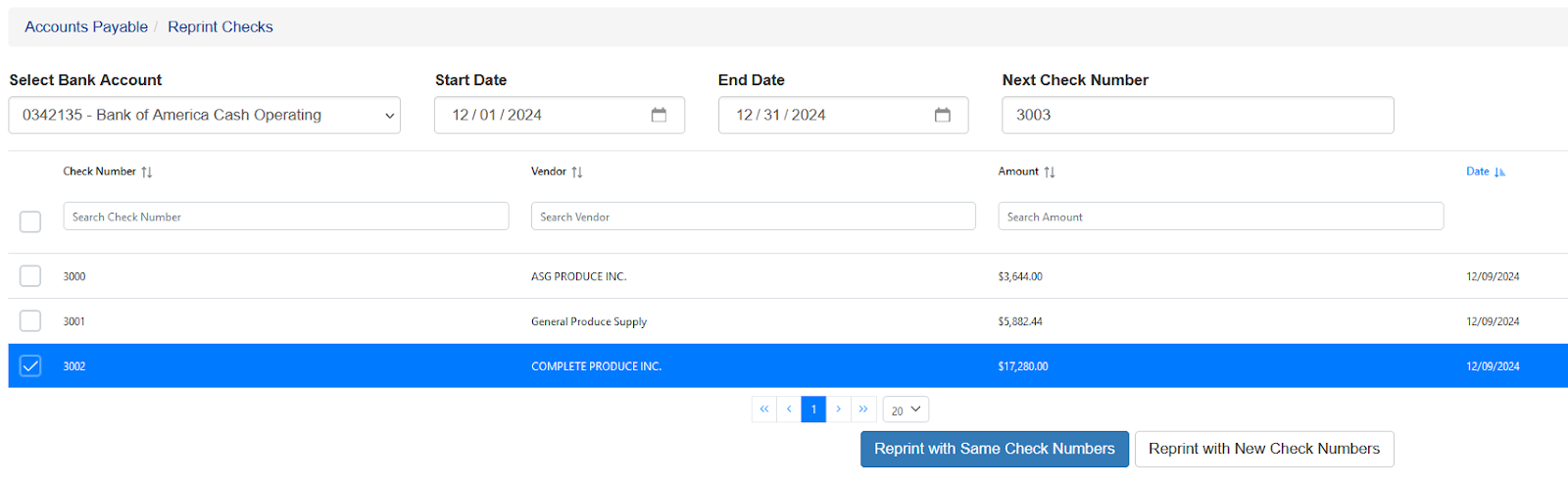
Choose the check(s) to reprint and then choose how to print

Reporting with Same Check Numbers will use the exact same check number already assigned to the vendor.
Reprint with New Check Numbers will print the checks in sequence using the next check number.
If the next check number needs to be changed this can be done on this screen or under AP - Bank Accounts
Process ACH Payments
To pay an a payable via ACH select AP - Process ACH Payments
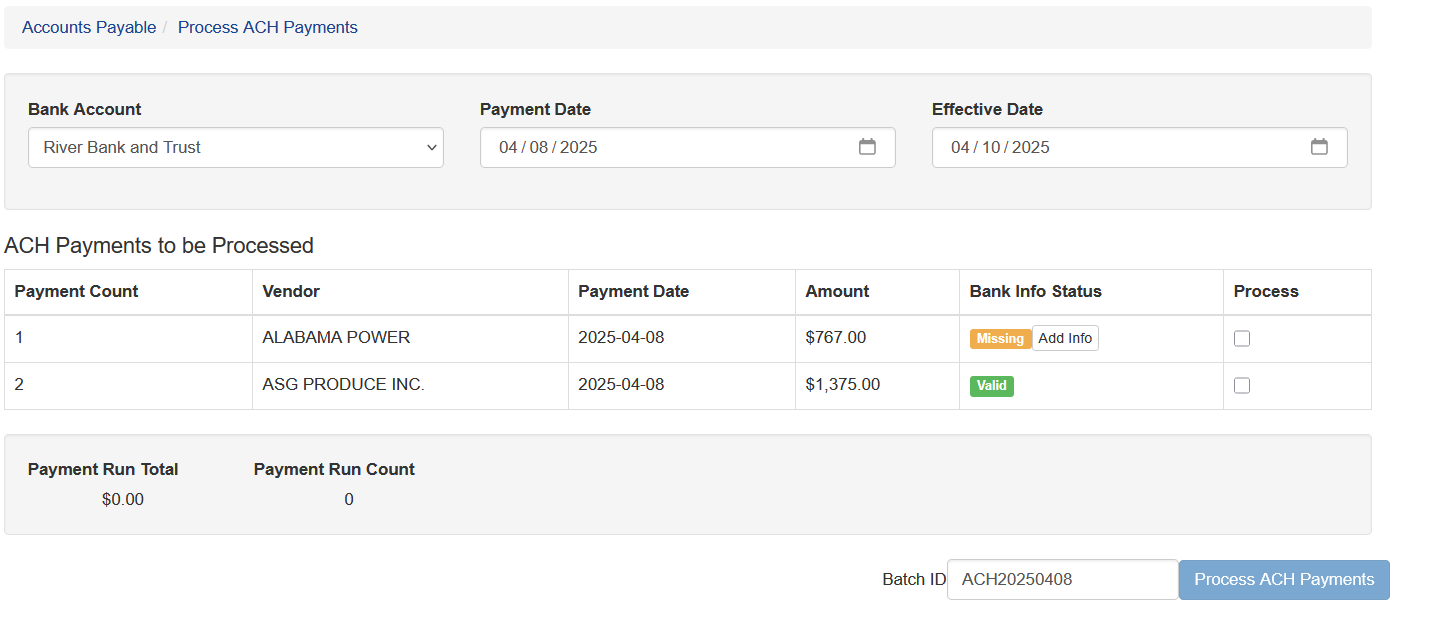
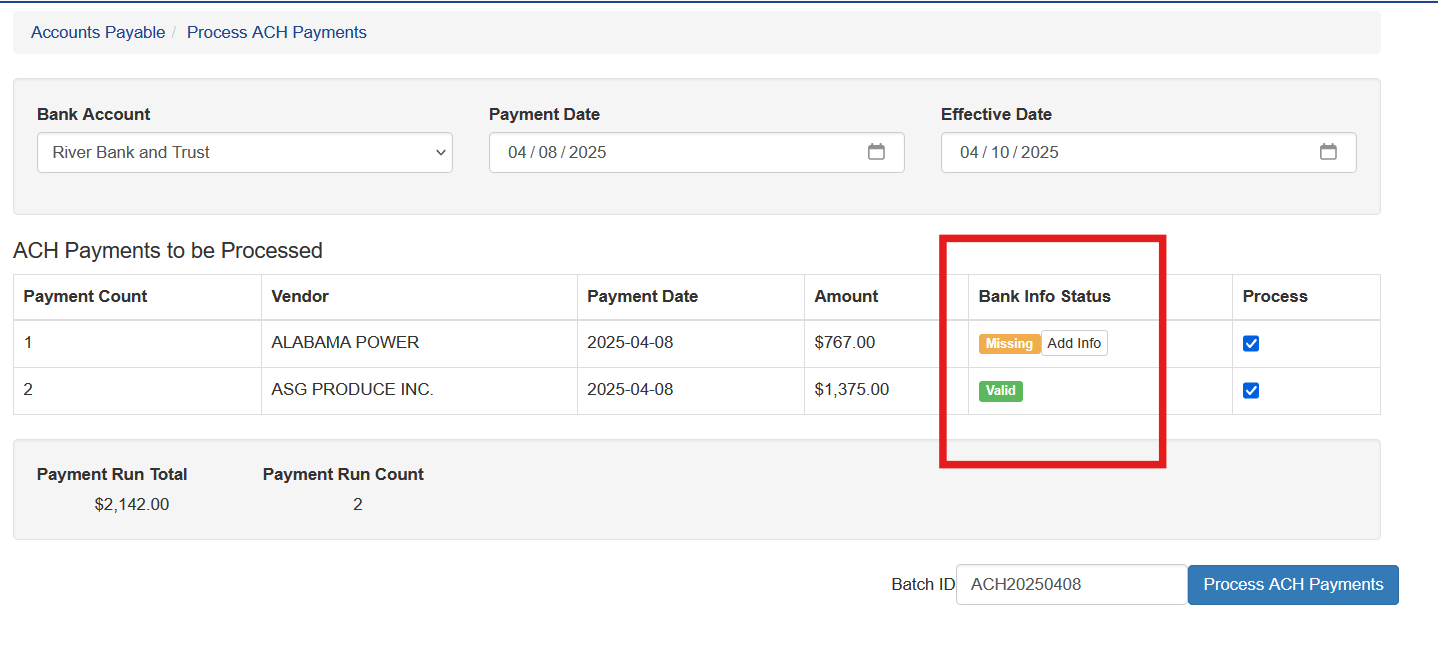
Choose the bank account and the system will display approved payments for that account. Under bank info status the user is shown if full ACH information is provided. If the user does not create a NACHA file the bank account data can be missing and the ACH payment can still be made. If the user does need to create a NACHA file this must be corrected. For more information on NACHA files please contact your manager or Anovys Support.
Missing: The bank information, such as routing and account number are not filled in
Valid: Full banking information is filled in under Vendor Maintenance
Check the box under process to select the payments and then click Process ACH Payments
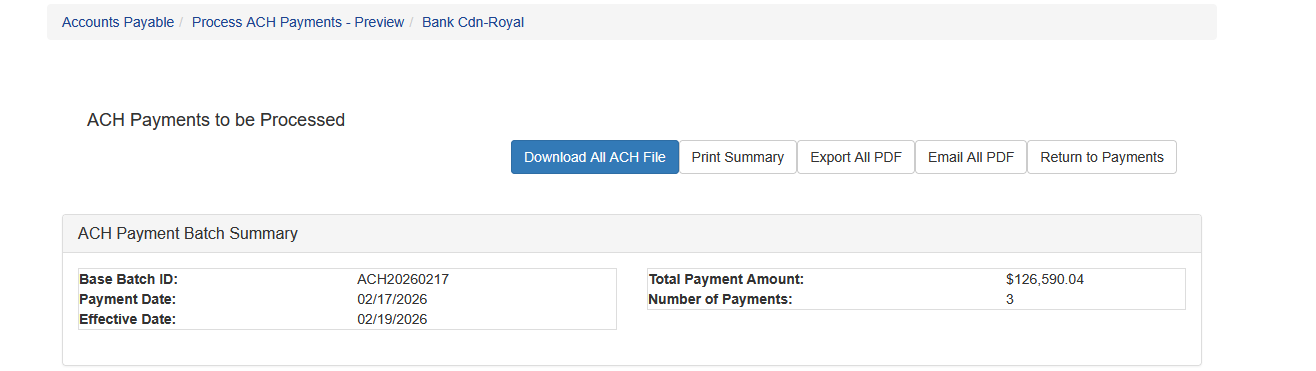
A success page will be presented after the user clicks Process ACH Payments. Here the user can download a NACHA file, print a summary or return to payments once complete.
Print or Email ACH Remittance Advice Details
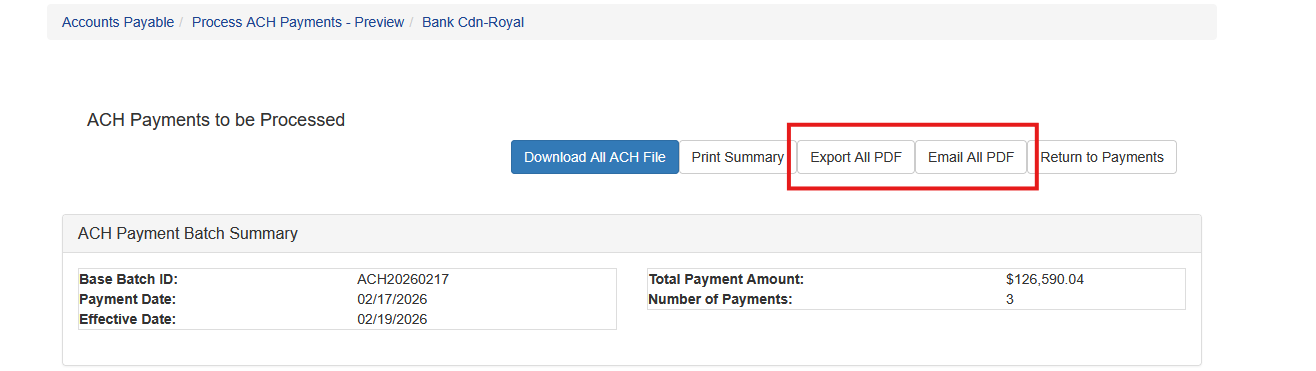
The user can also export or email a PDF to the vendor(s) in the ACH batch remittance advice by selecting one of the options below.
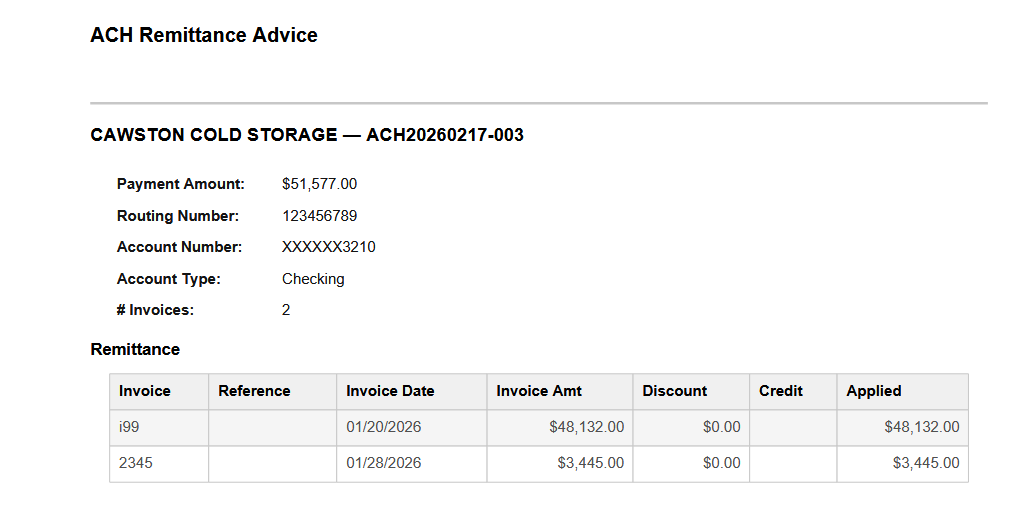
The remittance advice shows the vendor information as well as the specific invoices being paid.
Void Payments
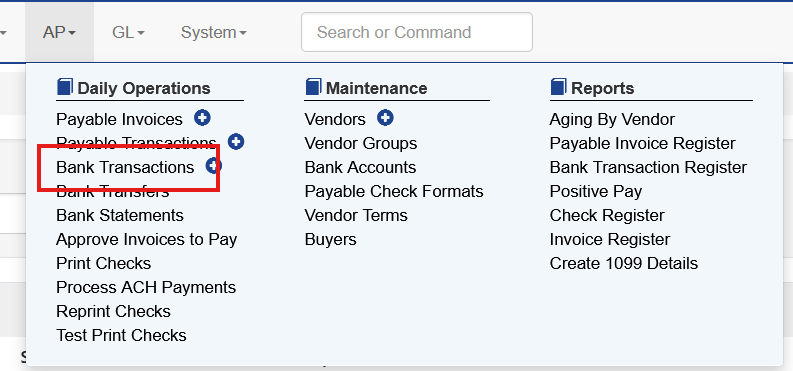
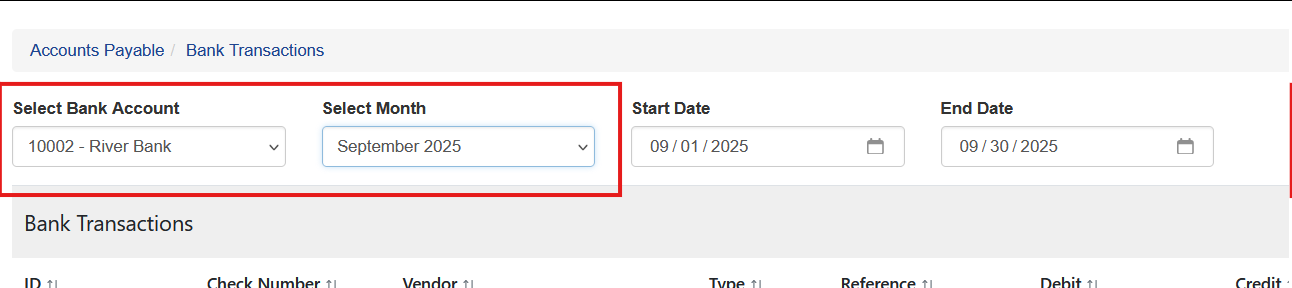
A payment can be voided by locating the payment, either check or ACH, on the bank transaction screen by selecting AP - Bank Transactions
Select the bank account and month
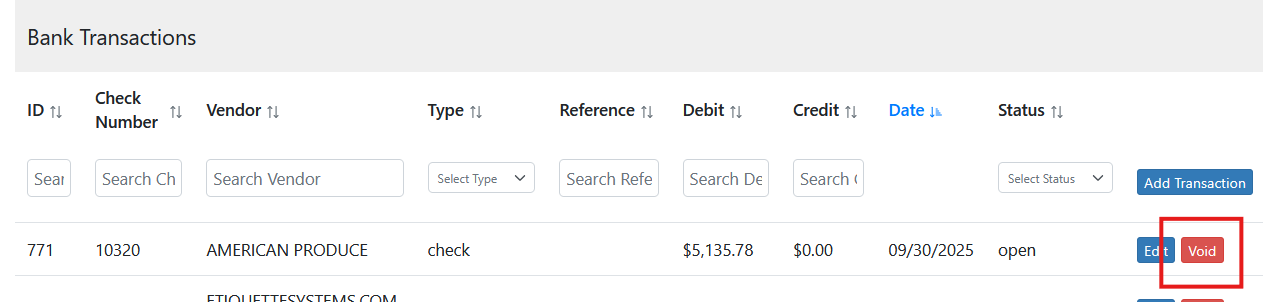
The locate the transaction to void and click the Void button
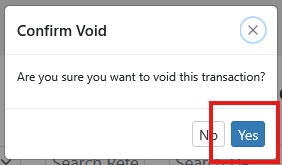
Confirm the transaction by clicking Yes
Payments That Can’t Be Voided
A payment transaction that has been cleared via a bank reconciliation can’t be voided.