Purchase Order Screen
The Purchase Order screen allows users to create and manage purchase orders. Users can also customize which fields appear on the screen based on their role or workflow.
To add or remove fields from the Purchase Order screen:
- Click the dropdown menu in the top-right corner of the Purchase Order screen.
- Select or clear the checkboxes for the fields you want to display.
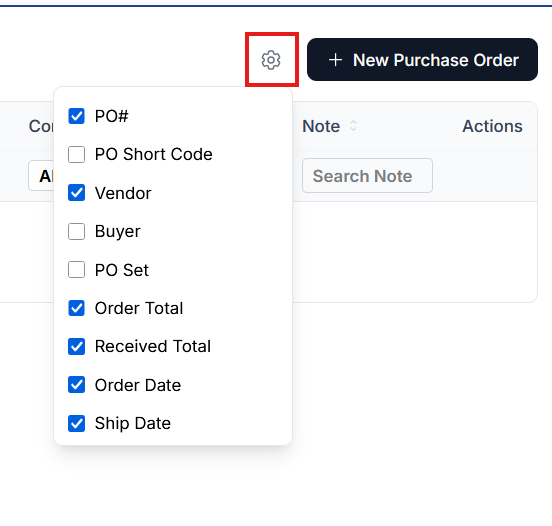
- The screen will update to show the selected fields.
These settings are saved automatically for the user, allowing each user to configure the Purchase Order screen to display the information most relevant to their work.
Because many fields are available, users may need to scroll through the dropdown list to see all available options.
Users should also consider their screen size and resolution when selecting fields, as smaller displays may not show all columns at once.