Using The Production Station
Assigning Jobs to Station
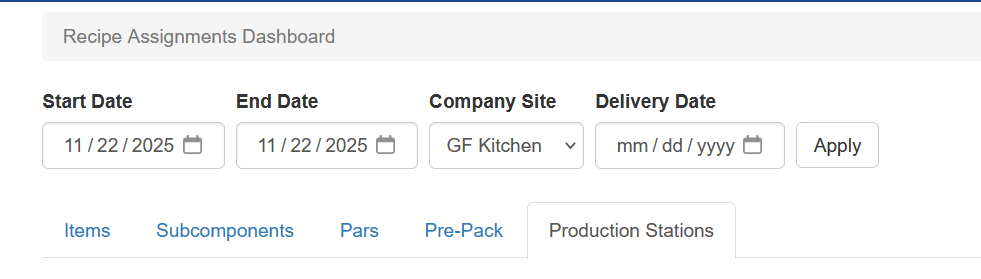
To assign jobs to stations visit IC - Recipe Assignment Dashboard. This screen shows all the options for the assignment dashboard and date filters.
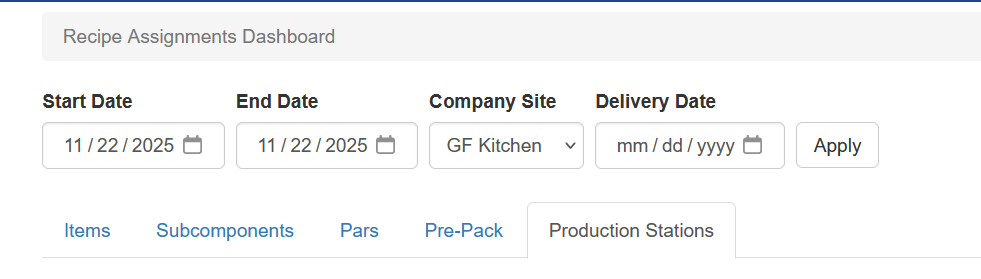
Items
Items are finished goods. A finished good is determined in the system by checking to see if the item is a part of another recipe. If the item is not used in any recipe it is shows under Items
Item Details
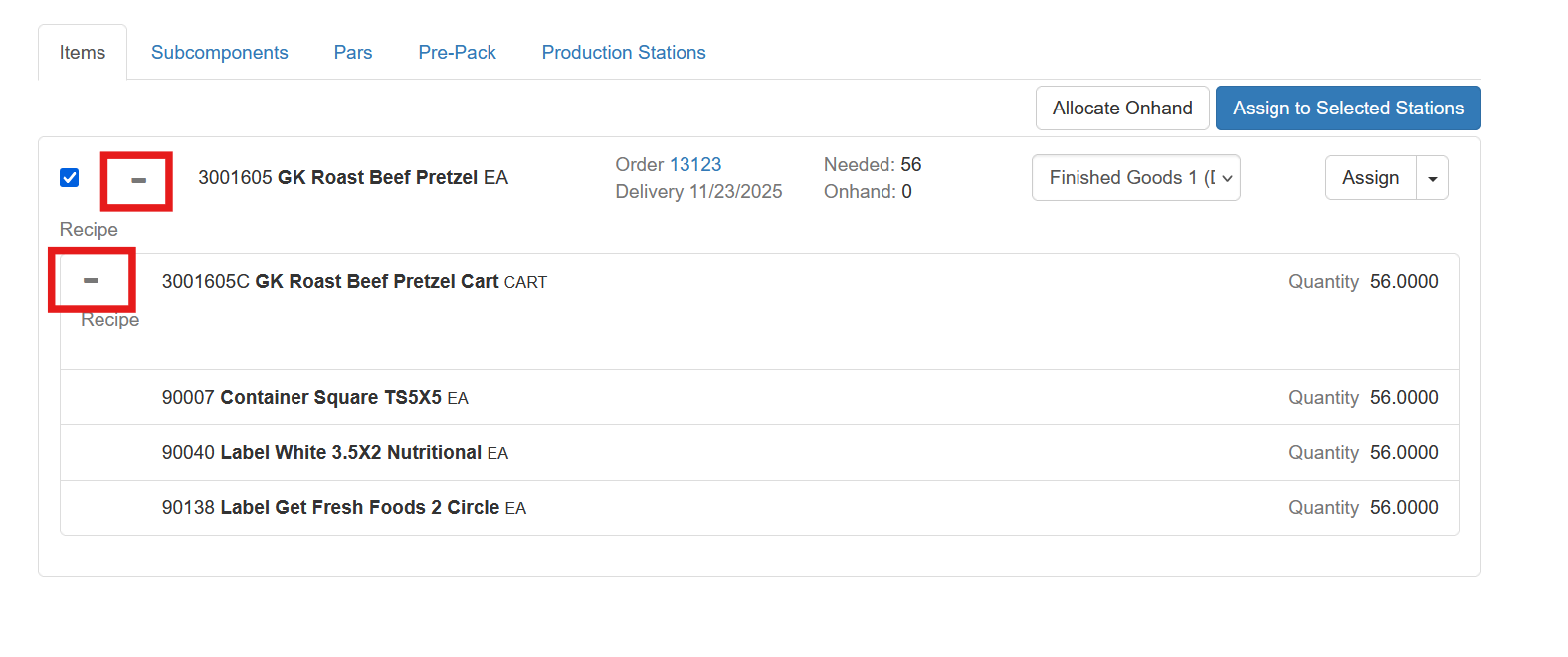
Shown on each line are details about the item, such as order, delivery, and inventory levels. The user can click the Order number to open the order screen for that order.

Item Requirements
The user can expand the Item and see any subcomponent and subcomponent requirements by clicking the Plus to expand and the Minus to collapse. Components that are a recipe as well will show under the Subcomponents tab.
Subcomponents
Subcomponents are items that exist as recipe members of other items. This can be either a finished good or a subcomponent. These are often referred to as WIPs, or works in progress.
Pars
Pars are items that have a standing inventory requirement by day. The par is configured on item maintenance under the par tab. When the recipe assignment dashboard is opened for the day the system calculates any par needs by looking at available inventory and comparing to the pars for the day. If the available inventory is less than the par requirement the difference is shown here and can be assigned to a production station
Get a picture
Prepack
Prepack is a way to assign a build that isn’t a part of a sales order or a par. It can be any item with a recipe.
Production Stations
Assigning Jobs To Stations
To assign jobs to stations the user can use the “Assign to Selected Stations” button to immediately assign all jobs to their default station.
Default stations are configured on the item’s recipe tab under item maintenance. Double check, maybe add a picture

To override a single assignment the user can change the station on the station drop down

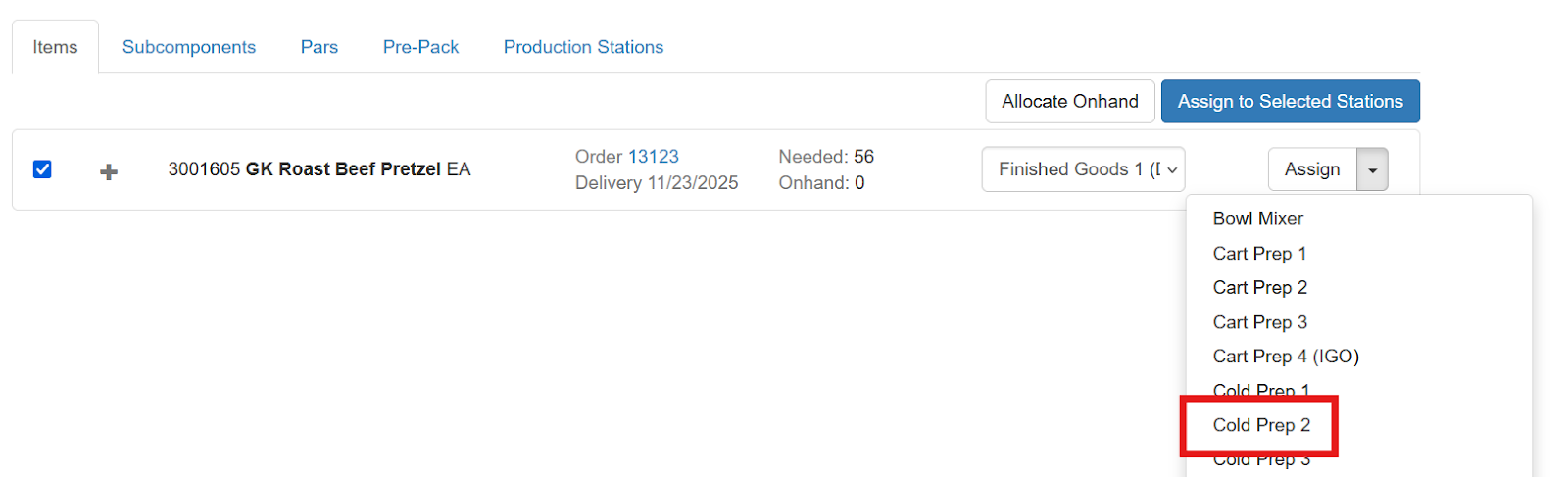
Or to immediately override the default station and assign the job the user can use the Assign drop down and select the station
Building Jobs
Once jobs are assigned to production stations the user will open the Production Station for the jobs that are going to be built. This is typically opened from the Recipe Assignment Dashboard - Production Stations tab
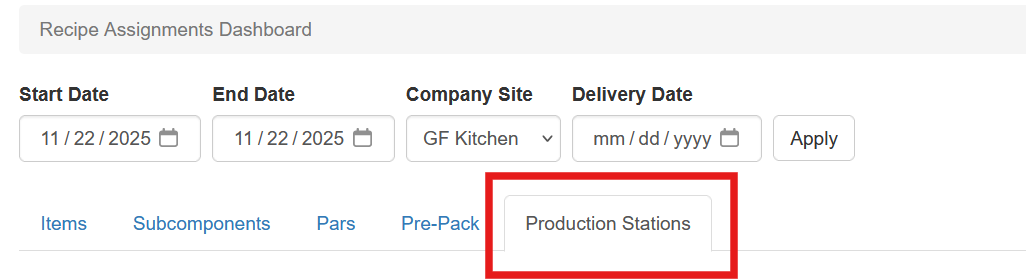
All production stations with all assigned jobs will show. On the left, in the gray oval is the priority order. This is configured by station by item. To start building jobs on this station click the station name.
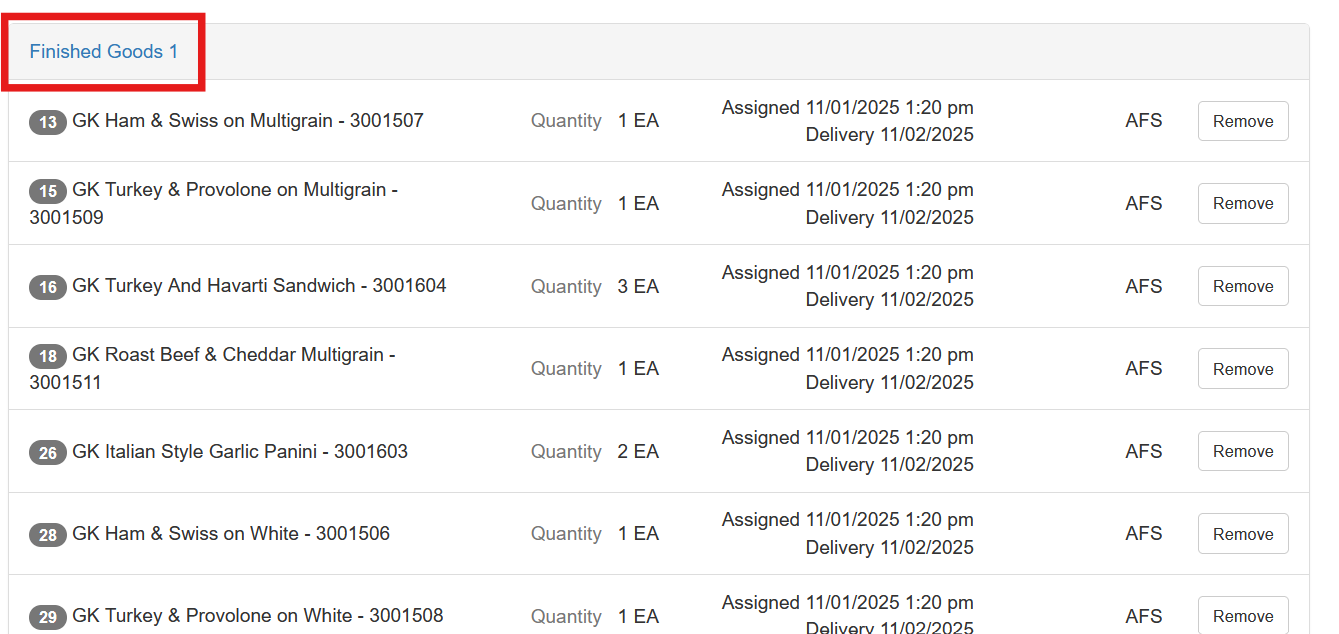
Production Station
When selecting the production station, this shows the jobs for that station. This is the primary screen used by the production staff on the production floor.
Show the screen, be sure some say ready
Combine
Ready
When an item turns green and says ready, that indicates to the user every prerequisite is available in the station's Source Inventory Bin, unless the item is marked as Auto Allocate.
Auto Allocating Items
Auto allocating items are items that are not necessary to track by lot for food safety reasons. This typically includes labels, over wrap, outside packaging, etc. When an item is auto-allocated the Ready indicator will show even if the item is not in the default source bin. Add more to the item setup about the auto allocate flow
Is there a ready indicator here or a started? Or is that only on the station?
Keep in mind, worker count is 1
Completing Builds
Completing With Missing Components
Occasionally a build must be closed without the required components. Sprout allows this with multiple safeguards in place so only the correct user can do this.
Prerequisites For Completing with Missing Components
Correct User Right
A user must have the ic.subcomponent_builder.override_components_missing_allocations_validation right enabled to complete jobs with missing components. This is defined in Roles.
Supervisor PIN
A supervisor approval PIN must be set for the Company Site. This is done under System - Company Site. Choose Properties for the specific site and set a PIN
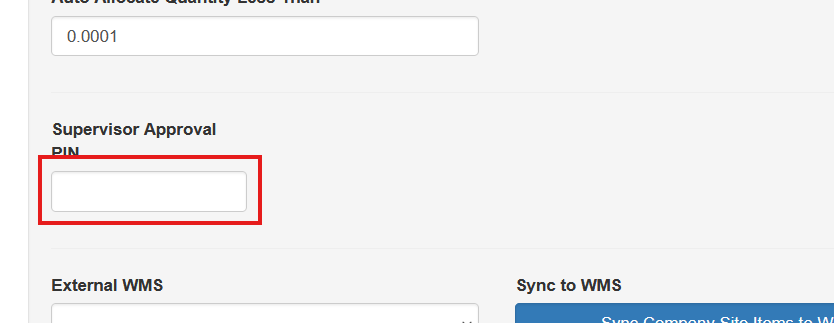
Completing Builds
When closing a job with missing components the user will be prompted with this message
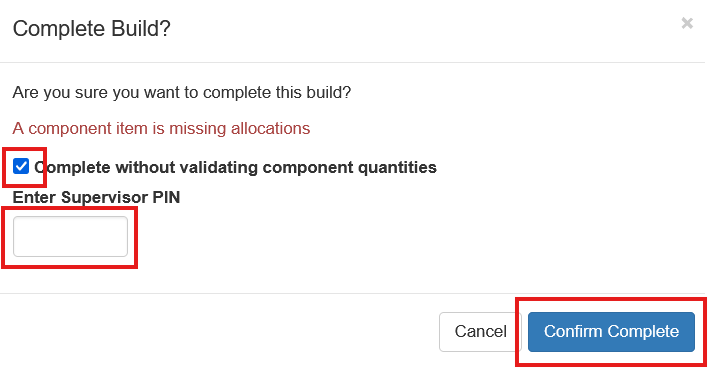
The user will confirm that the build will be completed, enter the PIN and click Confirm Complete.