Adding A Price Level
Price levels are added under Pricing - Levels. That screen will show existing price levels as well as the option to Create New Price Level. Click that to create a new level. There are many options on this screen, in this section we will only cover the required options.
Short Code: The short code is a quick reference, such as the price level ID, or number. It is recommended that this never contain spaces or special characters, only A-Z or 0-9. Special characters (!, @, #, $, etc.) are supported and can be used if required by a customer, but otherwise should be avoided. The maximum length is 10 characters.
Description: This is a longer description of the level

Start:This is the first day of the pricing period’s validity
End: The last day of the pricing period
Days: The number of days in the pricing period. This is used to automatically advance the Start and End date when pricing is updated - more information on this is covered below.
Cost Base: This is the cost base used when calculating pricing. More on this is covered in a later section.
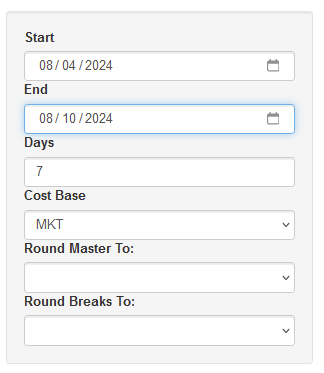
Once this data is entered click save. This price level is now available to assign to customers under the main tab for customers and customer sites.
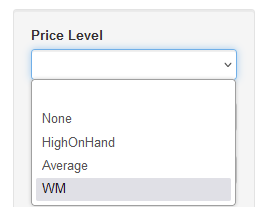
Note: Creating a new price level and assigning that level to a customer does not give those customers pricing yet. The cost base and price level parameters must first be set up and calculated. Both are covered in the next sections.