Adding Items To A Purchase Order
Adding Items to a Purchase Order
Items can be added to a purchase order by searching for the item and entering the quantity and cost information.
Active/Inactive Items
If an item is inactive it will show up as red when adding to a purchase order
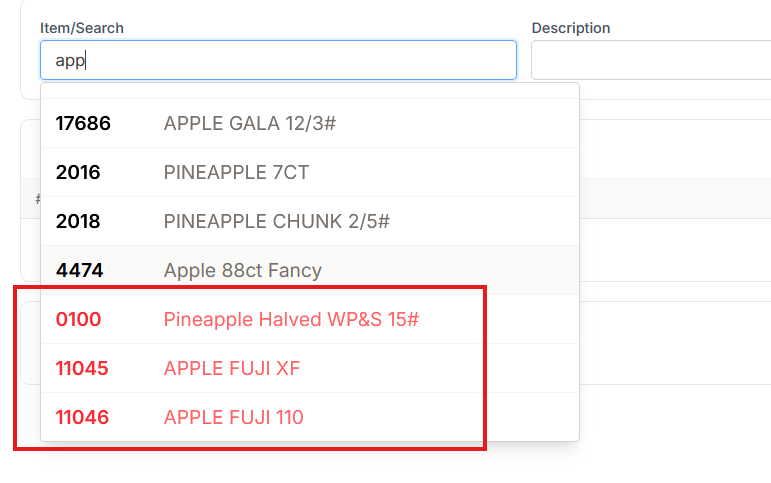
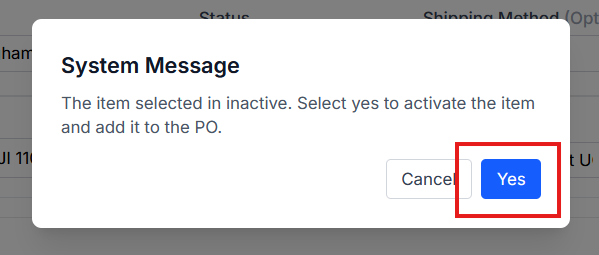
If the user has the rights to activate an item, adding it to a PO will ask the user to activate it, otherwise it can't be added to a PO
To add an item to a purchase order:
- In the Item/Search field, enter the item code or search for the item by name.
- Select the item from the search results.
- Enter the quantity ordered.
- Select the unit of measure (UOM).
- Optionally enter the Country of Origin (COO). This can also be entered later during receiving.
- Enter the cost.
- Click the down arrow to add the line item to the purchase order.

The item will then appear as a line on the purchase order.
Smart Search
Sprout supports Smart Search, also known as pattern matching search. This allows users to locate items using partial names or multiple search terms.
For example, many companies may carry multiple apple items with different pack sizes or counts.
A search such as:
app wa
may return items such as Washington apples.
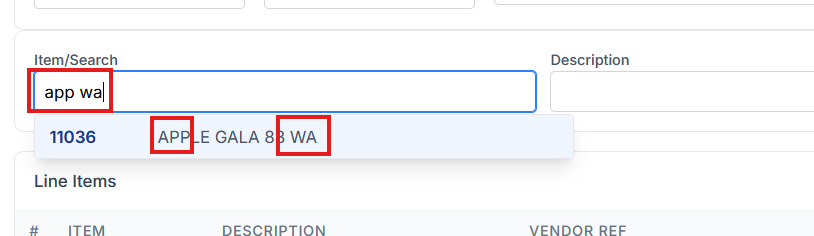
Similarly, a search such as:
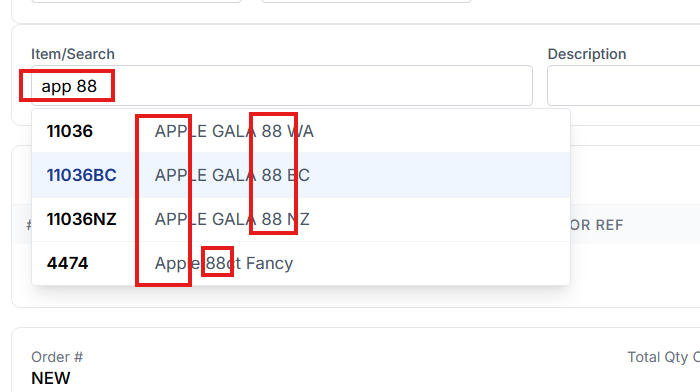
app 88
will return items that include 88 count apples.
Smart Search makes it easier to quickly locate items when the exact item code is not known.