Create and Modify Vendor Specs
To create or modify Vendor Specs:
- Navigate to PO → Vendor Specs.

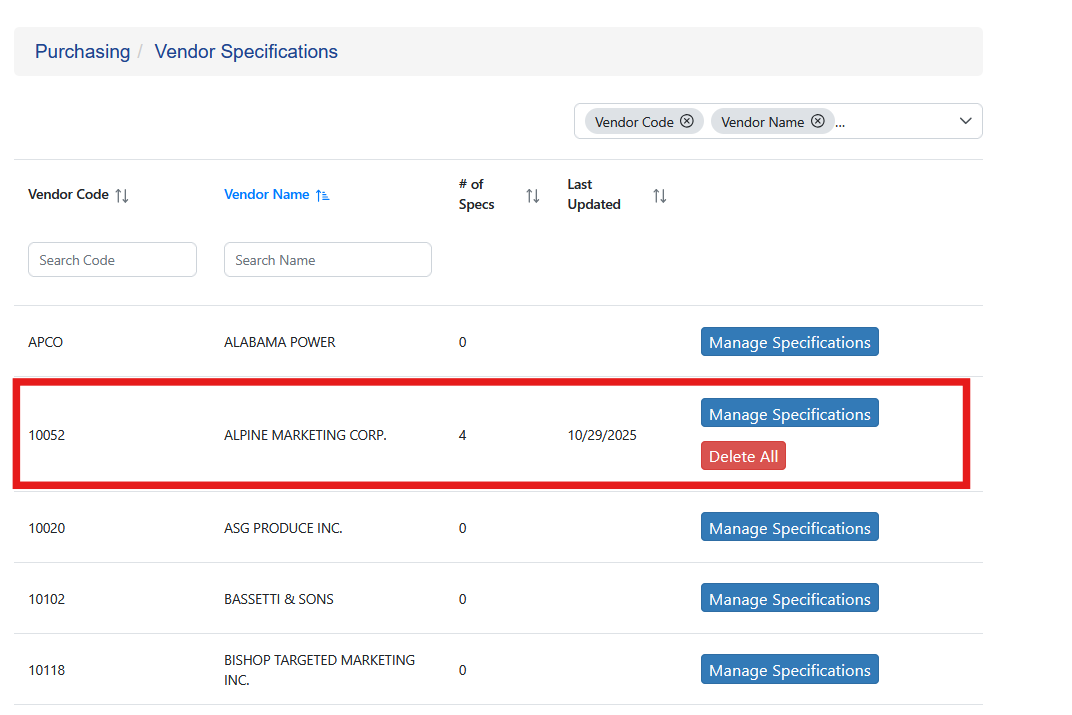
When the Vendor Specs screen opens, all vendors are displayed.
For vendors that already have specifications configured, the screen will show:
- the number of items in the specification
- the last time the specifications were updated
- an option to delete all existing specs
To edit a vendor’s specifications, click Manage Specifications.
Adding Vendor Spec Items
To add an item to a vendor’s specifications:
- Click New Vendor Spec.
- In the popup window:
- Select the item.
- Select the unit of measure.
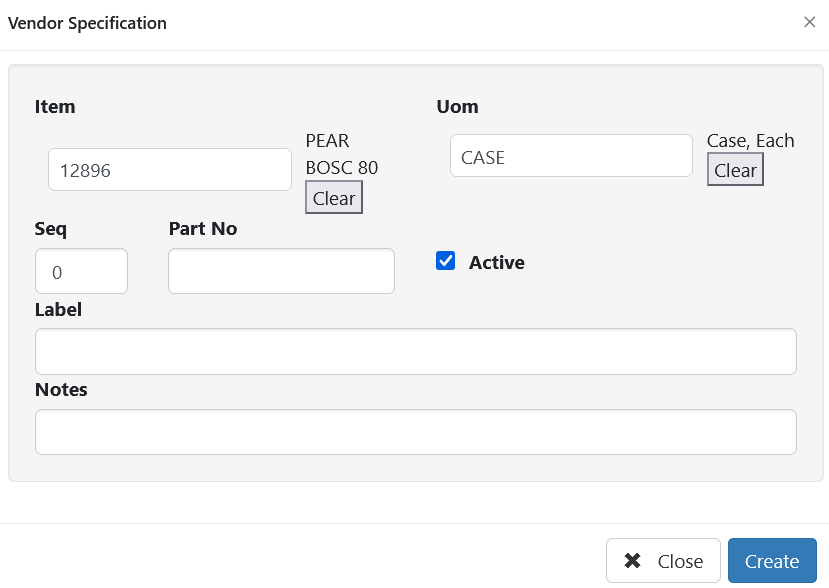
- Optionally enter:
- a sequence number
- the vendor’s internal part number.
- Click Create.
If a vendor part number is entered, it will also appear on the Vendor Settings page. Likewise, vendor part numbers entered on the Vendor Settings page will appear within Vendor Specs.
Arranging Sequence
The order of items within Vendor Specs can be adjusted in two ways.
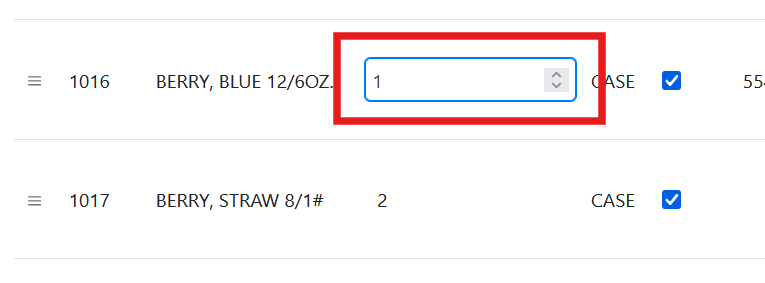
Editing the Sequence Number
The sequence number can be edited manually to change the order in which items appear.
Drag and Drop
Items can also be reordered by dragging and dropping:
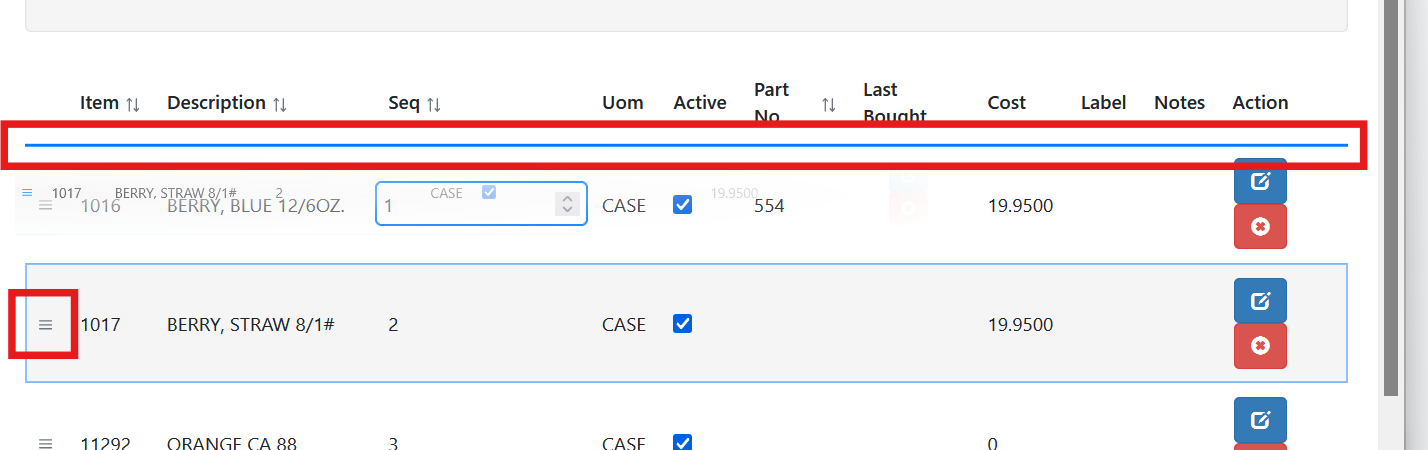
- Click the three horizontal lines on the item row.
- Drag the row to the desired position.
- A blue indicator line will appear showing where the item will be placed.
- Release the mouse button to drop the item in the new position.