Hardware Setup
Below is a list of all steps to set up your device for use on deliveries.
Hardware List
Your Anovys Driver App setup should include the following hardware items:
- An approved Android device
- Managed via a MDM
- LTE Cellular connection with SIM enabled
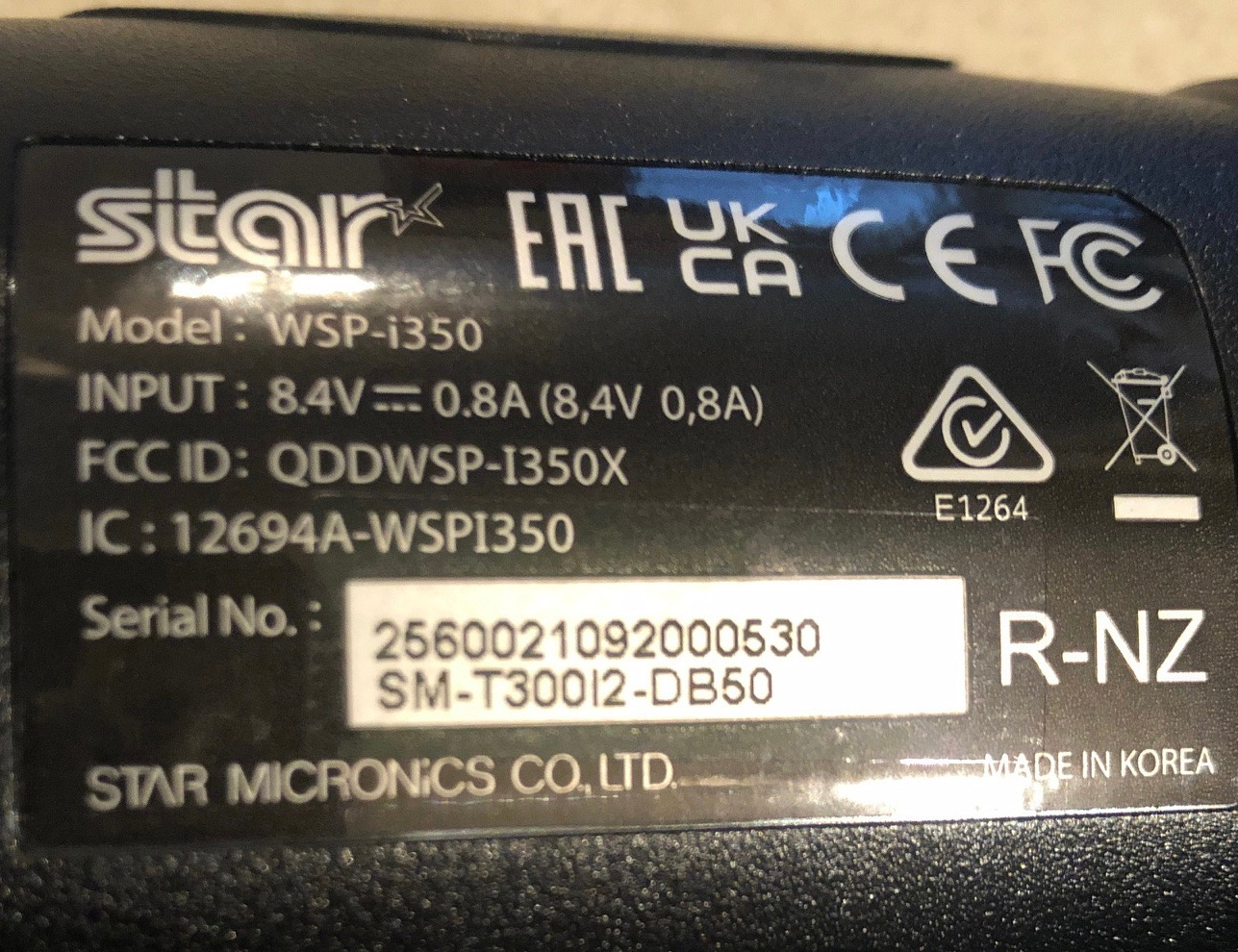
- A SM-T300i-DB50 mobile printer
App Identification
The Sprout Driver app should be pre-installed on the target device through its Mobile Device Management provisioning profile. A screenshot if the target app icon can be found below.
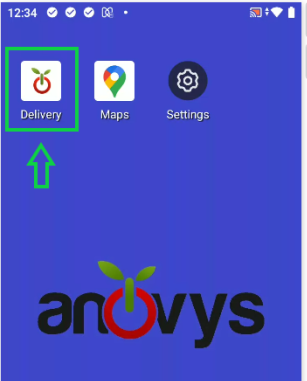
*Note: If the app is not installed, please contact Anovys to resolve app installation problems. The app is not available in the Google Play store and must be installed via a Mobile Device Management tool, or MDM.
Confirm Printer Model
Receipt printing is supported in Sprout Driver for the Star Micronics SM-T300i. A picture of the serial for the verified model is shown below for comparison.
Preparing the Printer
The SM-T300i has a number of print modes. Ensuring the printer is in the proper mode will make connecting it to an Android phone easier and help it to maintain its connection over time.
Bluetooth Port Selection
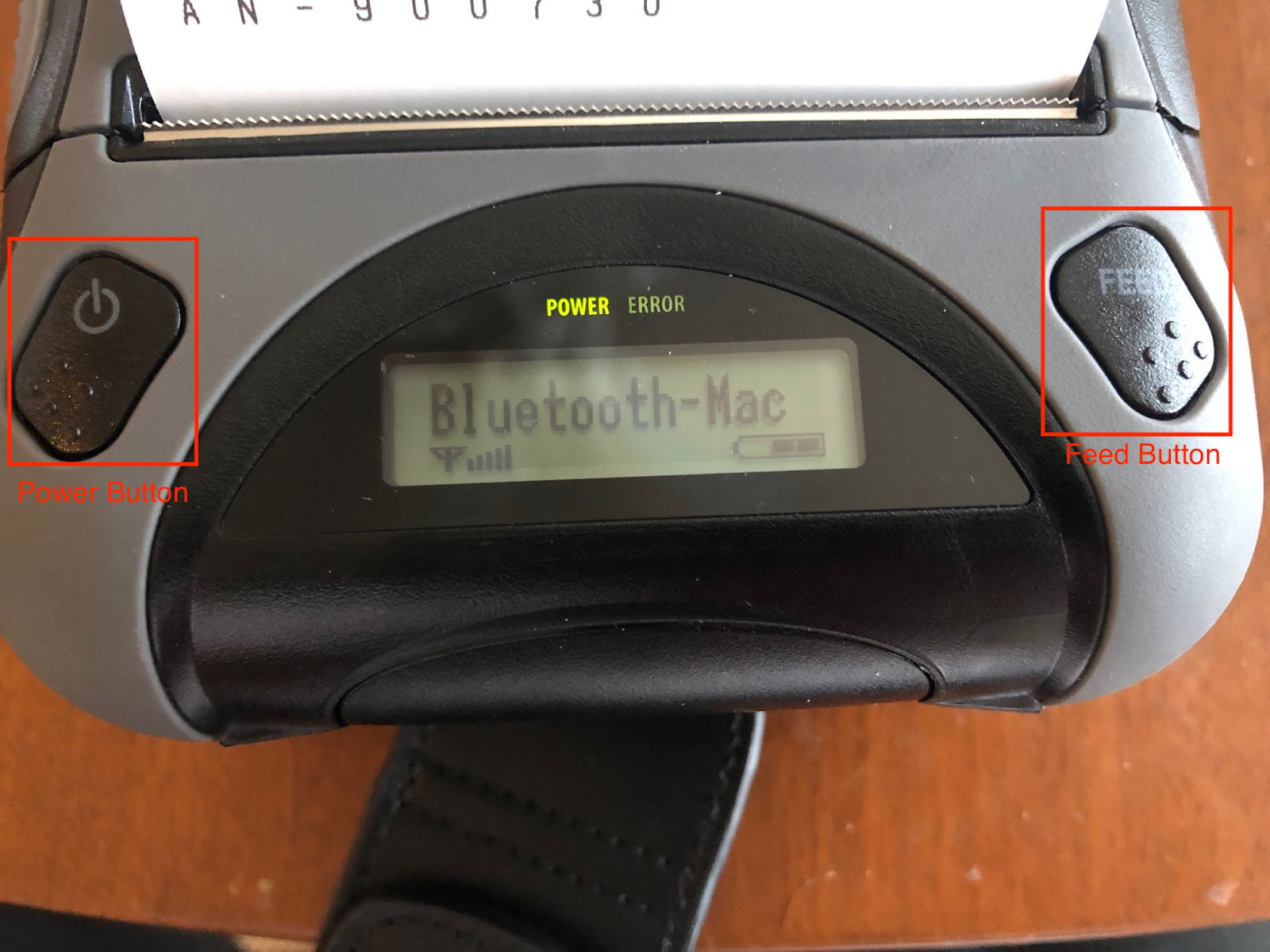
The desired bluetooth connection port is “Bluetooth - Mac”, however in some cases this is not the default mode and must be selected via the device settings. To access the device settings and make the change:
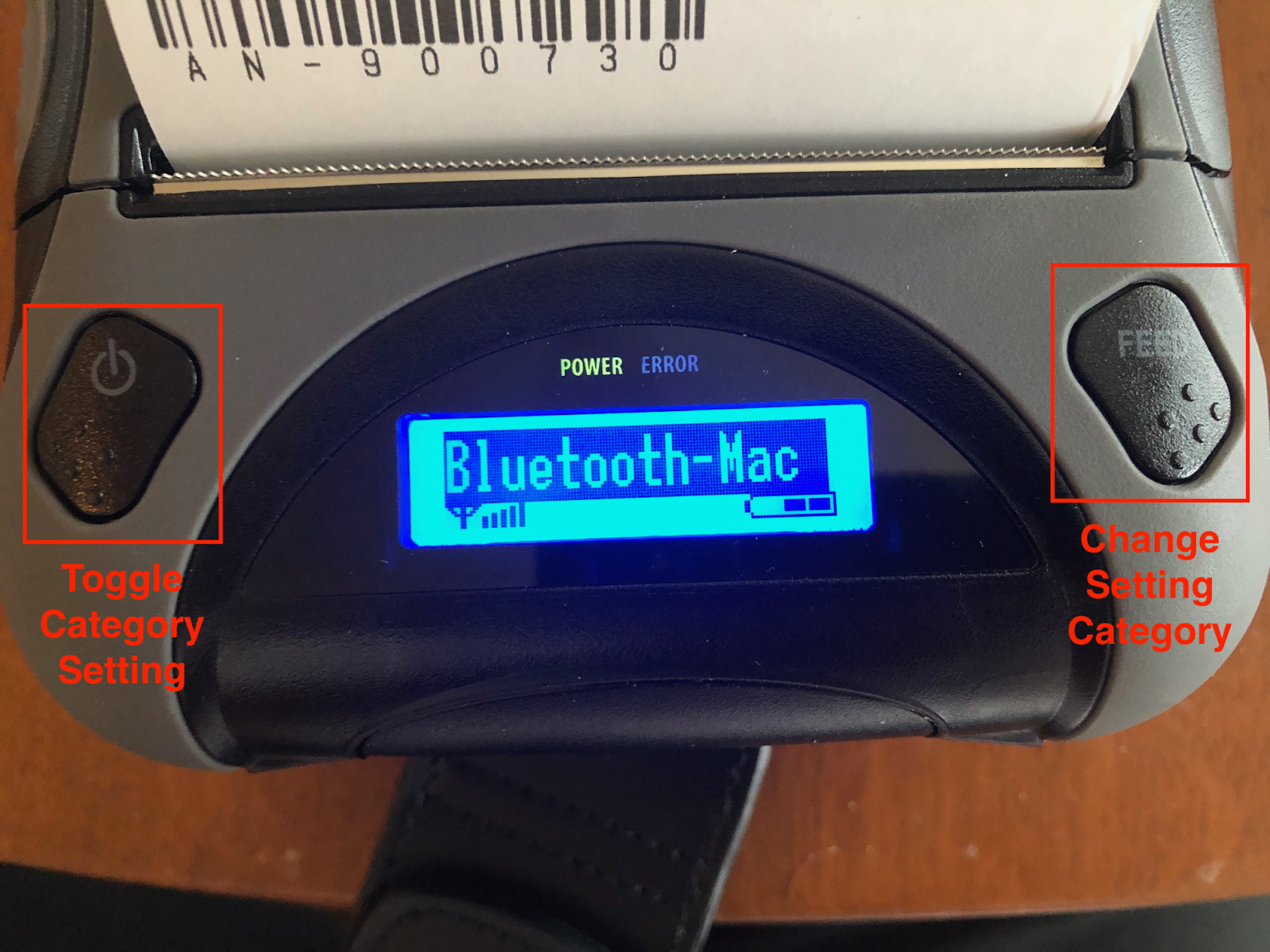
- Hold down both the power button and feed buttons until the unit display lights up blue as shown below.
- The Bluetooth port setting should be selected as it is the first setting. If not, change the setting category by pressing the feed button until it is selected. The possible states are:
- Bluetooth-Mac
- Bluetooth-Auto
- UART Mode
- Toggle the Bluetooth port setting, press the power button. Ensure that Bluetooth Mac is selected.
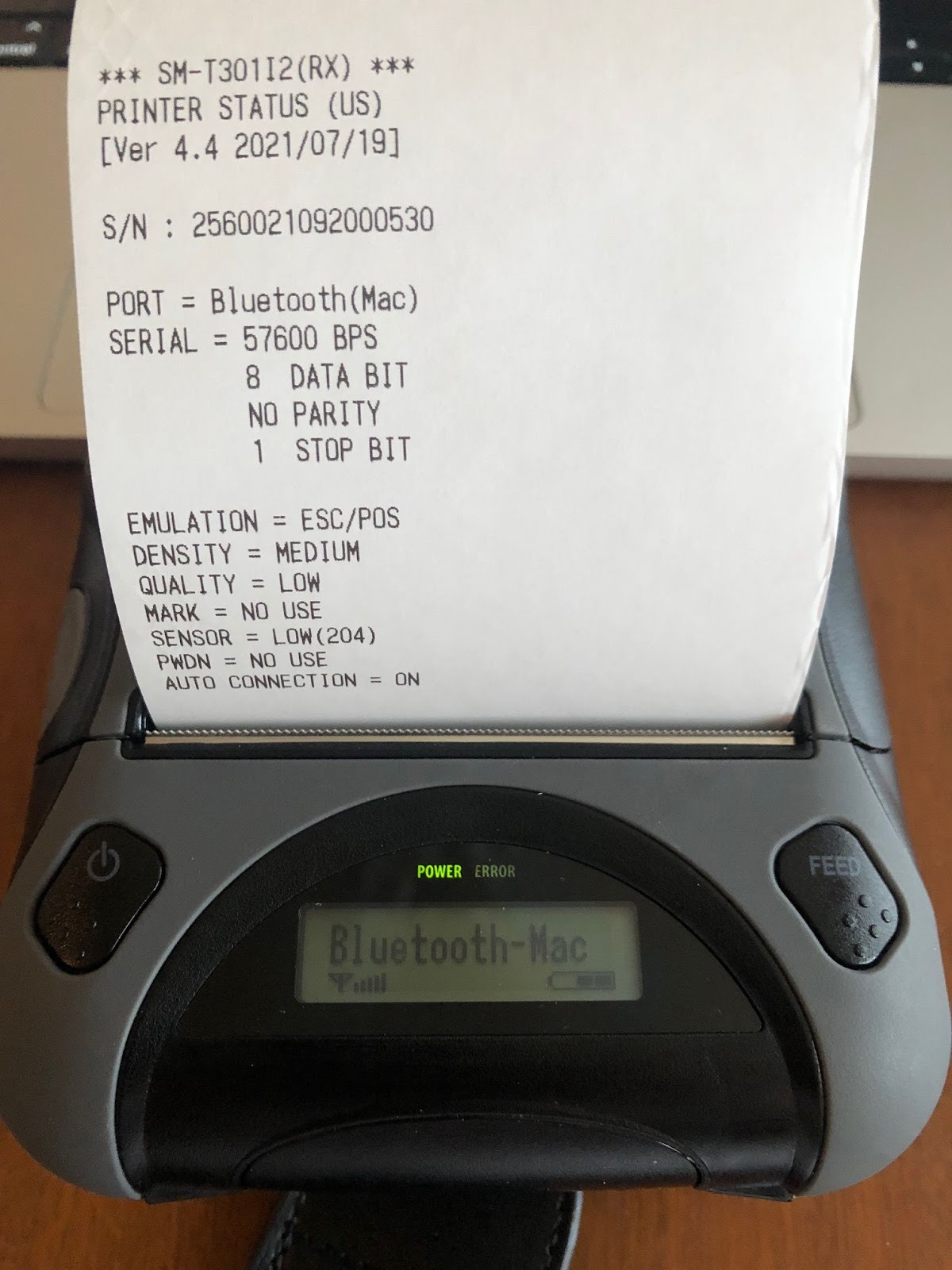
- Confirm your setting changes by pressing the power button and feed buttons. You should receive a printout like the one shown below. If any other settings do not match the printout below, enter the settings on your printer and rectify them to the printout below.
Android - Connecting the Printer
The SM-T300i connects to the Android Phone via Bluetooth. To connect the printer:
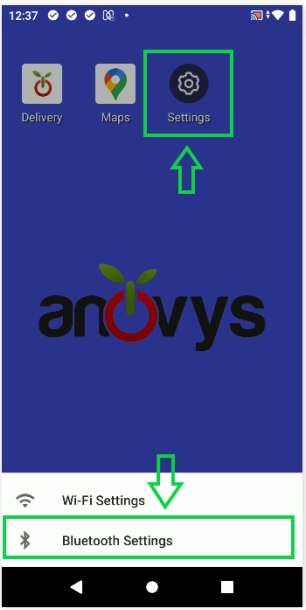
- Navigate to the Android Settings App
- Tap “Bluetooth Settings”
- Tap “Pair new device”
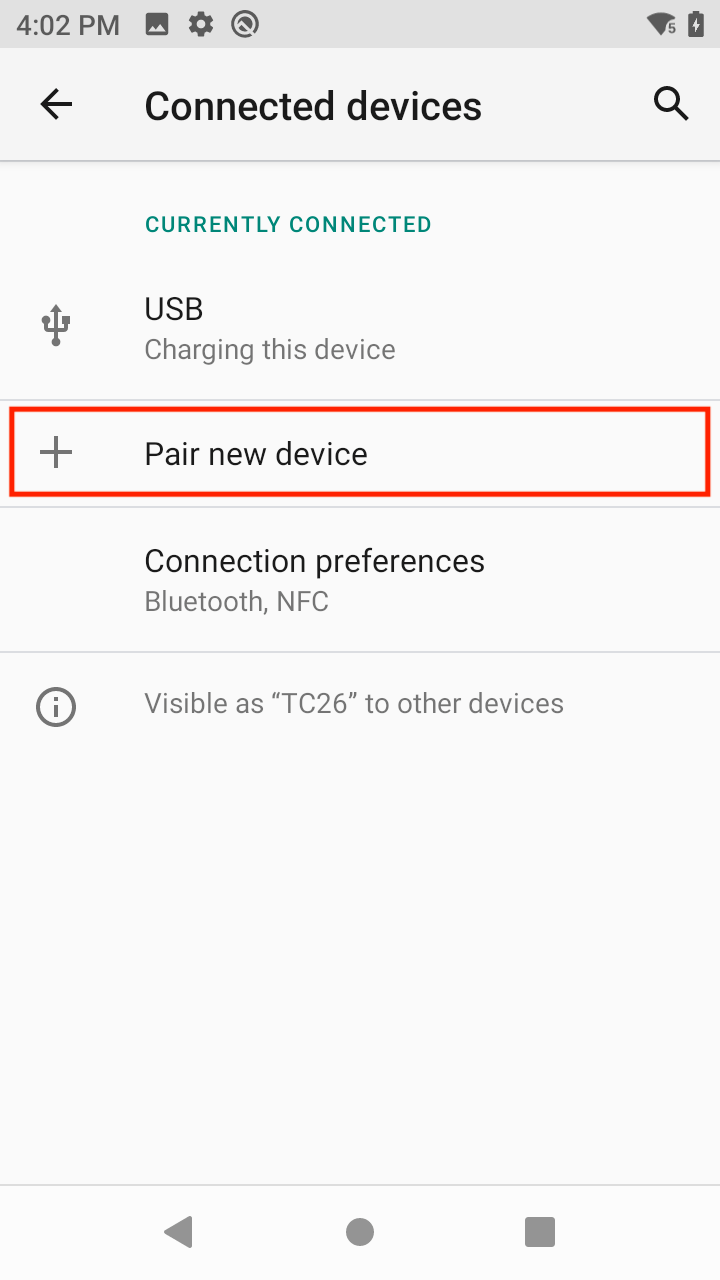
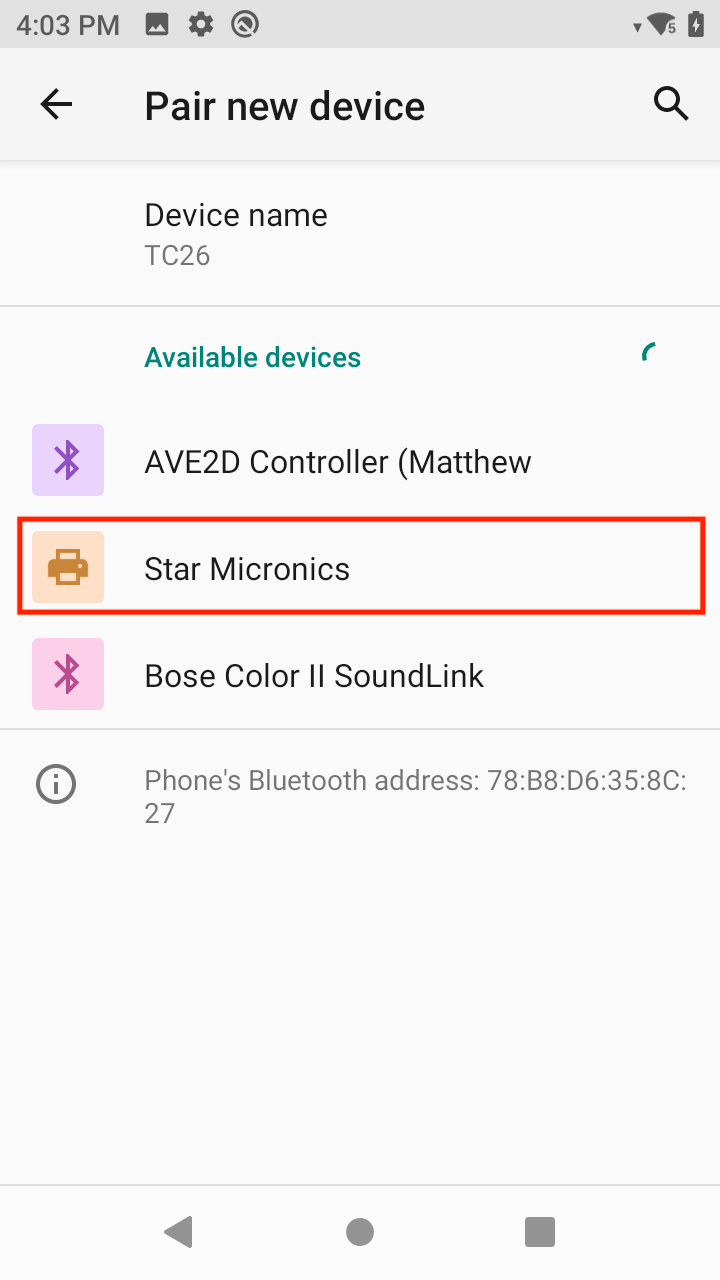
- Locate and tap the Star Micronics device in the “Available devices” list to begin pairing the printer to the Android phone
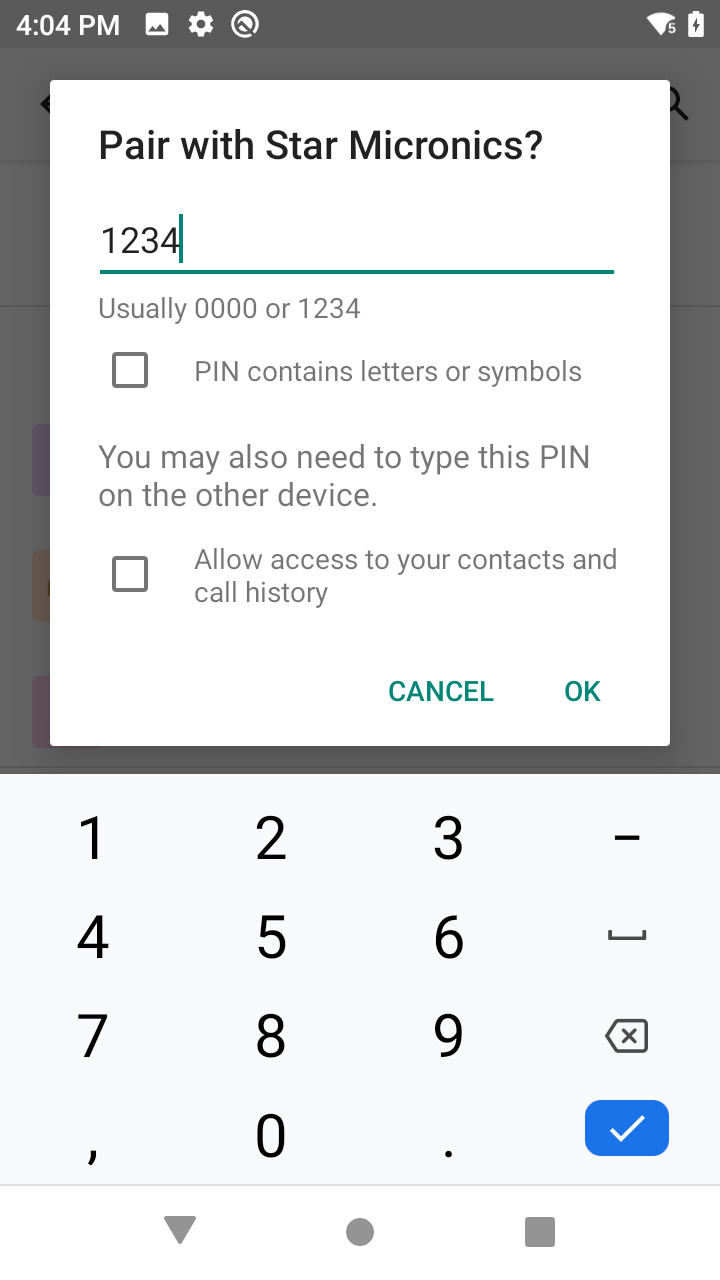
- Complete the connection prompt and use “1234” as the PIN number
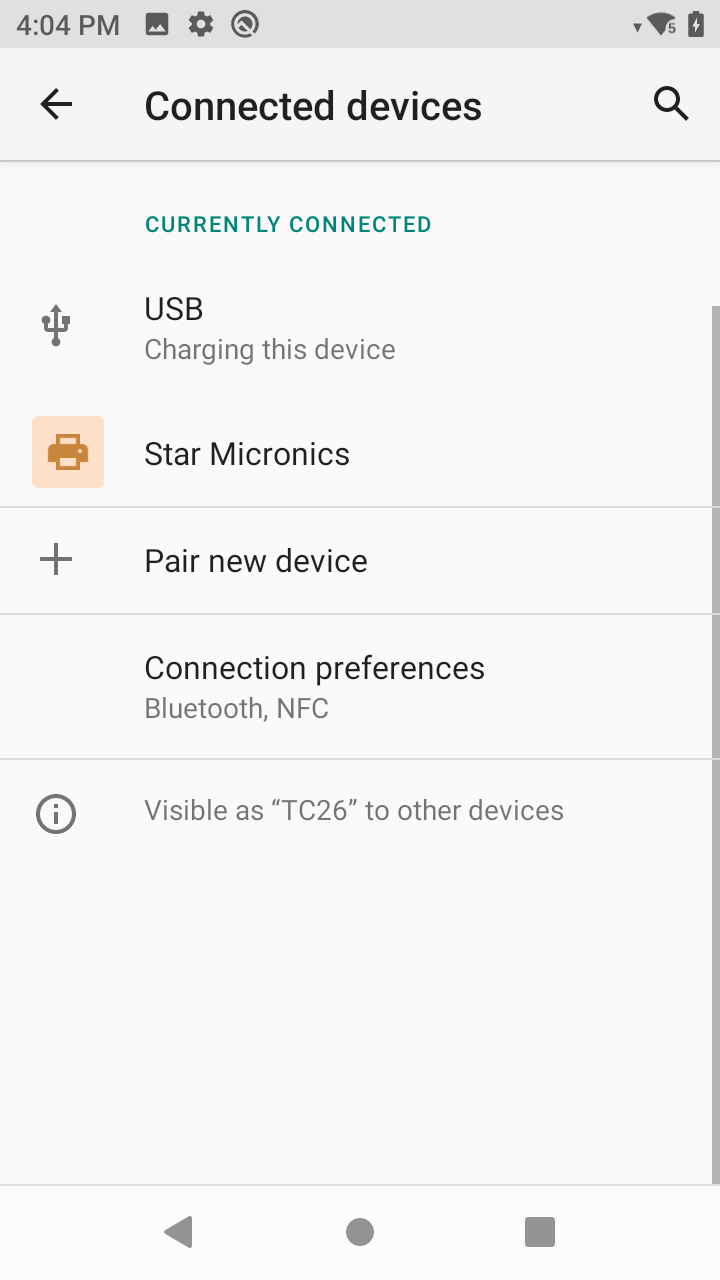
- Confirm the connection was successful by seeing the printer listed in the “CURRENTLY CONNECTED” or “PREVIOUSLY CONNECTED” devices list