Sprout Operations
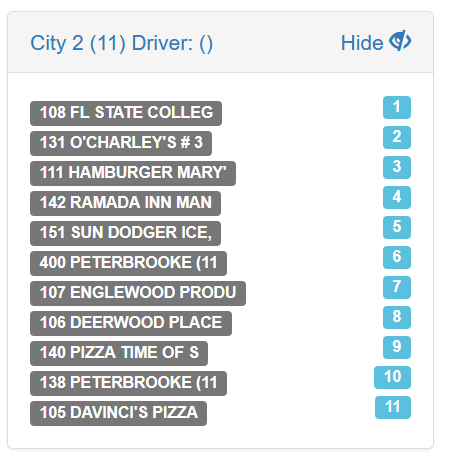
Within Sprout routes are created and invoices are assigned to a route. The invoice is given a sequential stop order. This can be done within Sprout or via an external routing system. Once a route is created the next step is to assign the route a driver. Once the driver is assigned that driver can access the route in the app.
If a driver is making a delivery and the customer rejects an item the driver calls in to Customer Service. Customer Service adjusts the invoice and then the driver can refresh the app to show the corrected invoice before the customer signs it or it is printed.
Driver Assignment
Once route assignments are completed and all invoices are on the route and in sequential order a driver is assigned. To accomplish this task, in Sprout go to SO and choose Route Overview. Choose the Delivery date, the Company Site and, if desired a route group. This will show you every order for the given criteria. Click on a route to go to the route details.
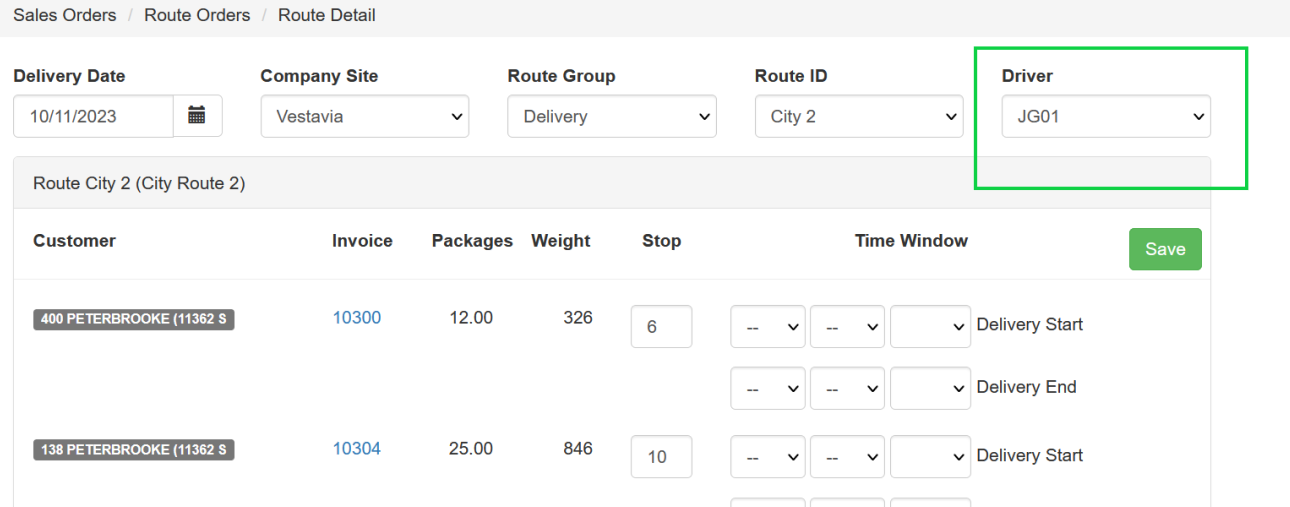
Choose the driver code - this is the drop down indicated by the green outline. Once the driver is selected click Save. The driver is now assigned to the route and invoices and can access their route in the app on their device.
Cash on Delivery
Sprout Driver has features to enhance the flow and record keeping for Cash on Delivery customers. To trigger the COD settings, the terms MUST be set to COD in Accounting Info for the customer.
Once completed, a special red COD indicator will appear with an order in the orders list and on each delivery screen in the Sprout Driver app. In addition, a popup will occur at the time of order submission to collect information on the COD interaction (e.g. recording the check number).
Sending Customer Invoices (via email)
For invoices to be sent to customers the invoice box must be checked on the delivery customer. If a customer only has a bill to, then the invoice must be checked for at least one contact on the bill to. If the customer is a ship to, the invoice box must be checked for at least one ship to contact. At each delivery made, every contact with the Invoice box checked, in the yellow boxes, will receive a copy of the signed invoice.