Selling Below Cost
Sprout can warn users when a sales order line item is entered at a price below cost.
Because inventory costs in Sprout may vary by lot and over time, the system does not use a single fixed cost. Instead, the warning is based on a configured cost base.
Enabling the Below Cost Warning
To enable it:
- Select System → Company Sites.
- Edit the Company Site.
- Scroll to Below Cost Warning.
- Select the cost basis Sprout should use for comparison.
- Click Save.
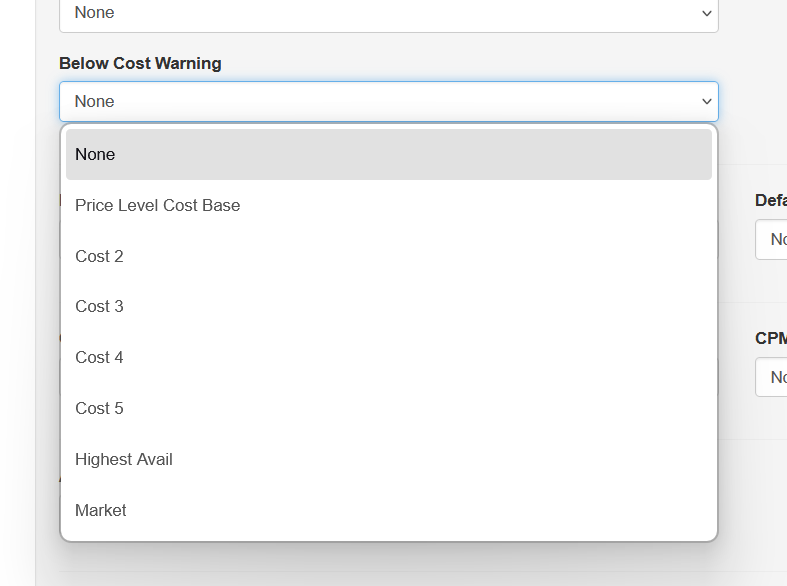
By default, None is selected. When None is selected, Sprout does not display a below cost warning.
Selecting a Cost Base
When enabling the warning, the user must choose the cost base the system will compare against.
Available options include:
- Price Level Cost Base
- Any other configured cost bases in the system
Price Level Cost Base
When Price Level Cost Base is selected, Sprout uses the cost base configured on the customer’s price level. This allows the system to compare the sales price against the cost basis associated with that customer’s pricing structure.
Other Cost Bases
If any other cost base is selected, Sprout will compare the sales price to that specific cost base for the item.
This option is commonly used when a company maintains a market price cost base to reflect prevailing market conditions in a region or product category.
After selecting the desired cost base, save your changes to activate the warning.
User Warning During Order Entry
When the warning is enabled, Sprout will evaluate the sales price during manual sales order entry.
If the entered sales price is below the configured cost base, the user will see a warning message.
The warning displays:
- The item being entered
- The amount the price is below cost
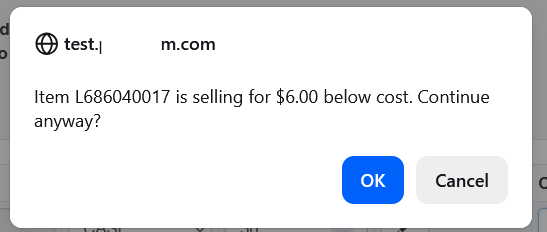
The user may then choose:
- OK — continue and add the item to the order
- Cancel — return to the order entry screen and adjust the price
Limitations
The Selling Below Cost warning applies only during manual sales order entry.
If a sales order is imported electronically (for example via EDI or other automated integrations), the warning will not be triggered.
However, if a user manually adds an item to an electronically imported order, the below cost check will still apply to that newly added line item.