Calculate Pricing
Once costs and price level parameters are configured the pricing must be calculated. This step is mandatory and is what generates your price level’s values.
There are multiple steps and are performed at different intervals by the user, based on the company needs.
The buttons at the bottom of the screen run the tasks.

Queued Processes
These tasks process thousands of entries across every price level. It is a time consuming process.
Sprout offloads this task to the background, allowing the user to do other tasks or even leave their system entirely.
Once a level or multiple levels are selected and a task is run, the user will see a notice that the task has been queued.
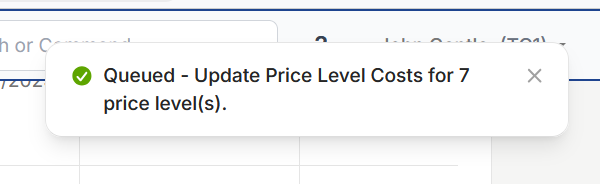
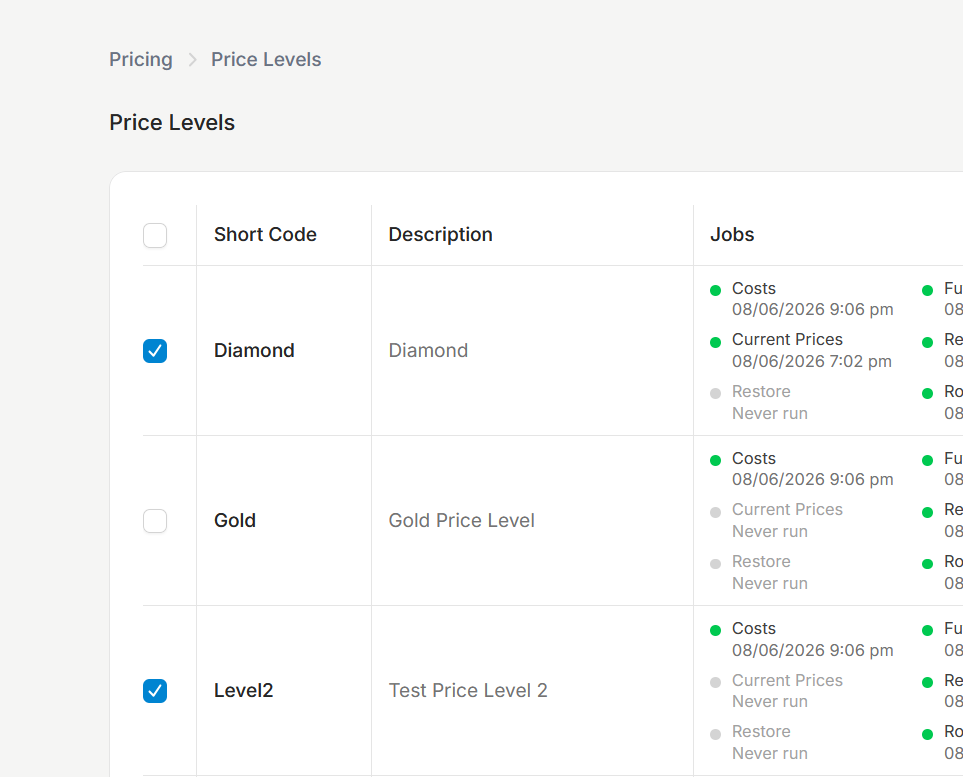
In the status the user will see if that task is pending, currently being processed or if that task is complete.

Once a task is complete additional tasks can be queued.
The user will need to refresh the screen
Update Price Level Costs
Update Price Level Costs adds the cost, based on your cost base, to your price level. This is used in all future steps. Before a price level is calculated this step should always be taken.
Select your price level or levels (multiple levels can be calculated at the same time) and choose Update Price Level Costs.
Using the same examples above for the cost base the current cost for the items will be set. This can be viewed under Pricing - Maintain Level Prices (Single Level). Choose the price level you wish to view.
On a new level, or a new item, before pricing is calculated all values will be zero
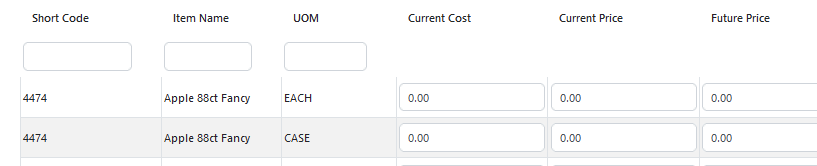
The cost base for this level is COST2. This base was populated in a previous step. Once the Update Price Level Costs function is run, the Current Cost field is populated.

Subsequent pricing actions will use this new current cost for additional calculations.
Break/Split Units of Measure
Units of measure with a case equivalency of anything other than exactly 1 have their cost calculated by that case equivalency.
For example, the apple above has a case cost of $24.75. An “EACH” unit of measure has a case equivalency of .1 To calculate the cost, Sprout takes the case cost and multiples it by the case equivalency for every unit of measure. In this example the math is 24.75 x .1 = 2.475, rounded up to the nearest cent, resulting in $2.48 for the cost.
Calculate Future Pricing
Future pricing is the sell price that comes after the current pricing period. This is typically done a few days prior to the expiration of the current price period as a part of a users standard pricing process.
In this example price level, pricing is valid from 4/21/2024 to 4/27/2024. The pricing expires at 11:59 pm on 4/27. When the future pricing is calculated the future price column is populated and orders entered at 12:00 am on 4/28 and later will take the “Future” price value. On 4/28, typically a step is taken in pricing to move future to current, which will be covered in the next section.
In the example below the Future Price is 0.00

Once the level has the future price calculated this column will get populated

When a price level expires, an order will take the future price for the price on the invoice.
Future Entry
The Future Entry button sets a price level for future entry.

Update Pricing
The Update button is typically the final step in pricing for a price level’s valid range. This is typically performed the day a price level goes into effect or shortly thereafter. This function takes the Future Price and copies it to Current Price.
In the example below the Current Price is zero because this is a new level and no pricing has been established.

Updating the pricing populates the Current Price field.

Update Price Level Dates
A price level had start and end dates that define its validity. For example, this level’s validity starts on 4/1/2025 and ends of 4/7/2025. It is defined as a 7 day period
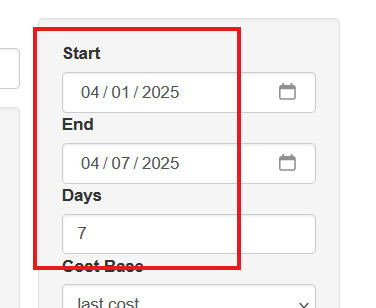
Once the data reaches 4/7/2025 the level is expired. To quickly roll price level validity forward the user can use the Update Price Level Dates.

This takes the number of days defined in Days and updates the level. Multiple levels can be selected at one time.
Recalculate Open Sales Orders
Once pricing is updated for future dates the user may want to recalculate any open sales orders on that price level.
This tool locates any sales orders that fall within the price level’s validity period and the customer is NOT set for add date pricing (see more under customer setup) and reclacuates the open sales orders using the new pricing.
Multiple levels can be selected at one time.