Entering Inventory Adjustments
To enter an inventory adjustment visit IC - Inventory Adjustments. Prior adjustments are listed.
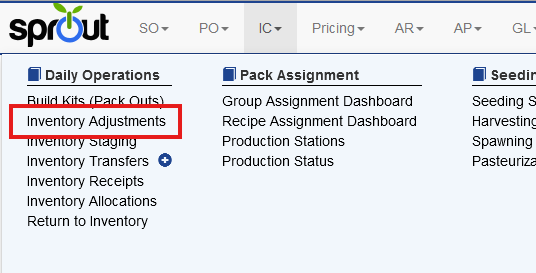
To create a new adjustment click Add Adjustment in the top right.
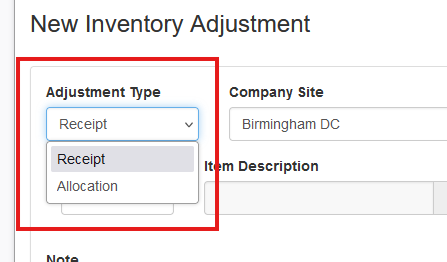
First the user must choose if it is an allocation, which is an adjustment to decrease inventory, or a receipt, which is an adjustment to increase inventory.
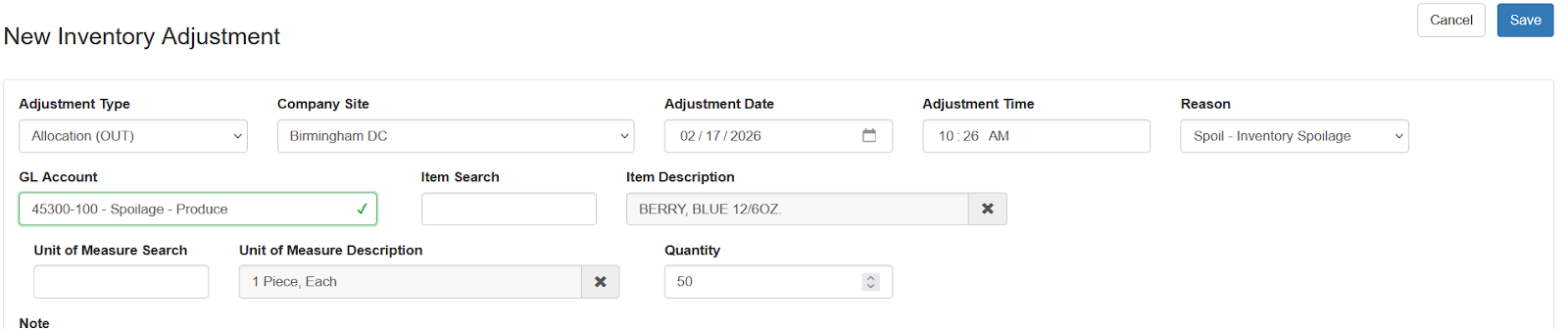
Once a reason is selected the associated GL account code will populate. Users with the correct rights can override this.
Search for the item by name or code and choose the unit of measure. Enter the quantity being adjusted.
Once all information is entered a list of available lots will be shown. Enter the quantity to adjust from each lot.
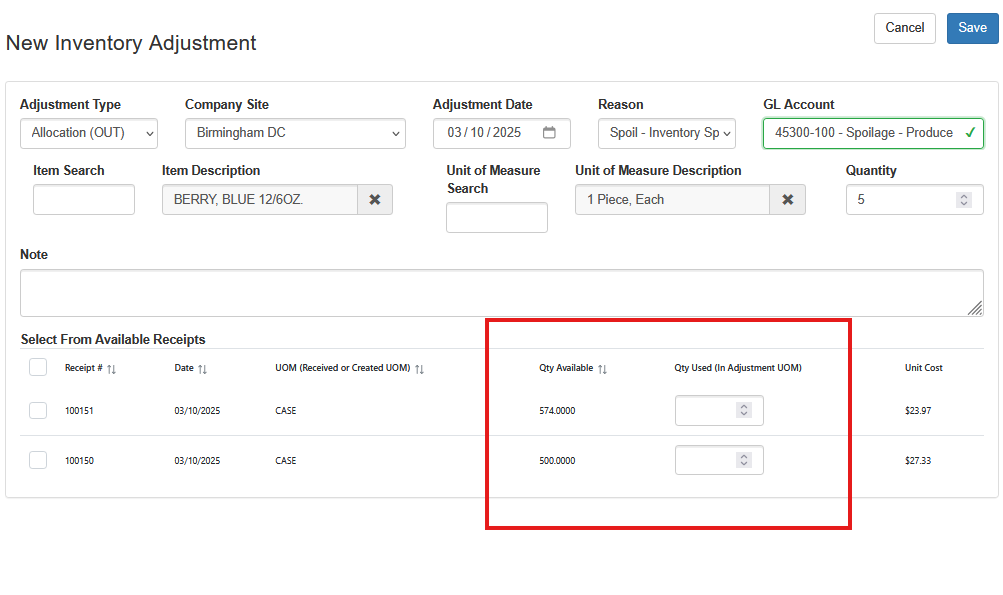
Note: If the adjustment is for a UOM other than the lot’s UOM the adjustment will be based on the UOM selected in the adjustment entry.
Once the user has all the information entered click save. The adjustment will be created and the associated GL entries are created.
Additional Considerations for Adjustment In Operations
When adjusting in inventory the system will use the cost from the configured cost base for the adjustment reason. The cost will be displayed in the Cost box. Users with correct rights can override this.
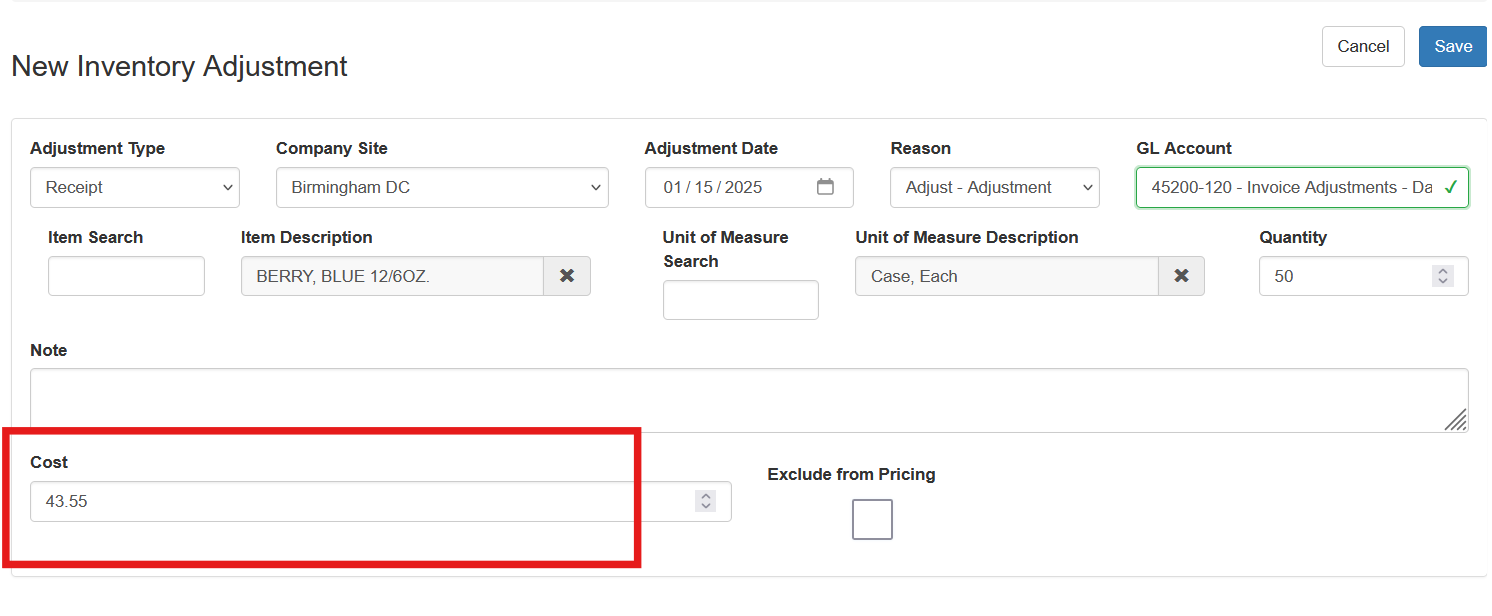
Often when inventory is adjusted it the adjusted in lot will be the last lot. To prevent this adjusted lot from the cost criteria for pricing check Exclude From Pricing.
Override Current Date Time
By default adjustments are made using the current date and time. Adjustments can be entered for a specific date and time if the user’s role has the “ic.inventory_adjustments.datetime” right.
Inventory Adjustment GL Entries
When adjustments are entered the associated GL entries are created. Once GL entries are posted these entries are included as well.