Entering Sales Orders
Creating New Sales Orders
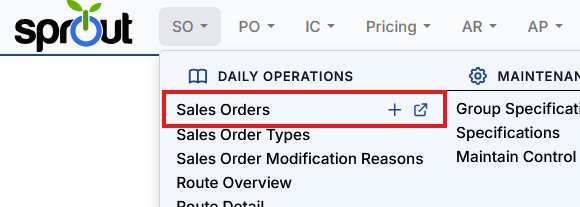
To enter a new sales order in Sprout's user interface select SO and Sales Orders. The plus sign will immediately start a new sales order and the pop out icon will start a new sales order in a new tab
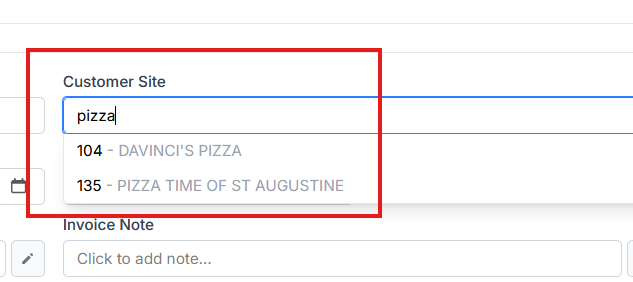
The customer or customer site can be located by searching for either the Customer or Customer Site. When searching for the customer the Customer Site will list all Customer Sites for that customer

When searching directly in the Customer Site the Customer will populate once the Customer Site is selected
Additional Fields On Sales Orders
Additional fields are available on Sales Orders. Note: all Date fields can be populated with the current date by pressing the letter T in the date box
Company Site: For companies with multiple distribution sites this is the site that will deliver this order. It is set by default by the customer site setting, but can be changed
Customer Ref/PO: This is where the customer PO goes. For EDI orderes that contain a PO this field is prepopulated. This is also used when sending invoices via EDI when the customer requires a PO on the transmission
Pack Date (Optional): This date is set for production users. This tells the production system what date
Order Date (Optional): The order date is the date the customer placed the order. This is used for certain pricing routines. The system records the actual date and time an order is created regardless, however some customers require a set order date that may differ.
Delivery Date (Required): The delivery date is the day the customer expects the order to arrive.
SO Type: This is used to track orders within a company. See Sales Order Types for additional details on setting this feature up.
Transportation Method: This is used to signify the method an order is delivered to a customer. See Transportation Methods for more details.
Ship Via Reference: This is free text and can be used to indicate a truck number or other transportation details
Pick Ticket Note: Used as a note on the overall pick ticket
Invoice Note: This note is printed on the invoice
Backdating Orders
Orders can only be backdated if a user has the specific so.backdate right in their role.
Adding Items to Sales Orders
Once the order details are entered items must be added to the sales order. The user can directly key the item code, if known, or search for it. Item search uses Sprout's Intelligent Search feature. The user can enter part of the item name as well as different parts separate by a space to locate the item. Only items that are Active will show., Inactive items must first be set to active in item maintenance.
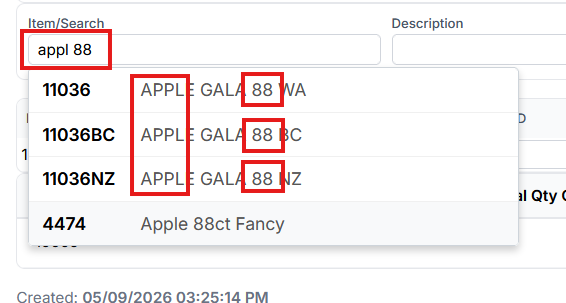
Click the item to add and choose the Unit Of Measure. The price will automatically populate with the customer's pricing. Users with the correct rights can override it. Once the line is complete be sure to click the blue plus to add the item to the order.

Sales Order Locking
Sales orders currently being edited by other users are indicated with a lock icon. If a subsequent user attempts to edit a sales order that is locked

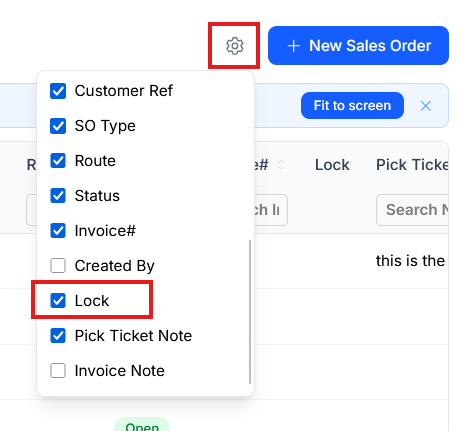
This lock is also shown by enabling the Lock column on the sales order screen
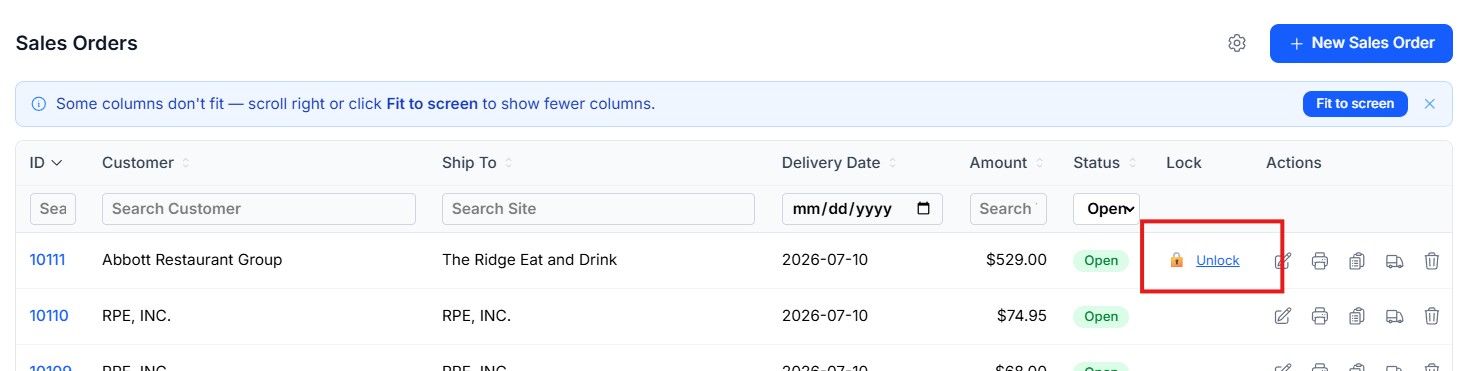
To unlock the sales order click Unlock and confirm. Changes made by the previous user will be lost.