Populate Cost Bases
Before a cost base can be used by pricing it must be populated with cost data. This is when cost data for products either on hand or inbound (or a combination of both) are used to populate the bases. Additional manipulation can be performed, such as adding a dollar or percentage, adding to a certain group or groups of items or updating one cost base with another cost base and then performing manipulations on it.
Basic Cost Base Population
The most basic cost base population is updating a cost base with true costs from purchases. This is accessed by going to Pricing - Advanced Cost Utilities.
Then choose your cost base in Update This Cost Base and the data to use by selecting the option under Update With Cost Base
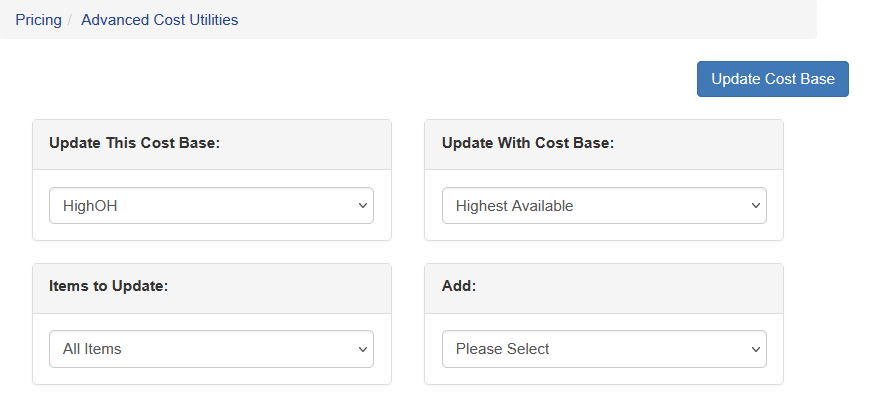
Under Update With Cost Base the built in options are listed as well as user maintained Cost Bases
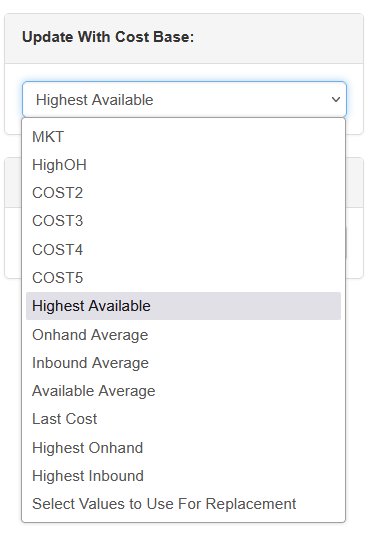
Highest Available: The cost base for an item is the highest cost of all available lots.
On Hand Average: Average cost is the total cost of all items on hand at their lot’s respective purchase price divided by the total on hand. Example: If one remaining item on lot 1 at $15.00 and 9 items on lot two at $16.00 the math is as follows: [(1 x 15) + (9 x 16)] ÷ 10 = $15.90 This number is updated when you save and update pricing.
Inbound Average: Average cost of inbound product, excluding product currently on hand
Available Average: Average cost of both onhand and inbound product
Last Cost: The cost of the most recent received lot for an item even if that lot is depleted
Highest On Hand: The highest cost of all available lots on hand when the cost base is updated
Highest Inbound: The highest cost on all inbound purchases when the cos base is updated
Additionally there is MKT, HighOH, COST2-5. These are the cost bases created in Sprout
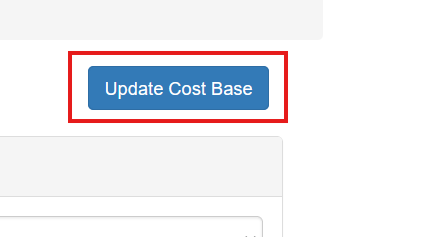
Once the options are selected click Update Cost Base and confirm on the pop up.
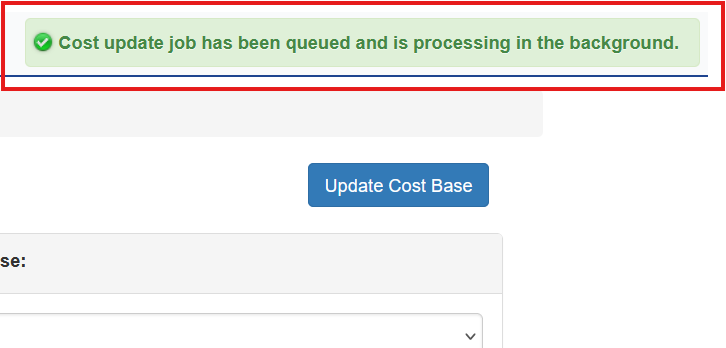
The cost update is done in the background and the user is notified that the process is running. The user can leave this screen and update other cost bases or continue with other tasks.
Cost Update Status
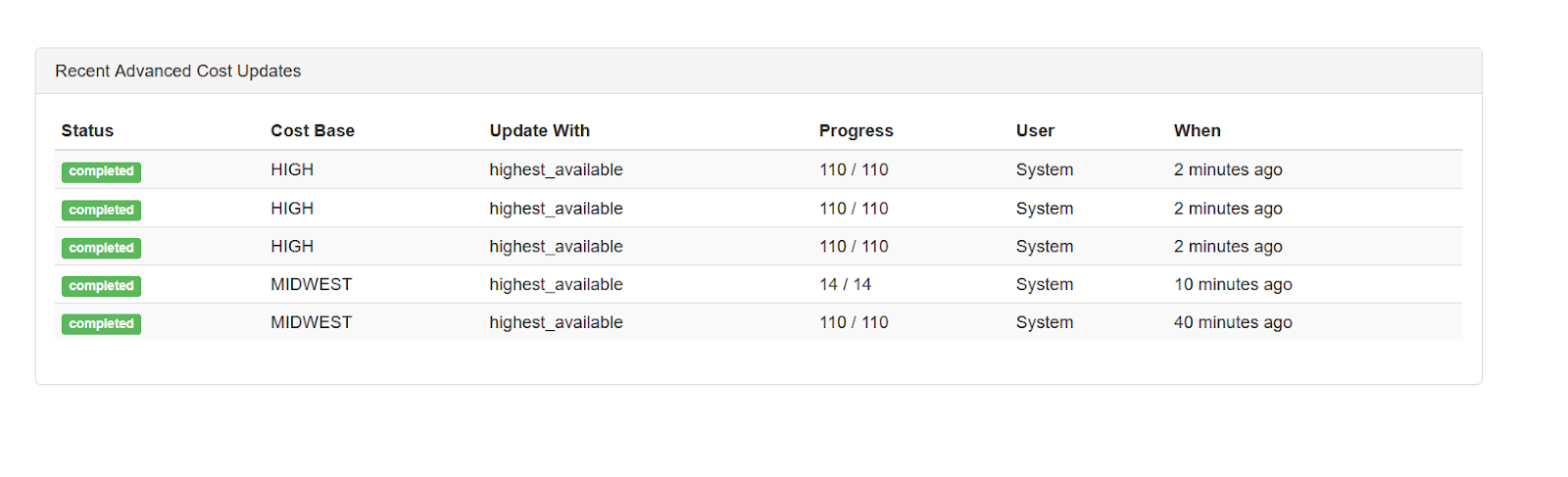
Cost calculations are done in the background. Users can see the status by visiting Pricing - Pricing Cost Bases. At the bottom of that screen the most recent cost updates are shown. The display shows the paraments used, the current status, the number of updates made as well as who updated the costs and when
Advanced Selections
Selected Items
Users can select different criteria to update only items that meet that criteria. This is done by changing Items to Update from All Items to Selected Items.
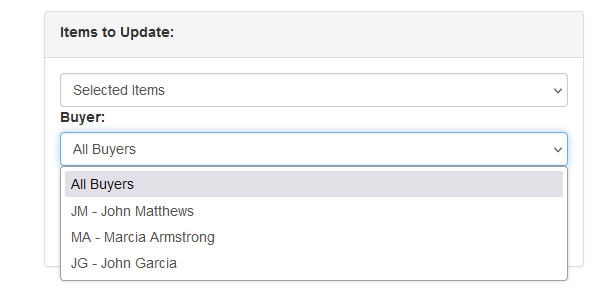
For example, a buyer can select just his or her items by filtering on Buyer
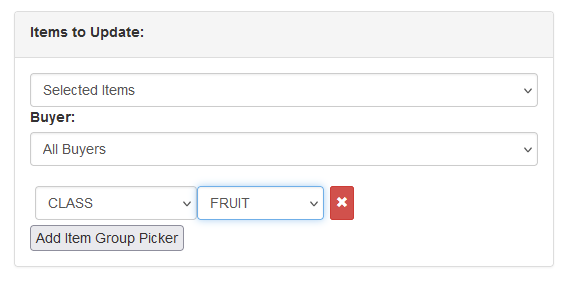
Items can be filtered by group attributes, such as all items marked as Class - Fruit
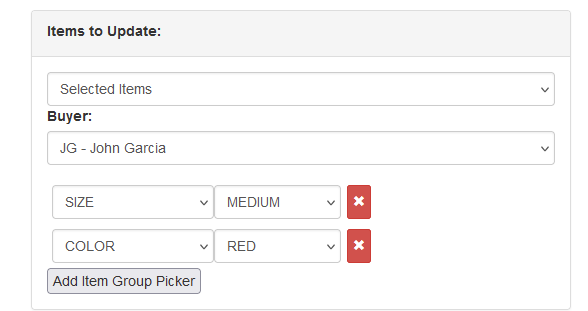
These selections can be combined as well. In this example, items with buyer John Garcia that are marked with groups Size Medium and Color Rad can be selected and manipulated
Add On Amount to Cost
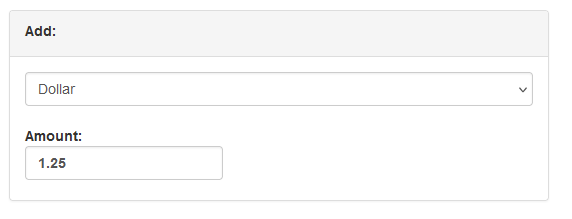
The Add feature allows the user to add a specific cost dollar or percent to the cost base by change Add from None to the selection
For example, this adds $1.25 to every item when calculating the cost base
Combining All Choices
The Items to Update and Add can be combined.
For example, all items with group Class Veg for buyer Marcia Armstrong will have $1.50 added to the calculated cost base
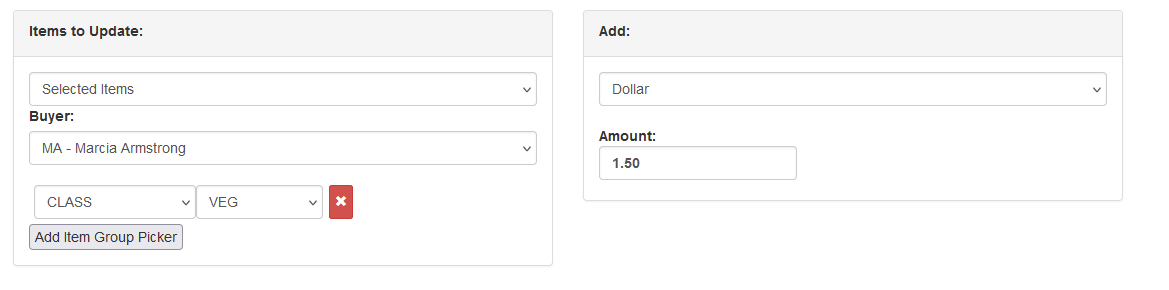
Any combination is acceptable.
Example Cost Base Updates
Example 1 Highest Inbound
Item 4474 currently has no cost base across the board

A purchase is entered for this item but not received. The cost, plus freight, is $24.75. COST2 is updated with Highest Inbound and no additional values
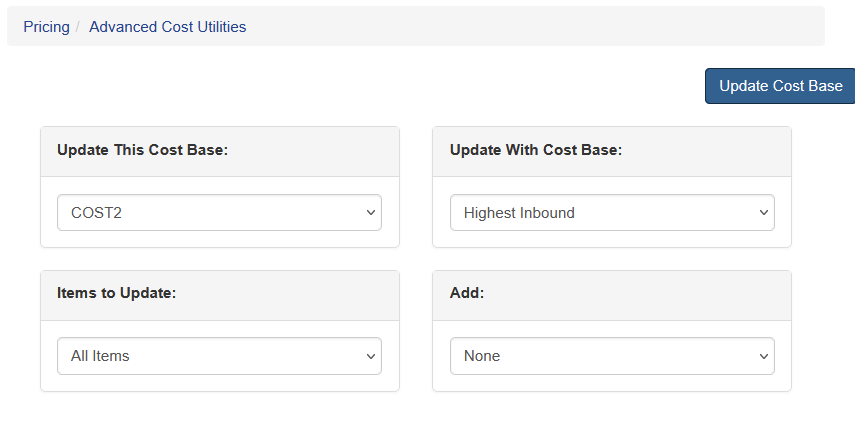
Updating the Maintain Pricing Costs screen shows that COST2 for that item is now populated.

Example 2 Highest Inbound with Addon
Same as above, but COST2 is now updated with highest inbound and an add of $2.25
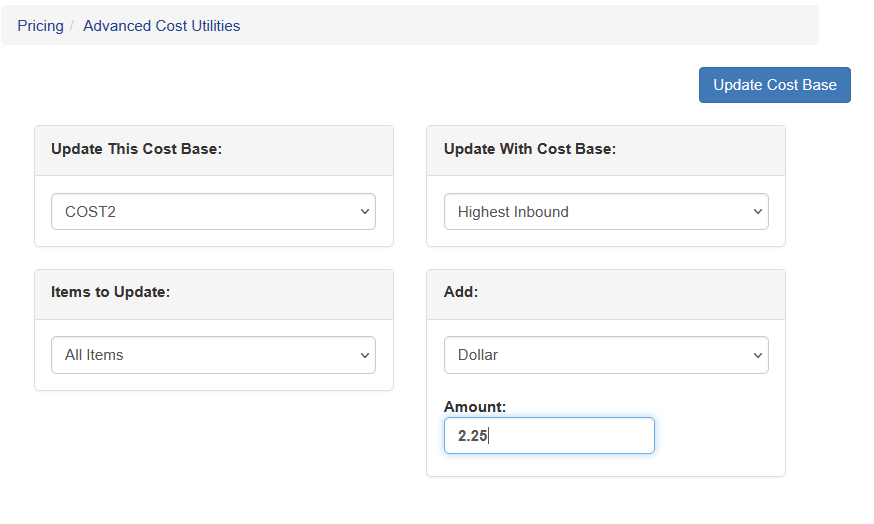
Updating the Maintain Pricing Costs screen shows that COST2 for that item is now populated.

Example 3 Highest Inbound
In this example there are two inbound purchase orders for 4474. The original $24.75, plus a second one for $30.55 and no addon. The highest inbound returns the new PO that is higher.

Example 4 Different Values for COST2 and COST3
One Purchase order for 4474 is received. COST2 is highest available, COST3 is highest on hand.


This creates different values for the different cost bases
