Pricing Overrides
Some prices are always fixed. These prices often are agreed upon with a customer over a period of time, or are a part of a buying program. These prices will stay the same regardless of the product’s cost fluctuation.
Create a price override
To create an override go to Pricing - Maintain Pricing Overrides. This will show you all overrides in the system and the criteria.

At the bottom is a button to Create New Overrides. Click this to enter a new override, this will take you to the Override Details screen.
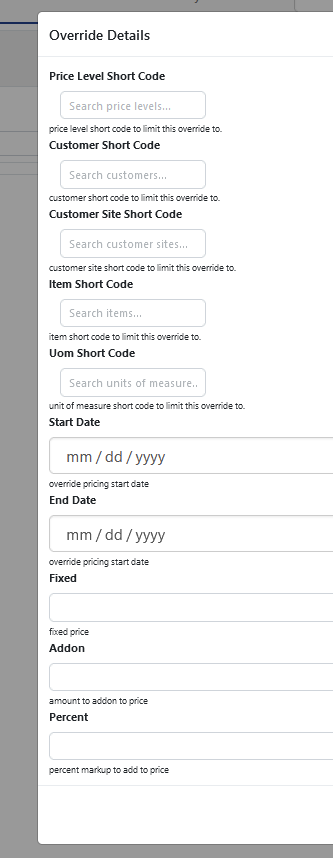
This screen allows you to enter the criteria for the override. It is important that you use only the details you need. For example, if you want to override an item for every customer assigned to that price level you would search for the price level short code.
If you want to override just a single customer site’s price for an item you would search for their short code.
The item short code, UOM short code, start date and end date are all required fields.
To set a fixed price, enter the price in the Fixed field.
Addon and Percent take the calculated price from the price level and add the additional amount or percentage.
Once the required information is entered click save.
Price Override Validations
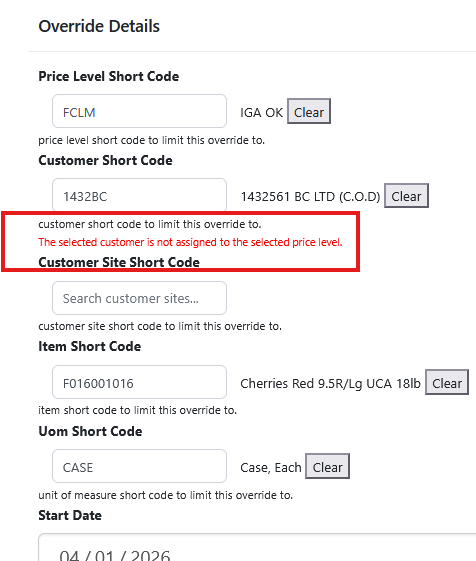
When creating an override that includes a price level the customer and customer site(s) must be assigned to the price level. If the price level is different an error will prevent the override from saving
Editing an override
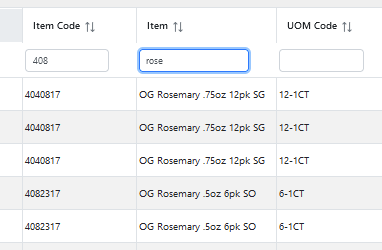
To edit an existing override, locate the line in the table. Portions of the data can be entered to search the grid. For example, if the item starts with 408 and has rose in the name that information can be entered in the grid to show every item that matches that criteria.
Removing Overrides
If a user wishes to quickly remove all overrides for a particular price level this can be done with the Advanced Overrides Utilities under Pricing - Advanced Override Utilities
To use this utility select a price level and a start and end date. This will show all items that are on that level with validity dates within that range. Select the item(s) to remove and click Delete Selected.
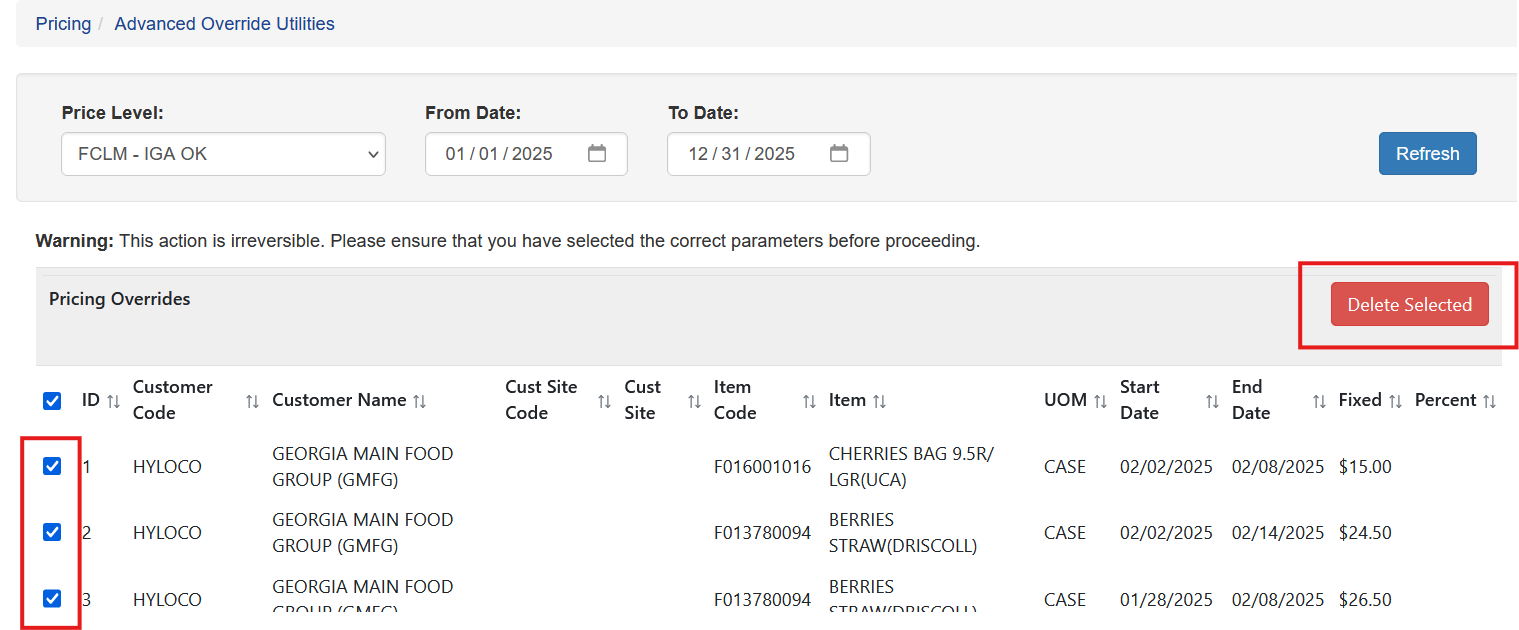
These items overrides will be deleted. NOTE: This is not reversible. If a user incorrectly deletes overrides the overrides must be recreated.
Importing Price Overrides
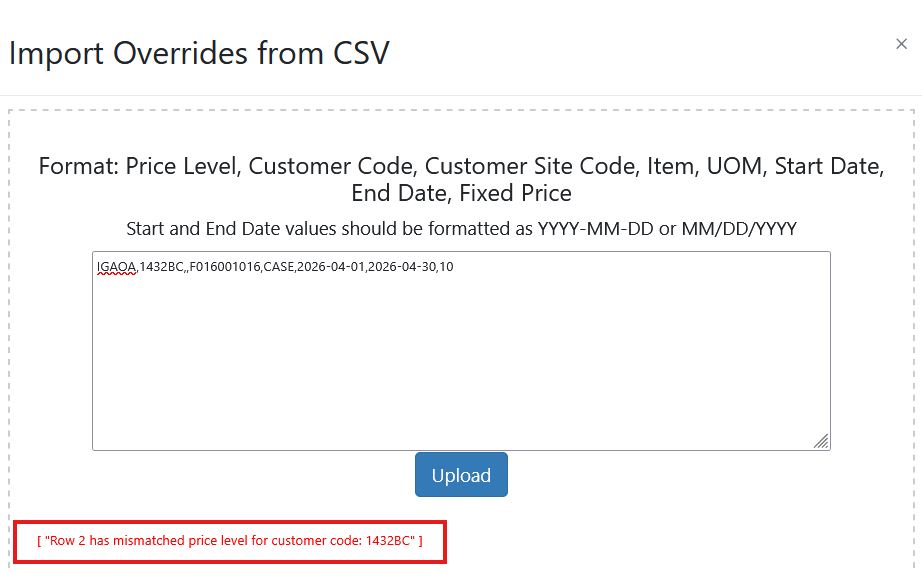
Users can import price overrides via a CSV or by cutting and pasting the CSV data directly. The import option is located at the bottom of the Maintain Price Override screen.
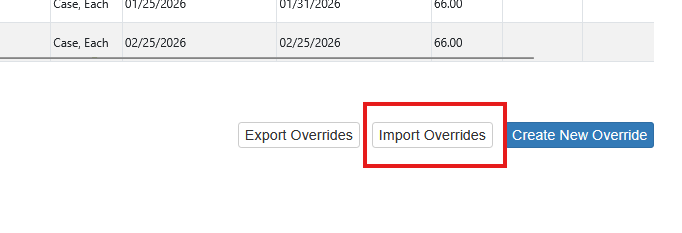
Choose Import Overrides.
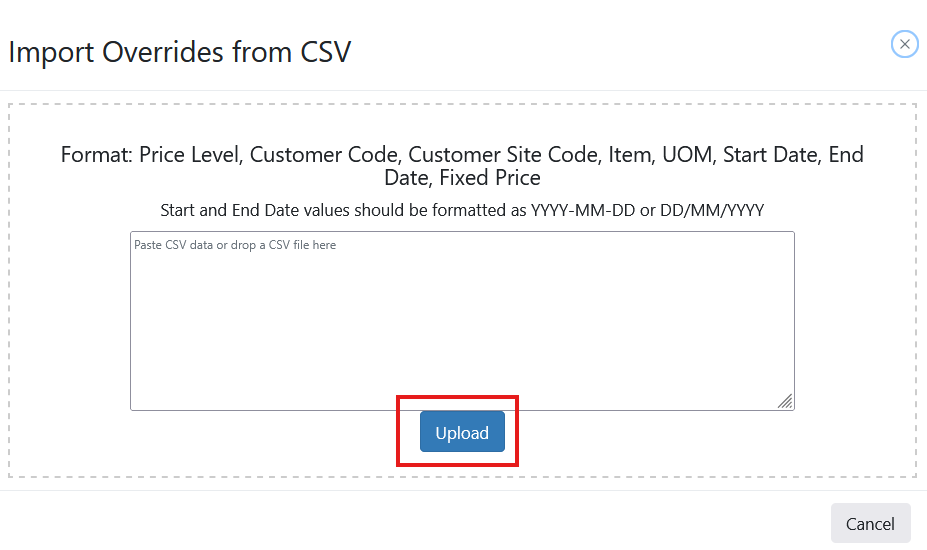
The import can’t have a header row, it must start with the first price override.
At least one field must be populated. If a filed is not it must be included but blank
Price Level: The customer price level code. This will override the chosen item for all customers on this price level
Customer Code: This will override every customer site that is a part of this customer code
Customer Site Code: The override will only apply to a single customer site
All fields must be populated
Item: Item code
UOM: Item unit of measure code. This is case sensitive and must match exactly
Start Date: The start date of the override period - it can be YYYY-MM-DD or DD/MM/YYYY - single digit dates must be prepended with a 0
End Date: The end date of the override period - it can be YYYY-MM-DD or DD/MM/YYYY - single digit dates must be prepended with a 0
Fixed Price: The dollar amount with out any dollar signs or commas, such as 13456.44
A downloadable CSV of the import template is located here
https://drive.google.com/file/d/1DxiBR4yuwJkQd_fyZaRr_ksODUQwH22l/view?usp=drive_link
Price Override Import Validation
If the user attempts to import a price override using a level and customer and the price level isnt assigned to the customer an error will be displayed and the import will not save.