Managing Control Books
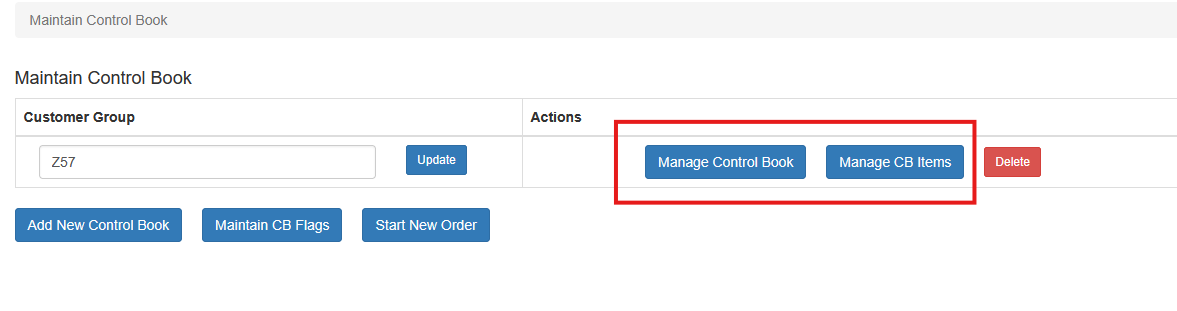
Once a Control Book has been created, you can add customers and items to it.
Adding Customers to a Control Book
To assign customers to a Control Book:
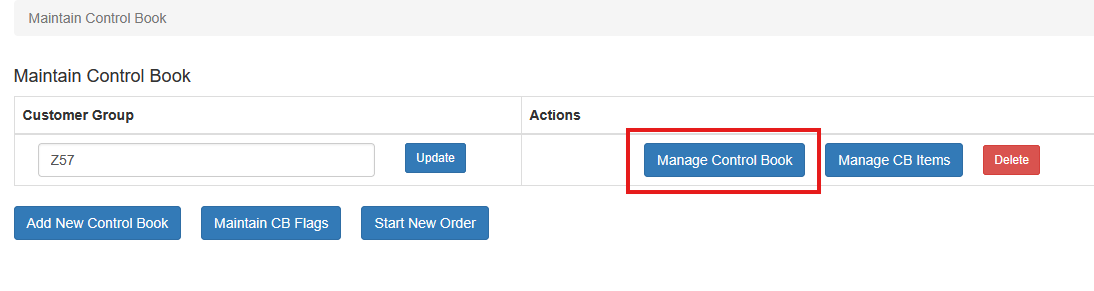
- Locate the Control Book in the list.
- Click Manage Control Book for that Control Book.
- Under Add New Member, select the Customer Site.
- Click Add.
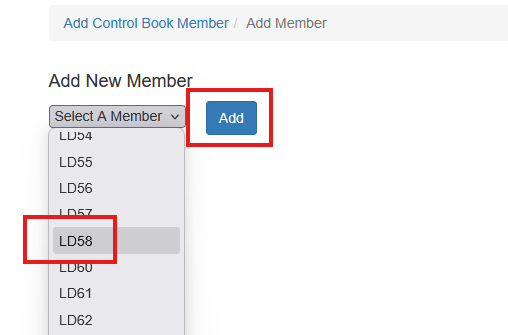
Repeat this process for each customer site that should use the Control Book.
Removing Customers from a Control Book
To remove a customer from a Control Book:
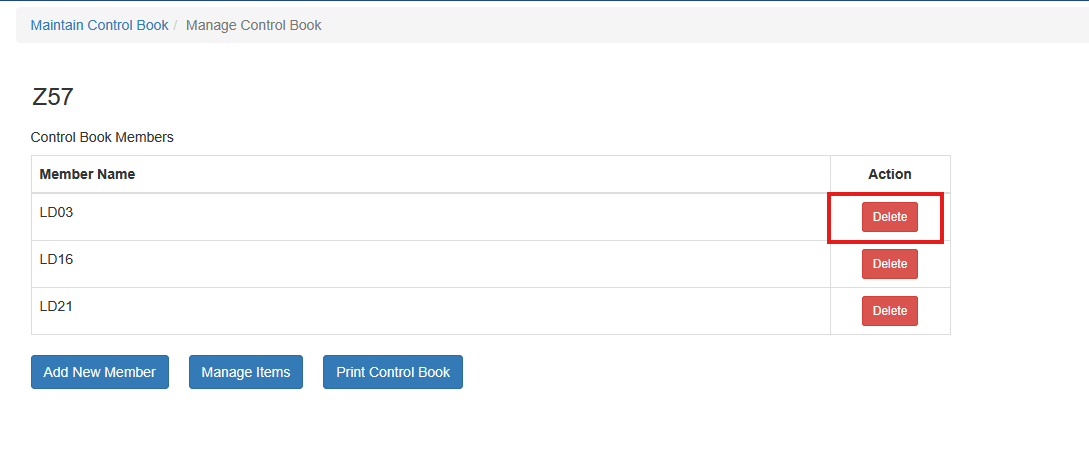
- Open Manage Control Book for the Control Book.
- Click Delete next to the customer.
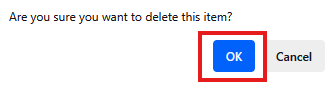
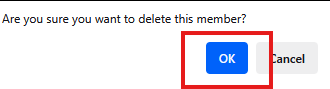
- Confirm the removal when prompted.
Adding Items to a Control Book
To add items:
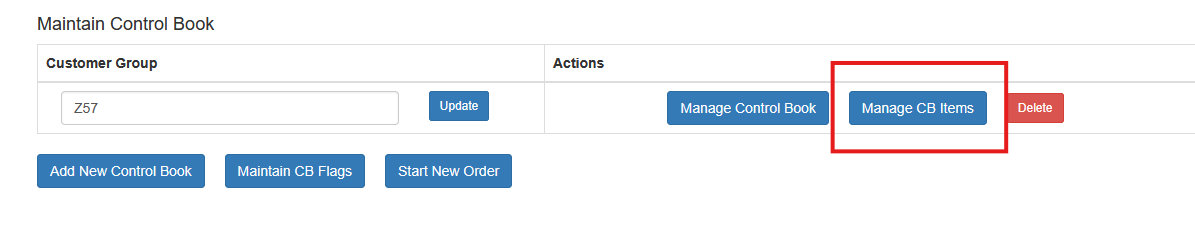
- Under Maintain Control Books, select Manage CB Items for the Control Book.
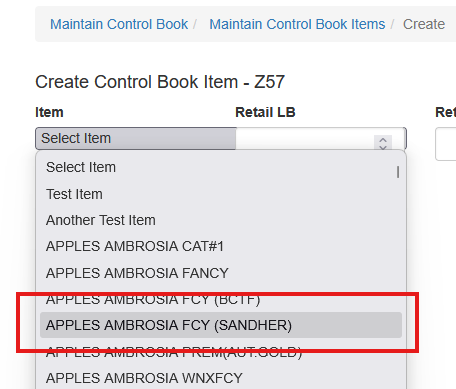
- Select the item from the dropdown list.
- Enter the Retail LB or Retail EA price to display.
- Select a Control Book Flag, if applicable.
- Click Create.
The item will now appear in the Control Book.
Updating Prices or Flags
To update pricing or flags:
- Locate the item in the Control Book.
- Edit the price or flag.
- Click Update to save the changes.
UPDATE IMAGE

Removing Items from a Control Book
To remove an item:
- Locate the item in the Control Book.
- Click Delete.

- Confirm the removal when prompted.