Routing Orders
To view and route orders for a delivery day:
- Navigate to SO → Route Overview.
- Select the Delivery Date.
- Select the Company Site.
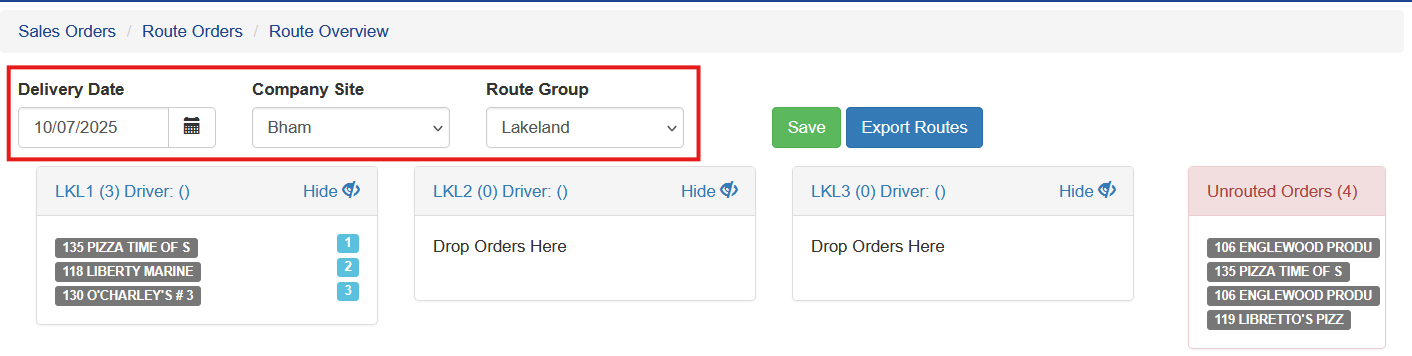
By default, this screen shows all route groups and routes for that delivery date that deliver from the selected company site.
To view a specific route group, select the route group you are working with.
The routes assigned to that route group will appear along with any orders that have already been routed or automatically assigned.
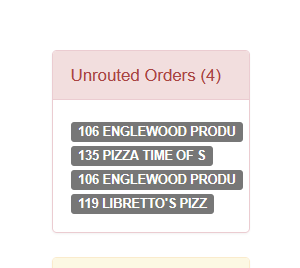
Unrouted Orders
Orders appear under Unrouted Orders when they do not have a default route assigned.
These orders are displayed on the right side of the routing screen.
Orders may also be moved into the Unrouted Orders area from existing routes. This is common when delivery volume is light and fewer trucks will be dispatched.
Moving Orders to Routes
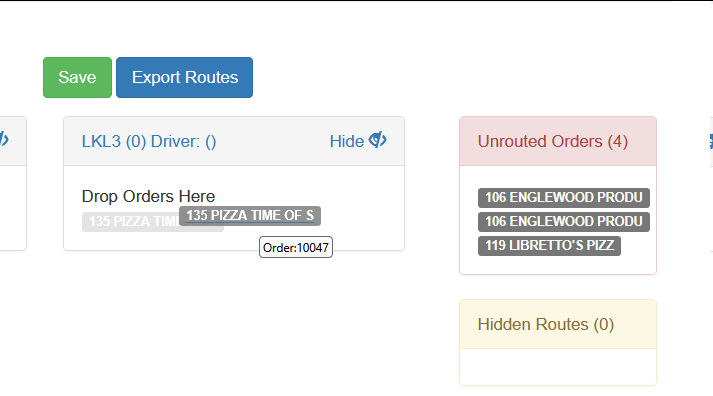
Orders can be moved between routes as needed.
To move an order:
- Click and hold the order.
- Drag the order to the desired route.
- Release the mouse button.
The order will immediately appear under the selected route.
Saving Routing Changes
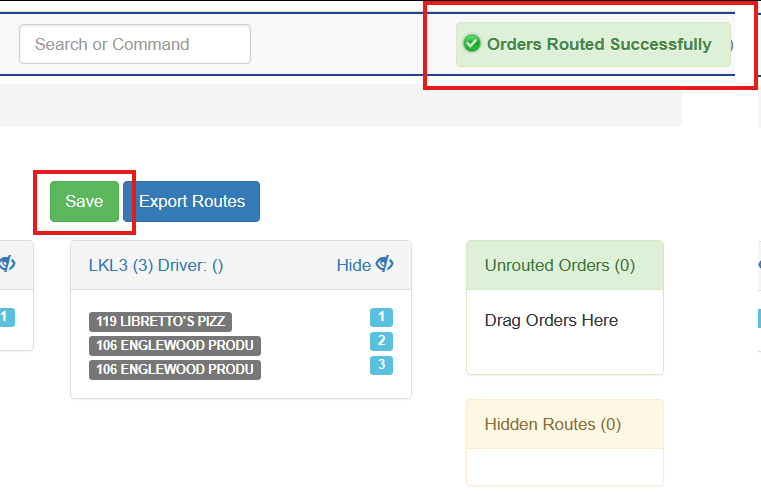
After making routing changes, it is important to click Save.
This saves all routing changes for that delivery day.
A confirmation message will appear in the top-right corner of the screen.